Up next in 10



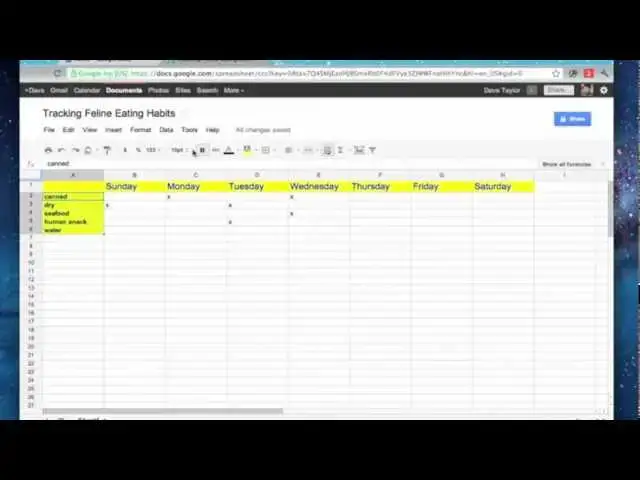
Spreadsheets aren't just for accountants and business folk, they're actually quite useful for everyone, and with the free, web-based Google Docs spreadsheet tool, they're easy to create too. In this short video, tech expert Dave Taylor will show you some of the basics of adding columns and rows, rearranging content and customizing the appearance of your spreadsheet, all without downloading a single file. It's easy!
Show More Show Less View Video Transcript
0:06
hi this is Dave Taylor and today I'm
0:07
going to spend some time showing you the
0:09
basics of spreadsheets in Google Docs
0:11
pretty easy stuff coloring the cells
0:14
adding columns adding rows and making it
0:17
the way you want it to look and you know
0:19
you might be thinking
0:21
spreadsheets I don't know about
0:22
spreadsheets here's the thing they're
0:24
actually super useful and there's a lot
0:26
of times that I find them really
0:27
beneficial even for something like
0:29
setting up calendar so let's jump in
0:33
okay so here we are at Google Docs and
0:35
if you don't know how to get there go
0:37
anywhere on Google log in and you should
0:39
find documents either on the top bar as
0:42
you see here or sometimes you have to
0:44
click on more and then documents will
0:47
show up there and I've just created a
0:49
new spreadsheet to try to keep track of
0:51
what food my cat eats not the most
0:53
exciting thing in the world but since my
0:56
cat did have stomach surgery I feel like
0:58
it's pretty important to know what's
0:59
going on so what I've done here is down
1:01
the left column I've put kinds of food
1:03
including human snacks and then along
1:06
the top oh boy looks like I have
1:08
forgotten Sunday so here's the first
1:10
thing we can work on is I'm going to
1:13
need to insert a column to the left here
1:15
so to do that notice when I put the
1:18
cursor over the column title A Little
1:21
Triangle shows up I click on it and I
1:24
can insert one left there we go so now I
1:27
have that and now we'll put in Sunday so
1:30
we got that and now it turns out that I
1:32
think I'd actually like to have water
1:34
below the human snack so to do this I
1:38
click and drag and notice that gray bar
1:41
is moving voila things have changed very
1:45
easy so actually adding rows is a little
1:48
tricky what I would recommend is create
1:51
the new row let's say um seafood and
1:55
then just drag it into the right place
1:58
oops so so there canned dry Seafood
2:01
human snack water my cat lives a good
2:04
life and then of course we could say
2:06
Sunday dry Monday canned Tuesday dry and
2:11
a human snack Wednesday canned and um
2:16
some seafood totally lucky cat Etc so
2:21
here's the basics of a spreadsheet but
2:23
it still doesn't look very glamorous so
2:25
the first thing I'd like to do is I'd
2:26
like to actually make the title along
2:28
the top I'm going to go ahead and select
2:31
them all and then I'm going to change
2:33
the color so you can see there's all
2:36
these things along the top luckily they
2:38
have little popups so we can do text
2:41
background color that sounds like a good
2:43
one so we can make that yellow and then
2:47
we can make the text what we can make it
2:50
a dark
2:52
blue and it's still kind of small so we
2:55
can also make the text a little bit
2:57
larger 14 point and not notice what's
3:00
happened is the spreadsheet has actually
3:02
scaled the cells to fit so that looks
3:05
cool and now let's go down this column
3:08
maybe we can do the same background
3:09
color just so we have visual consistency
3:12
and this time we'll just keep small
3:13
words but we'll do bold and watch this
3:16
we're going to have them right
3:18
aligned so that's cool in fact let's go
3:22
ahead and chose all the cells that are
3:25
in the active part of the spreadsheet
3:27
and make all of them centered cuz
3:30
that'll actually look better as we add
3:31
our X's so I'm not going to go any
3:34
further at this point other than to
3:36
point out that automatically this thing
3:38
is being shared and saved as we go so
3:42
that's nice you don't have to worry
3:44
about finding the save button so we're
3:45
done and if I want to change the title I
3:48
just double click on it and you can see
3:50
tracking feline let's make it my cats
3:53
eating
3:55
habits and there we go we're ready to
3:57
roll it's that's the real basics of
4:00
getting a spreadsheet going and if you
4:02
want to share it there are tools that
4:04
let you do that sort of thing and again
4:07
most importantly there is a really nice
4:10
help feature in Google Docs and there's
4:12
an entire help center all really really
4:15
helpful that wasn't too bad was it so
4:18
now that we have all the basics of
4:20
spreadsheets I would suggest to you go
4:22
ahead and give it a try see what you can
4:24
do it's really pretty easy and good news
4:27
if you have to use Google do some
4:29
searches for specific things you're
4:31
trying to solve with your spreadsheet or
4:33
your Google doc and there's tons and
4:35
tons of help material until next time
4:37
this is Dave Taylor and you can find me
4:39
online at ask davet
4:54
taylor.com