Up next in 10



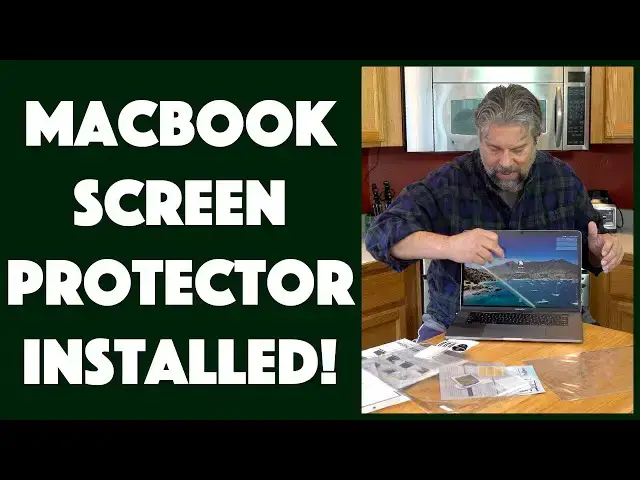
People think about screen protectors for smartphones, but have you ever thought about keeping your MacBook Pro's screen protected? Or maybe you want to cut down on blue light, UV, and glare? Homy Screen Protector Kit for MacBook Pro 15" with Touchbar offers both a "clarity" and "matte" anti-glare screen protector in the same package. As a bonus, it also offers a free ultra-thin TPU keyboard protector.
Tech expert Dave Taylor of https://www.AskDaveTaylor.com/ takes the plunge and goes through the screen protector install in this video. It's not too hard once you get the screen perfectly clean, but getting it all to line up perfectly? That's a bit tricky...
Check it on Amazon: https://amzn.to/2Q9QnQc
or on Homy's site: http://bit.ly/2VUhTVz
Show More Show Less View Video Transcript
0:00
A screen protector for your MacBook
0:02
Let's install it and check it out. Dave Taylor here, and I've owned a lot of Macintosh in my time
0:15
I mean, I go back to the original Fishbowl 512K, right? I've owned all the Apple ones
0:21
I've owned some third-party ones. That's back in the day. And I've owned a lot of laptops, a lot of MacBooks, MacBooks, MacBooks
0:29
MacBook Airs, you name it, I'm probably owned one. Now, I have the MacBook Pro. This is as of
0:35
actually last year, and this is with the touchbar, but this is the second generation of MacBook
0:41
Pro, 15-inch screen with touchbar, and I really like it. It's a very nice computer. It's powerful
0:49
enough to render all the videos that I do, and it's light, relatively speaking, does everything I need
0:57
But there's always that slight little concern that what if something damages my screen
1:04
Now, with smartphones, we're really used to the idea of putting a screen protector on a smartphone
1:09
though, frankly, the glass on modern smartphones like an iPhone is actually tougher than the glass they're using on laptops
1:16
But what if you could put a screen protector on your screen
1:20
Now, it's a couple of different reasons you might do that. You might do it for privacy
1:24
You might do it to cut out blue light, which is good for your eyes. But you might also do it just to cut out some of the glare
1:31
So there used to be a matte screen and a sort of higher clarity screen
1:36
And somewhere along the way, I guess Apple looked at their sales numbers and said, people aren't really buying the low glare one
1:42
So we're just going to just give everyone that same screen, get the efficiency of numbers
1:46
and you'll just cope with the glare. Now, I often sit in coffee shops
1:50
and there might often be a light source behind me, in which case I am a victim of glare
1:56
So, enter what we're going to look at today. This is the homey screen protector kit for the MacBook Pro 15 inch
2:05
This actually covers the 2016 to most recent model MacBook Pro 15 inches
2:10
And there are two screen protectors in here, which is really cool. There's one that's a matte finish, which will lower glare at the cost of a tiny bit of brightness
2:20
And then there's a crystal clear version that won't do anything about the glare
2:26
but it just gives you that little bit of protection. Nice, right? So, installing it tiny bit tricky
2:31
because on a little phone screen, there's not much to go wrong
2:35
There's not much you have to worry about with angles, although that's tricky too. But this is a much bigger surface
2:41
and this is going to take a little bit of doing, so they have their approach
2:45
We're going to try it, we're going to see if the homey screen protector kit does install correctly
2:50
Now, while I'm opening up the package, and this is a very affordable dual protector
2:56
you can get from Amazon directly. So we're gonna get rid of, I don't know what that was
3:01
We'll get rid of the plastic. And it says, before opening measure to confirm
3:08
your screen size and model compatibility with front and back labels. I guess they're talking about like down here
3:14
and they're talking about the information here on this sticker. You know, it would be cool
3:20
It would be cool for them to actually put lines on the package
3:24
that would actually match up. And you could say, yeah, that's exactly the right width
3:29
and that's exactly the right height. This must be for this particular Mac. In any case, I know it's the right one
3:35
So we're just going to open this thing up. So let's see. It has a little pull thing
3:40
And again, I'll clean stuff up later. And now they have the instructions on the back of the packaging
3:49
which is actually pretty smart. Let's see what's in here. So that's all we got
3:54
That's fine. So there are two screen protectors here and the whole installation package And it also includes this keyboard cover which is actually a super thin It 0 millimeters TPU keyboard protector We look at that when we done with the screen install because I much more interested in my screen than I am in my keyboard
4:18
Although I did just actually have to pay to replace a bunch of key caps because the oils in my finger are apparently fairly corrosive to keyboard caps
4:28
So I got new ones. If I would have had this, it wouldn't have been an issue
4:32
In any case, let's see. So we have U.H.D. glossy screen protector
4:38
So that's the extra clear one. And then we have this, which is the matte screen protector
4:45
And that is obviously not the extra clear one. This one is going to be slightly more opaque or translucent
4:52
It's definitely not going to be more opaque. It's going to be slightly more translucent at the benefit of cutting out a lot of the glare
4:59
that you get on the regular MacBook screen. Now, it's almost a perfect rectangle
5:04
There is a tiny little cutout at the top, which one presumes lines up with your camera
5:10
at the very top of your MacBook screen. And then there's the install kit
5:15
So what the install kit includes, and I know this because I've already been studying
5:19
the installation process, it includes a screen cleaner, it includes stickers to get that last little bit of dust
5:29
off. It includes a lint-free cloth. So let's see. Here's, let's see. So there's some optional
5:40
stickers. If you have the screen lifting off when you're opening it because of the way the
5:47
Apple redesigned the keyboard. And apparently the 2020 MacBook Pro is going to have yet
5:53
another kind of keyboard. It's pretty exciting. So first off, we have this piece of
5:58
cardboard, which is what we're going to use to gently push those air bubbles out. So we'll put that
6:05
aside. We have two tiny lint-free cloths, honestly, bigger cloths and maybe, and here's the
6:13
stickers to get rid of dust. Bigger stickers and bigger cloth would be entirely appropriate for a
6:19
screen protector this size, but we'll make it work, right? And then there are two, as you would expect
6:26
two actual screen cleaners. So you open this up, and, you know, I would open this up
6:34
In fact, I will open this up. And then this is basically like a wet wipe at a good barbecue restaurant
6:41
And by good, I mean like scroungy and focused on food, not focused on decor
6:47
If you're from Texas or Kansas City or something, you know exactly what I'm talking about
6:52
And if you have barbecue somewhere else, well, it's good on you for trying
6:56
I know I'm starting barbecue wars. So this is this massive screen cleaner, a little daft
7:03
Again, it could do with being a little bit bigger. But the idea is that you want to just do a really good job of cleaning your screen
7:11
You want no dust, no hair, no particles, nothing. The cleaner you can get it, the better the overall effect will be
7:20
So I'm going to pay attention to this for a second. And that looks like that's pretty clean
7:25
Now I'm going to use, let's see, then they say, use the dry wipe
7:31
So we'll do that next. And of course, the reason there's two of these is because there's doubles of everything
7:36
because there's two screen protectors. So, you know, I'm going to install one
7:41
And who knows, maybe down the road I might change my mind and decide I'm going to install
7:45
the other one. So having doubles of everything entirely makes sense. Now, let's see
7:50
Ironically, their screen cleaner wipe has actually made my screen more smeared than before
8:02
So what I'm going to do is I'm going to jump off camera. I going to use a different screen cleaner because I really want this to look good So hang on a second Okay now I have a different commercial package and a considerably larger lint cloth
8:16
Makes it a little easier. But more importantly, this is going to make sure it's completely glare-free
8:22
You might not have this issue. This might just be my screen, but since I am looking at it and I'm getting just light from just the right angle
8:30
I can really see the smears versus having it be in perfect
8:35
clean, clear with no marks of any sort. So now this looks good and I'm kind of
8:43
obsessive about having my screen clean anyway so I recommend you have a really good
8:48
screen cleaner. Although of course having a screen protector might mean that you
8:53
don't have to do that as often. It's also the case that the mat finish is going to
8:58
be easier for you to ignore things like fingerprints than the entirely
9:03
crystal clear finish will. So now that is a beautifully clean screen. Look how clean that is. I know you can't really tell. So I'm
9:11
going to put this aside and we're back to work. So now next step is to use the dust
9:19
absorber sticker. Let's see. And I'm looking at it at an angle because I'm really
9:25
trying to figure out where might I collect dust. And I think that's probably more likely in
9:30
the corners and such. So that all looks good. I'm not going to do much of that. I think we're
9:35
good and now I'm going to use let's see which one's which this is the matte screen
9:40
protector that is the one I want to install so now there are some stickers on this
9:47
because it actually has the screen protector itself has protective film on both sides
9:53
which if you think about it does make sense so let's see there's a blue sticker that
9:59
says peel off mask with this sticker and then there's a red sticker that says number
10:05
two. So here's what I think is the case, is that the blue sticker goes on the top. In other words
10:14
facing in, and then the red sticker is going to be on the other side. And it's interesting because
10:19
right now there's actually some fair amount of distortion. I don't know if you can see that
10:24
but this is a little distorted, but I have a feeling when I put it on my screen, it's going to
10:29
do just fine. So now the idea is that I take this off and now this is ready to go
10:39
I double check that the little slots are at the top, which is where I want it
10:43
And then I just want to position it so that the camera is in the right place
10:51
And it is pretty easy to take on and off. That looks pretty darn perfect
10:58
And now this is where this comes in handy because now I'm going to use this to put
11:05
push out all the air bubbles. And if at this point you realize you haven't got it
11:10
quite perfectly on your screen, that's okay. Lift it up very carefully and do it again
11:17
And let's see. Basically, we're most of the way done with this process already
11:23
Believe it or not. And you do have to have a little patience
11:27
It's kind of fun. You push the air bubbles to the edge and they just sort of, boop, disappear
11:32
And as I do this, it's getting smoother smoother and it doesn't have to be perfect because when your screens on I've learned this with
11:40
phones when your screens on if there are slight imperfections on your screen protector you really don't
11:46
notice as long as they're not like a huge so I am just about done pushing the air bubbles out of my
11:53
screen protector let's see we'll get that one we'll get this one and let's see it's all looking great
12:05
Maybe one more. And I supporting the back of my MacBook screen because I don really want to distort the screen at all by doing that And so here we have it And I going to wake up the screen So you can see it is not entirely easy to see what going on
12:27
But that's because I haven't done this. Now I peel off the second protective screen
12:33
And now I have the screen protector on. And I can barely even tell that it's there
12:39
So that's all there is. to it. So it's actually pretty painless. And what you want to do is you want to be careful on all of
12:47
these steps. And when you're done, you're good to go. Now, with that done, let's have a quick peek
12:54
at this little keyboard protector and see what that looks like. So this is a little freebie that
13:00
they include. Let's see if I can get this thing to open. I do have knives
13:11
behind me if it proved necessary, but let's assume that's not necessary. So take that out, take that
13:18
And there's this extremely clear keyboard cover, which is cut to exactly the keys on my keyboard
13:29
And in the picture, it looks like the keyboard cover actually has the key letters printed on it
13:37
but it doesn't. So it's just a cover. So now, if I close it and open it, the cover stays on
13:46
My screen is still protected. I am ready to go. There you go. I have to admit
13:52
slightly anxiety provoking when you're doing this sort of thing. But let me just tell you just a
13:57
tiny bit more about the screen protectors. They are 5H hardness, so they're not super, super tough
14:03
but they're tougher certainly than having nothing, right? They do have a lifetime
14:07
warranty so if you ever have any problems with them breaking or chipping or whatever the company will
14:13
forever be able to replace it for you or to help you figure out what to do they cut out about 30% of
14:20
blue light about 90% of uv light so they're not technically blue light filters in the way of like
14:26
a blue light filtering screen protector that might cut out 90 to 95 or even more of the blue light
14:34
if you want to know why that's important just do a google Trust me, less blue light is good
14:41
And otherwise, it's really just about protection. It's really just about protecting that screen
14:46
And the inclusion of the keyboard cover, all pretty cool. So that's it
14:50
Bit of a mess. You know, they could probably tweak their installation process to have better quality screen
14:56
cleaners and maybe bigger stickers and a bigger little cleaner. It's a big screen
15:02
This is a tiny little wipe, right? So that could be modified
15:05
But otherwise, fairly straightforward, reasonably easy to do, and the end result is actually pretty nice
15:12
I can't really show you more or less glare, but, you know, I am really enthused to have it be a little less annoying when I have like overhead lights or I have a window behind me
15:22
So that's all I got. Before I tell you the price of this whole package, I do want to ask if you can subscribe to my channel, just go click on that button and you're good to go
15:31
Great. Now, this whole setup, and this is still the ultra-clear, this whole setup is the homie screen protector kit with two pack of matte and crystal clear protectors and a free keyboard cover for 1699 at Amazon.com
15:50
Check my description for a variety of different links. And that's all I got. So I'm going to get back to work
15:56
Which means I'll catch you in my next video
#Laptops & Notebooks
#Electronic Accessories