Up next in 10



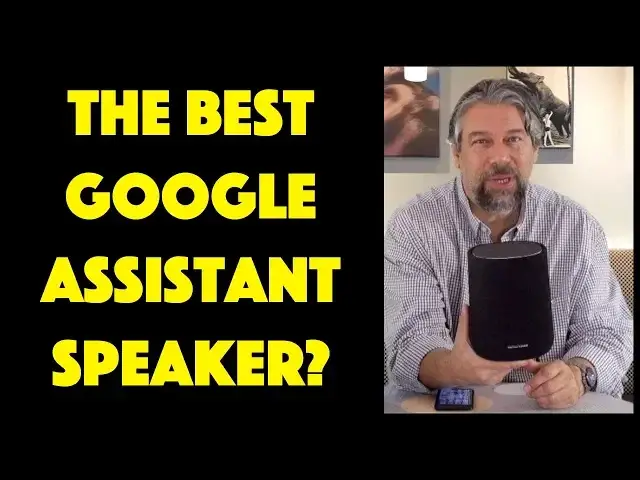
There are a lot of smart speakers on the market but most of them come from electronics or tech companies with no background in music and speaker design. And designing a great speaker isn't so easy! That's why the Harmon Kardon Citation ONE smart speaker with Chromecast and Google Assistant is definitely worth a listen!
Tech expert Dave Taylor of https://www.AskDaveTaylor.com/ auditions the Harmon Kardon Citation ONE and finds it an excellent smart speaker, perfect for a dorm, apartment or living room. Only one small complaint about the interface, but you'll have to watch the video to find out what it is!
Learn more at https://www.HarmonKardon.com/
Show More Show Less View Video Transcript
0:00
There's lots to love about this smart speaker
0:02
Let's have a listen. Dave Taylor here, and I'm looking at this
0:12
This is the Harmon Cardin Citation One with built-in Chromecast and Google Assistant
0:19
which means I can say things like, hey, Google, what time is it in Bangladesh
0:24
The time in Bangladesh is 1049 p.m. It's handy to know. And of course you can do things like, hey Google, volume up
0:33
You don't get much feedback for that. But now I can do something. This is something I really enjoy
0:38
We have a great jazz radio station here in Denver, Colorado. And I listen to it
0:43
You can too by saying, hey, Google, play KUVO radio. Streaming Cougo from tune in
0:51
And that's all you got to do. And now I have really nice sound
0:56
This is a really nice speaker. And you can hear it's very good sound reproduction
1:03
Now, I don't have a license rights to re-broadcast this music. So, hey, Google, stop
1:09
Notice also how quickly it responds to things. This is sort of like the second, maybe third generation of smart speakers
1:17
Because the very first one, there was a noticeable delay. And even with some of the Amazon Alexa speakers that I have, I'll ask it to do something
1:26
And then there's a delay of a second or two. This is just like right on the mark, which is really nice
1:31
Now, let me tell you a little bit about it. So it's a wireless Bluetooth speaker
1:36
So I've already set it up with Bluetooth. So let's try that too. Hey, Google, connect Bluetooth
1:42
This device is already connected to IDaveXS. Cool. So it's already connected to my phone
1:47
So let's see if we can play some music from my phone
1:52
And this is not very exciting. Let's try something a little bit better. So Julian Lennon, Julian, if you're out there, good stuff
2:03
This is from one of your first albums, Volote. And I hope you can hear just how much bass is going on here too
2:11
I'm going to pause it from my phone and watch how quickly it responds
2:16
Ready? So that's not bad. That's about a quarter second or so
2:20
You don't get instant response because it is Bluetooth. If I was streaming directly on this, you know, using something like
2:27
Spotify, then it's actually even faster. But it's funny because actually one of the complaints people have about the speaker is that
2:34
there's so much base that it actually vibrates things on the surface you put it on
2:38
So yeah, you probably don't want it on the dinner table while you have all that glassware
2:42
and all the silverware right next to each other. But seriously, who's going to do that
2:47
I think that's actually a good problem to have. It's like, oh, this speaker can produce so much music
2:54
Now I already said wireless Bluetooth built Google Assistant My kids ask it anything My kids love this for homework It super handy Chromecast means that I can push music and all sorts of audio content from devices to devices that work super easy
3:10
And they have a connection with over 300 different streaming services through Google Assistant
3:15
but of course, since it's Chromecast and since it's Bluetooth, it's really basically an infinite number
3:21
I could watch a Netflix movie on my phone and then listen to it through the speaker
3:26
So that'd be cool. Maybe for music videos at a party and iPad showing music videos
3:31
And then this or, by the way, if you get two of the citation ones, then they automatically
3:36
become stereo. Super cool. You know, something like that could be a really fun configuration
3:42
Now, one limitation, no audio in. And that might be something that you care about
3:48
It might not. So I figured there's so many other ways to get music onto this
3:52
The lack of an AUX plug probably isn't a big deal. And seriously, like, oh, well, I can't use headphones
3:58
Why would you be plugging headphones into a smart speaker? It is totally illogical
4:04
Now, let me tell you a bit about the size. So it's 7.5 inches by 5.5 inches by 5.5 inches
4:09
So you can see the top, it's kind of a square. Actually, maybe the bottom's a bit bigger
4:13
So the bottom is probably those dimensions. And it is pretty heavy. It is 4.5 pounds
4:18
So this is not this super light portable speaker that you're going to throw in your suitcase
4:23
but it also gives you way better sound. It is a sad reality that there are physical characteristics and limitations to audio reproduction
4:32
Big, heavy speakers tend to produce better sound than little teeny tiny speakers
4:37
whatever tricks they're using for their audio reproduction. There's just a sort of physical piece of pushing air and making sound waves and stuff
4:45
Now, having said that, this features a 20-minute speaker. millimeter tweeter and an impressive 89 millimeter woofer. It gets a whole pile of base. It's very nice
4:55
Now, on the top, let me give you a quick tour. So you have in the middle, that is the Google Assistant button
5:02
So you can push it and you can say, what's 100 divided by zero
5:08
Sorry, I'm not sure how to help with that. Wow, that's really loud. Let's turn that volume down a little bit
5:14
And it couldn't figure out that math equation. Come on, divide by zero. It's right
5:18
I was hoping there was something more exciting. But you have in the center the Google Assistant
5:24
and then on the left you have a mute button and you push it. The mic is muted
5:28
Hey, Google. Hey, Google. Hey, Google. And then you unmute it. The mic's back on
5:35
It's still way loud, right? And then you have Bluetooth. But again, you know, there's all these features, volume up, volume down
5:42
But generally, you're going to use them through the voice interfaces. So I like that's all there
5:47
I like that you have this convenience, but it really isn't something you're going to use a lot
5:52
And I will also notice that there no pause button So if you have music playing and you want to pause it you going to have to say pause
6:04
So there's still a voice piece involved, right? So that might be a slightly bit more clumsy than it should be
6:11
Maybe that middle button should also be pause play or something. But, you know, if you're listening to music and you push that, your music stops
6:18
It's listening for what you're going to say. It gives up after a while. It goes back to your music
6:22
and you're like, oh, it's not a mute button. So you heard it here first. It's not a mute button
6:27
Now, setting this whole thing up has become easier and easier. And you basically launch the Google Home app on your smartphone
6:34
I have an iPhone. So Google plays very well on the iPhone platform
6:39
Obviously, it's great on Android. And I just thought to give you a super quick sequence of how this works
6:45
So first off, I launched the app. It's looking for the speaker. It finds the speaker, along with some other stuff
6:51
and then I have to assign it to a location. I was super tempted to assign it to shed, but I didn't
6:57
Then you can choose to add streaming media services directly into the brains of the speaker
7:03
and that's actually really nice. And then, of course, this is pretty typical is the very first time you connect it
7:09
you immediately have a software update available, so you let it run the update
7:13
takes a couple of minutes, and finally it's done. And now you can see, here's my family room speaker
7:19
and it's actually playing some music. Very nice interface. And in fact, I really like Google's put a lot of effort into the Google Home interface on the smartphone
7:29
And it's very elegant. It's very straightforward. And that works really well
7:33
And notice, you know, if I'm listening to something like KUVO Radio, it shows me the music playing
7:39
That's a pretty neat little feature there. So that's just like another bonus to listening to music
7:44
But ultimately, ultimately, it's a speaker. It has to sound good, right
7:49
So running Bluetooth 4.2, not Bluetooth 5, probably not a big deal in this context
7:55
Bluetooth 5's most valuable for like true wireless stereo earbuds and things
8:00
There's a lot they've done to have multiple devices sink cleanly and stay connected well
8:06
but not an issue. It's a speaker, right? Sound and noise ratios greater than 80 decibels, 40 watt output if you're from old school speakers
8:15
and you're like, well, how much wattage does the amp push? These are 40 watt speaker
8:19
So that's actually pretty good. It gets loud. It supports, ready for this
8:23
AAC, MP3, Vorbis, Flak, Opus, and Wave formats, among others. It supports a lot of stuff
8:31
So I really like it. I think the sound is really splendid
8:36
Let's give it just another sound example. And this time I'm going to find some music that I actually can play for a little while
8:43
So let's try something like. Let's try this. And we will then switch to Google Home Somewhere on my phone I know I have it here somewhere Here we go And I going to turn the
9:09
volume up. So you ready? And you know, obviously what you're hearing is limited? And you know
9:20
Obviously what you're hearing is limited by my microphone and your reproduction system
9:25
I can tell you this has a very nice, clean sound to it
9:30
Now, it doesn't have a ton of sound stage or anything. Turned down just a little bit
9:34
It doesn't have a ton of sound stage because, of course, it's a single speaker. So it's not even playing stereo
9:39
It's sort of a mono that's being pushed out in different directions
9:43
But it still sounds really good and it can definitely fill up a room
9:48
This would be fantastic for a dorm room or an apartment, for example, or maybe for your study or some other room
9:56
And again, remember, it's also a Chromecast device. So anything you have that you can push out Chromecast, including from your Chrome browser on your computer, you can just point it to this
10:07
Boom, all your audio is coming out of this, and it sounds great. So if you're super enthused, get two of them, and then you will have even better sound, because then you will get true stereo
10:16
but that is actually a fairly spendy proposition which leads us to the final piece
10:22
hey Google pause so leads us to the final piece which is price but before we get to
10:27
price let me ask if you can subscribe to my channel really appreciate that and if you're
10:32
using a third party smart speaker that works with Google Assistant let me know in
10:37
the comments what you're using and how you find it because you know these are just
10:41
growing categories and there are so many choices out there this is a very nice
10:45
option, but there are other ones too. Okay. Now, this, Harmon Cardin, Citation 1, and by the way
10:53
on the bottom, you have just a regular plug, no transformer, just a wire that goes into the wall
10:58
and you have exactly two other things on the bottom. You have a service port, which presumably
11:03
we mere humans don't use, and you have a reset button, which hopefully you'll never need. That's
11:08
it. No other inputs, nothing else, super simple. You plug it in, you hook it up with your app
11:13
you're ready to rock and roll. CARTEN, Citation 1, available in black or gray, 199, 95 at harmoncarden.com
11:23
This is absolutely a keeper. This is going to be in my living room, which is why I signed it that
11:28
room, and I'm looking forward to enjoying it. So, this is Dave Taylor, and I will catch you
11:32
in my next video
#Music & Audio
#Audio Equipment
#Media Streaming Devices