Up next in 10



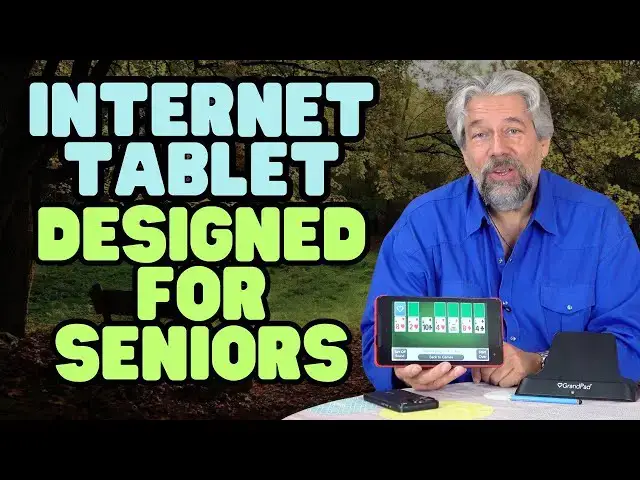
Have a parent or grandparent who seems endlessly befuddled by modern technology, but wants to remain connected so they can email, check Web sites, call their friends, even play online games? Then the GrandPad Tablet for Seniors might just be a game changer for them. It's an immersive environment that protects users from unwanted calls, spam, scammers, and other threats, while offering up easy-to-use email, web access, phone calls, video chat, photos, music, and lots more, all with a consistent interface.
Tech expert Dave Taylor walks you through all of the major functionality and features, starting with a basic unboxing of the GrandPad Tablet to its major apps and the admin app on your phone. It's a remarkable achievement and well worth watching to see all the smarts that have gone into designing this product. It'll turn a senior's experience with the digital world from confusion to contentment.
Check it out at: https://www.GrandPad.net/
Visit Dave's Q&A Web site at: https://www.AskDaveTaylor.com/
0:00 Introduction
1:43 What's in the Box
3:18 Plugging in the Charging Stand
4:27 Welcome to GrandPad
5:51 Grand Tour of the GrandPad
7:35 The Email App
9:26 The Weather App
10:27 The Music & Games Apps
12:02 The Internet (Web) App
14:00 The iPhone Admin App
16:11 The Grandie (AI) Chat App
18:09 Commentary on the Tech
Show More Show Less View Video Transcript
0:00
have a senior in your life who's a
0:02
little befuddled by technology this
0:04
tablet could change their life let's
0:07
check it
0:11
[Music]
0:14
out dave Taylor here and I want to talk
0:17
about senior citizens and technology now
0:20
there are definitely people that are in
0:22
their 80s and 90s that are really razor
0:25
sharp and fully understand all of the
0:28
modern technology but for everyone like
0:31
that someone has a grandma or a grandpa
0:34
or an aunt or uncle who just seems
0:36
completely befuddled by everything and
0:39
they're the absolute you know target for
0:43
scammers and unfortunately the stats
0:45
show that senior citizens are the most
0:48
targeted and the most likely to be
0:51
tricked so what you want to do is you
0:54
want to have a technology that solves
0:56
that problem and makes the whole
0:59
internet and cell phone and landline and
1:03
desktop computer experience simple and
1:06
that's exactly what this does this is
1:09
the Grandpad tablet for seniors well in
1:13
the boxes so I want to do an unboxing
1:15
and then I'll give you a little demo of
1:17
some of its features but the idea is
1:20
that it's a locked down customized
1:23
version of the internet and of
1:26
technology for senior citizens let's
1:30
check it out so going to open the box
1:32
and I have to say it is very rare for me
1:34
to see a box that's so carefully labeled
1:37
to make sure you never open it upside
1:39
down or anything so we won't open it
1:42
upside down i will open it the correct
1:44
way and right off the bat on the top it
1:49
says "Welcome to Grandpad." And then it
1:54
gives you a super simple setup guide
1:57
literally there are three steps we will
1:59
do that in a moment and then there's a
2:02
quick guide to the homepage of the
2:05
tablet and then some of the many apps
2:08
and what they've done is they've
2:10
basically rewritten all the apps that
2:12
people use on the internet so that
2:15
they're locked down safe and easy to use
2:19
the real fun here is when we actually
2:21
pull out the tablet and it looks like
2:24
what they have is this is an Android
2:27
tablet and it comes in a case and the
2:30
case is branded for Grandpad so we'll
2:34
put that aside because it also includes
2:36
a charging station so this don't need
2:39
that and then more cardboard don't need
2:42
that and so here's our charging station
2:47
and it has a
2:49
twoprong wall plug so that's easy what
2:52
else is in here oh there's a really nice
2:55
looking stylus it's kind of interesting
2:57
the stylus is light blue but the case is
3:00
red you would think there'd be a little
3:02
color coordination but on the other hand
3:05
I suppose that makes it more visible so
3:07
this stylus can make it easy to work
3:09
with the tablet that's everything in the
3:11
box so I'm going to you guessed
3:14
it get rid of the
3:16
box so this comes with a charging stand
3:20
which makes it super easy so that all
3:23
you have to do is just remember to put
3:25
the tablet on here and it'll do all the
3:27
work so let's plug the stand
3:31
in and I haven't set this up in advance
3:34
so we'll just see how this all works
3:37
and let's see i don't see any contacts
3:40
anywhere so it says let's see that's our
3:45
orientation it says just to put it on
3:47
the
3:48
stand and oh looks like it's upside down
3:51
let's try it this way now put it on the
3:54
stand and now you can see it's an Acer
3:56
tablet and it is warming
4:00
up and it should be pre-registered and
4:03
one of the things that's really
4:04
important to understand is that this
4:06
tablet is controlled by an admin app so
4:11
the idea would be that for example I
4:14
might get this for my uncle who's having
4:17
a really hard time and then I would use
4:20
the app or there's a web interface but
4:22
mostly you want to use the app and I'll
4:24
just go ahead and bring that up and then
4:27
in the app I have access to be able to
4:30
chat with them or do a video conference
4:33
call but I can also set up and whitelist
4:37
as they say email addresses and phone
4:40
numbers and all of that sort of thing
4:43
i've preloaded some photos so that this
4:45
is a little bit more fun and it says
4:49
"Welcome to Grandpad Dave Demo." That's
4:52
me Dave Demo
4:54
so begin learning and as you can see let
4:59
me just tilt it a little bit it is
5:02
really straightforward and simple it's
5:05
big text and so let me just pause for a
5:09
moment and I'll bring the camera to be a
5:11
lot closer to the screen so you can see
5:13
what's going on before we get there
5:16
though let me tell you a little bit more
5:18
about the technology here so it has
5:21
built-in 4G LTE cellular so it's not a
5:25
5G device but it is always online you
5:29
don't have to be on a Wi-Fi network you
5:31
don't have to know any passwords so you
5:33
can give this to a senior and they can
5:37
go to the coffee shop they can go to the
5:39
park they can go out for lunch with
5:41
their friends and while they're waiting
5:43
for them they can pull this out and use
5:46
it as long as they have cellular signal
5:48
so super easy now let me spin things
5:51
around and let's see what's on the
5:52
screen so here's the first of the intro
5:55
screens and you can see it's all very
5:57
cheery and easy to work with and the
6:00
arrow gets us to the next screen and
6:03
what it's giving us is it's giving us a
6:05
sort of introduction to the core
6:07
features of the
6:09
product
6:12
and you can actually set it up to go to
6:15
sleep and notice when I put it on the
6:17
cradle I didn't have to plug in any
6:19
wires or anything which was really
6:23
great and they do have live customer
6:27
service 24/7 365 so one of the things
6:32
you're paying for with this is the
6:34
ability for the user to be able to tap
6:37
help and actually get a live chat going
6:40
so looks like we've gone through the
6:42
tutorial and so tap to begin and here we
6:47
are so this is the basic home screen and
6:50
the apps that are shown here are ones
6:53
that have been approved in the actual
6:56
admin app so there's
6:59
email photos let's go to photos all
7:03
photos and I can look at these are all
7:07
the photos they've preloaded
7:09
we can browse by
7:11
date let's see well we can go
7:16
back back to photo
7:19
albums when we're done actually we guess
7:22
we do a
7:26
slideshow
7:28
and then we can quit and you can see
7:31
it's pretty darn easy to work with i'm
7:33
not sure why the photos that I've
7:34
uploaded haven't shown up yet but I'm
7:36
guessing that there's a synchronization
7:39
element here
7:41
email and again one of the nice things
7:45
here is that you can only get email from
7:49
addresses that have been approved by the
7:52
admin so all of those scammers who are
7:55
waiting to jump in and harass your older
7:59
friends they literally can't get through
8:01
so it won't even show up um so we'll
8:04
quit
8:06
email and moods is interesting so this
8:09
is something where if they're feeling
8:11
maybe stressed out or something you can
8:13
get
8:14
into what I would describe as sort of
8:17
like a environmental screen saver and
8:19
you can hear there's an audio
8:22
component and we can let's see what else
8:25
we can do we can make it a little
8:26
quieter and notice how all the controls
8:29
are consistent and they're big buttons
8:33
and they're easy to work with there's
8:34
not like hidden things so that was
8:38
spring let's try apparently Japanese
8:41
people have different spring ah it's the
8:46
music that's very pleasant i don't know
8:49
that I'd want that on for hours on end
8:52
but still pretty cool so we'll quit the
8:56
nature app quit moods and then if we go
9:00
to camera then you can take photos it
9:04
sort of a selfie thing or you can record
9:06
videos so you might record a video
9:09
saying "Thanks for sending me the
9:10
Grandpad." And now I sound like an
9:13
advertisement there's articles that you
9:16
can
9:17
read the cat of the day that sounds up
9:20
my alley oh it's not yet loaded so again
9:23
this device is still spinning up and
9:26
loading things in the background the
9:28
weather app should figure out where I am
9:30
let's
9:32
see see right now it's trying to use the
9:35
cellular connection and that's tricky
9:38
because I'm actually in my basement but
9:41
um one of the interesting things is that
9:45
it actually
9:46
tracks who your friends are and these
9:50
are some preloaded ones and where they
9:52
are so as I'm going through weather I
9:55
can see oh Harry Potter he's in
9:57
Edinburgh and in Edinburgh it's 67
10:00
degrees so that's pretty nice so we'll
10:02
quit weather and radio's nice again
10:06
there's a lot of like audio components
10:08
and video components to this so I might
10:10
go to BBC World
10:13
Service and
10:16
where can I gamble into a good area
10:18
another good opportunity for Arsenal uh
10:20
sounds like it's a soccer match which I
10:23
could definitely check out but I'm not
10:25
going to and then music is a streaming
10:29
audio service so it's very nice all of
10:32
this is right here and let's see let's
10:37
do 1970s
10:47
music and make it quieter again and all
10:52
of it very consistent button design i
10:55
can pause it uh we'll quit that genre so
10:59
I could pick something different i can
11:00
quit music and then one of the big
11:02
things is games so there's games you can
11:05
play against the computer but there's
11:08
also multiplayer games and the company
11:10
Grandpad actually has I don't know if
11:12
it's weekly or monthly but they'll have
11:15
like online bridge tournaments and stuff
11:17
so it's a nice way for you to
11:19
potentially make some ebuddies um and so
11:23
we can go into classic games and
11:27
tic-tac-toe we'll do one player and I'll
11:31
do
11:32
X oh
11:35
X
11:39
X so look at that beaten by the computer
11:44
and not only am I beaten by the computer
11:46
but you got to watch it so the heck with
11:48
like tic-tac-toe all right let's go back
11:50
quick games and there's still a bit more
11:54
so you can do a video call if we go into
11:58
toolbox I can actually bring it up onto
12:00
my local Wi-Fi which would be beneficial
12:03
but I also just want to show you the
12:05
internet because this is the web browser
12:08
but it's important um I'm going to go
12:11
through this really fast there's lots of
12:13
risks yes um so I've been able to go
12:17
through and actually customize these
12:21
bookmarks and it's not yet reflected cuz
12:24
I removed a couple and added a couple of
12:26
different ones that aren't showing here
12:29
but again over the next probably 30 to
12:32
60 minutes all of this will synchronize
12:34
with what I've set up on the admin app
12:37
and then you can just tap on one and now
12:41
you're on that website and this means
12:43
you can't be spoofed it means you can't
12:46
get an email from someone saying click
12:50
here to like sign up for a free
12:51
opportunity because not only would you
12:53
not get that email but if for some
12:55
reason you did it still wouldn't
12:58
actually come up on the web browser and
13:00
so you can see here we are on the
13:02
Wikipedia homepage but the navigational
13:05
elements here stay the same and they're
13:08
big and I can say "Wow that text is
13:11
small let's make it larger so now I can
13:14
see today's featured article i can see
13:16
in the news let's find out about Pope
13:19
Leo the
13:21
14th and again I can just make that text
13:24
larger if I
13:26
want and if there was an audio component
13:29
I have volume control right here so
13:31
there's no stressing out about oh it's
13:33
so loud how do I turn it down and then
13:36
when I'm done quit
13:37
website and quit internet and then same
13:42
with a calendar you can keep track of
13:45
things i actually added some calendar
13:47
entries that will eventually show up and
13:50
that's really the Grandpad so let me
13:52
jump back on screen and talk a little
13:55
more about the technology and the ideas
13:57
behind it it's a pretty interesting
13:59
device actually i wanted to show you
14:01
real quick that the admin interface on
14:04
the phone also gives you a lot of
14:07
capabilities so you can go and I can say
14:10
in photo management I can look at the
14:14
different photos that I've uploaded i
14:16
can upload more photos and they will
14:18
eventually automatically show up on the
14:21
grandpad making it somewhat like a
14:24
digital picture frame but I can modify
14:27
contacts you can see here's that Michael
14:30
Smith sorry Michael i don't know you and
14:32
neither does Uncle Joe so Uncle Joe has
14:36
just vanished from that list of contacts
14:38
on the tablet and you can manage the
14:43
internet and this is where I can add and
14:46
remove websites so I know Uncle Joe
14:50
likes to check out my site Ask Dave
14:51
Taylor so of course I had to add that
14:53
but I also added Fox News just so you
14:56
can look at different perspectives on
14:59
the news um and you can enable or
15:02
disable applications maybe there's
15:06
really no point in having that camera
15:08
app so why not just hide it so you can
15:10
change it here and it will immediately
15:13
either show up or vanish on the Grandpad
15:17
itself and you can see you can add radio
15:20
stations um or you can set it up so BBC
15:24
Radio 4 was the one we tried the demo
15:26
with and got the soccer match um so
15:29
pretty slick and then here's some of the
15:32
photos and I can add a comment here uh
15:35
isn't he
15:37
[Music]
15:39
adorable and so that comment is posted
15:42
to that photo and then when Uncle Joe
15:46
looks at that photo on his grandpad
15:49
he'll see that comment and he can add
15:51
his own comment not only can he add his
15:54
own comment he can add a voice comment
15:56
which I could then view in the app so I
16:00
think that they've got a lot right with
16:03
this so I'm going to just go ahead and
16:04
put this down we're going to go back to
16:06
here so I'm going to tap on this cuz I
16:08
wanted to show you one more thing so AI
16:12
right ai everywhere ai chat everywhere
16:15
so they have what they call the
16:17
Grandandy chat and this is an AI chatbot
16:20
so let's launch
16:22
it and
16:26
good morning Dave it is a clear day
16:28
today in Boulder slight drizzle is
16:30
expected temperatures will be ranging
16:32
i'm going to just tap on the talk to
16:33
Grandandy
16:37
what's the latest news in British
16:39
Premier League soccer
16:44
we'll see if it can do
16:48
that and you can actually go into the
16:52
app and specify there are certain
16:53
categories that it shouldn't be talking
16:55
about and let's see what it says it says
16:59
"Give me a moment to think about
17:02
that." All right well I'm still thinking
17:05
it's She's still thinking and you can
17:08
change the voice to male or female
17:09
depending on what your preferences are
17:11
or what the user's preferences are now
17:14
here's the latest news in British
17:16
Premier League Soccer let's hear what
17:17
she came up with united's victory
17:19
newcastle United secured a crucial two0
17:22
win over 10man Chelsea closing the gap
17:25
on Arsenal in the standings and I can
17:27
pause and then go right back to it
17:30
pressure arsenal currently second and I
17:33
can also
17:35
news in British if I'm like wait say
17:37
that again
17:38
so I'll pause this so that's a really
17:41
cool idea and this example I gave it
17:45
might have been a little bit slow
17:46
because there was processing on the back
17:48
end but the idea that your senior can
17:51
chat with their tablet and actually
17:53
interact with all the information on the
17:55
internet is pretty cool and there's so
17:58
many different apps that give them these
18:01
opportunities to you know sort of
18:04
interact with the system the way that
18:06
they want i think that's really cool and
18:08
the most important thing is that it is
18:12
easy to use and it is controllable so to
18:17
some extent it is not an unreasonable
18:19
comparison to say this is sort of like a
18:21
parental control app except now you're
18:24
managing your parents experience as
18:26
opposed to your parenting managing your
18:28
experience i'm sure all of our children
18:30
would love to manage our experiences but
18:32
in this case it actually makes sense and
18:35
it turns out to be a really nice way to
18:37
do it and as you can see we switch back
18:40
into that digital picture frame mode and
18:42
it is using its stock photos i imagine
18:45
at some point it'll just suddenly start
18:47
showing the photos I've uploaded they do
18:49
say give it about an hour sometimes to
18:52
synchronize this information but with
18:56
calls again you can you can only receive
18:59
calls from trusted numbers you can dial
19:02
out whatever number you want cuz it is
19:03
at some level just a cell phone with
19:05
cellular service and a really big screen
19:08
um but you can't get scammers you can't
19:11
get roocalls you do have to pick a
19:14
number for this device and that's in the
19:17
admin and sign up process but I think
19:20
it's important to know that so that you
19:22
realize that you know you don't get to
19:25
give grandma the same number she had on
19:28
her phone is now ringing on her tablet
19:31
it doesn't work quite that way but
19:33
that's actually pretty common with these
19:35
sort of additional devices and over time
19:38
hopefully she would just be adding
19:40
contacts or you would be adding contacts
19:42
on her behalf or Uncle Joe's behalf as
19:44
case may be it does have built-in 911 it
19:48
has live customer service agents that's
19:50
part of what you're paying for and that
19:53
AI chatbot and here's a really nice
19:55
thing as long as you're under your
19:56
subscription that it has a hardware
19:59
warranty so if 8 months down the road
20:02
grandma calls up and she's very upset
20:04
and flustered and says "I spilled my
20:06
coffee on my grandpad and it doesn't
20:09
work anymore what do I do?" The answer
20:11
is just send it to them and they'll send
20:13
you a replacement no problem and it's
20:15
free and the replacement one presumes
20:17
would be preset to automatically just
20:20
open up and be connected to your account
20:22
and ready to go that's really nice and
20:25
it's one less stressor and again I know
20:28
a lot of seniors that get very anxious
20:30
around technology and in fact even I you
20:33
know with how I interact with systems
20:35
versus when I watch my kids they're just
20:37
like let's just push all these buttons
20:39
and see what happens and I'm like well
20:41
what does that button do okay that
20:43
didn't break anything good so you know
20:46
you can sort of amplify that and so for
20:48
this to be so bulletproof makes it
20:51
really a pleasure and you never have to
20:54
hunt for buttons or functionality it
20:56
takes the stress out of being in the
20:59
digital age and makes it actually
21:01
something enjoyable for someone even if
21:03
they have poor eyesight or poor hearing
21:06
or they have you know control issues
21:08
with their maybe Parkinson's or
21:10
something and again you can also use
21:12
this so you can just operate with the
21:16
stylus instead if you're finding that
21:18
it's hard for you to use your fingers to
21:20
do things so really easy to work with
21:23
and that's pretty much where I wanted to
21:26
go with this i wanted to give you the
21:27
full demo and the unboxing and needless
21:30
to say I can take it off the stand and
21:33
take this with me if I'm really really
21:36
into their Let's see go into card games
21:40
and I just love their solitaire game
21:43
we'll do hard or um and so now I have
21:46
solitaire and I can use this on the bus
21:49
i can use this on an airplane ride right
21:51
so everyone else is with their fancy
21:54
switches or their tablets and I have
21:57
this and it works just fine and when
21:59
they say turn it off I turned it off so
22:03
that is just a really great solution for
22:06
a really complicated problem now I will
22:09
say there are a couple of edges there
22:11
are a couple of elements in the
22:12
interface that I found needed a little
22:15
bit of work but this is a big complex
22:17
piece of software that they're trying to
22:19
do here so props to them for getting so
22:22
much right it really is an almost
22:25
seamless
22:26
experience i am going to invite you to
22:28
subscribe to my YouTube channel click or
22:30
tap on that subscribe button hit that
22:32
bell icon for notifications of my new
22:35
content and if you found this of value
22:37
and I really hope you did please give me
22:39
a thumbs up appreciate that too cool
22:43
this is the Grandpad tablet for seniors
22:47
i'll open it up and we're right back
22:50
into our game it's a nice big bright
22:52
screen i'm pretty sure this is an
22:54
Android device from Acer but be that as
22:56
it may who cares it's running its own
22:58
operating system and it is $95 a month
23:02
and remember that includes a cell phone
23:05
service so it has its own number its own
23:08
cell phone connectivity you don't need
23:10
to be on Wi-Fi to use this so it's $95 a
23:14
month or if you sign up for an annual
23:17
plan it's $780 a year which works out to
23:21
$65 a month there is a 30-day money back
23:25
guarantee there are no contracts you can
23:27
get this and give this to grandma and if
23:30
she tries it for a week or two and then
23:32
just says "I can't do it i just want to
23:33
go back to my old tablet or my laptop or
23:37
my desktop computer or my phone." Then
23:40
you can send it back so 30-day guarantee
23:42
and remember there's that hardware
23:44
warranty that as long as you're
23:46
subscribing they'll cover any issues
23:48
that happen with any of the hardware to
23:51
make that a you know one less stress in
23:53
your life sort of thing so it is a
23:56
little spendy compared to the most
23:59
budget tablet that you could buy online
24:02
and then get cellular service for but
24:05
you're getting a whole lot of services
24:08
and it's a real complete and closed
24:11
ecosystem which also means that you
24:13
don't have to worry about grandma or
24:16
uncle Joe being scammed and nowadays
24:20
that's a serious issue i will tell you
24:22
that I know senior citizens in my life
24:24
who have been scammed out of tens of
24:26
thousands of dollars and that's just
24:28
what they've admitted to us so hopefully
24:31
that's all that's happened but it might
24:33
be that they've been scammed even more
24:36
so something like this protects them and
24:39
that's a huge win too anyway that's what
24:42
I got thanks for watching this has been
24:44
a kind of long video but I wanted to
24:46
show you a lot of stuff so that's what I
24:49
got hope to catch you in my next video
24:54
[Music]
#Consumer Electronics
#Aging & Geriatrics