live_tv
Livestream Starting Soon
00
Hours
:
00
Minutes
:
00
Seconds
Up next in 10



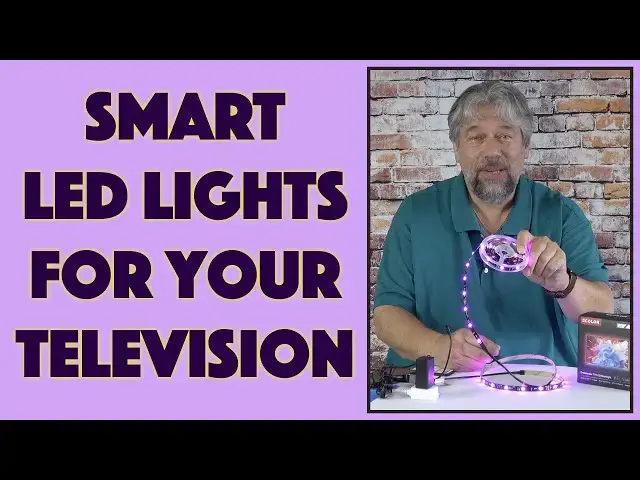
Your TV can be way more visually exciting when you put an ECOLOR Dreamcolor TV LED Light System on the back. It can respond to music, offer a variety of mood lights, can be controlled with an app, Alexa, or Google Assistant, and - if you have the right Android TV - it can react to the image on your TV in real time. Very cool. Tech expect Dave Taylor offers a detailed demo as he also explains how it works and what it does best.
Check it out at: https://amzn.to/3kPIG0r
Then check out Dave's Q&A Web site at: https://www.AskDaveTaylor.com/
#ecolor #dreamcolor #tvled #tvlights #tvledlights #askdavetaylor
Show More Show Less View Video Transcript
0:00
Magically transform your TV with this LED light system
0:03
Let's check it out. Dave Taylor here, and I'm checking out this
0:14
This is the E-Color, Dream Color LED TV light system, and it's really pretty fun
0:20
Now, I have it working while I have it all rolled up. That is not recommended, so I'm going to actually put it into the off position
0:28
And yes, you'll notice. one of the things that comes with is its own remote
0:33
It also has an inline controller, so I can turn it on and off from here
0:38
and I can also change modes and such by just pushing a button, super easy
0:43
but where it really gets fun is that there's an eColor Life app
0:48
and that app gives you a ton of control over this system
0:52
and it has a lot of modes. Now, it is big. You'll notice that the way this works
0:59
is that this strip ends here and then there's a wire. So the idea is that this is going to be one segment
1:09
and you tape this behind your television. And you wanna tape it in the right orientation
1:15
so everything works in sync, but basically it's gonna be around the back of your TV
1:21
How you gonna get that to work? The back of the LED strips has 3M adhesive
1:27
So you peel that part off, you put it on your TV, TV. It definitely doesn't have to be perfect or perfectly horizontal or vertical because it's
1:35
behind your television. So you're going to get this really cool glow behind the TV, really slick
1:42
Now, they say it's good for 55, 60, and 65 inch TVs. And I'll tell you what I did to test this
1:49
out, and I'm going to give you a demo, is I taped this to the wall. Here's what that looked like
1:55
When it's taped to the wall in this form, then it's a 63 inch diagonal
2:01
So it's 12.5 feet of LED and it's 2.3 feet in the short distance and 3.9 feet in the longer distance
2:11
You want to measure your TV to make sure you don't get one that's too big
2:16
If it's too small, I don't think that's a big deal. You just come in another inch or two from your edge
2:20
But if it's too big, it's going to be frustrating. So measure your TV before you decide which one to get, because they do have them in different lengths for different sized televisions
2:31
Now, it has USB power according to them, but what came in my box was actually a wall plug
2:39
There's no way to unplug this or to use something different. So this makes me get to use the 110 volts
2:48
It does work with 12 volts. I'm guessing that there's another version of this that has this on one end
2:54
and then just USBA, the rectangle on the other end. With that version, you can then just plug it
3:00
into the USB port on the back of your TV, which makes it super easy to work with, right
3:06
So you have a completely self-contained system. Even with this though, you can run a wire behind your TV
3:11
and it pretty easy to hide it or make it discreet So the system itself let me I guess plug it back in so we can get some colors while we talking And you see when I plug it in it goes through a sort of self and changes all the
3:26
primary colors. And then it'll finally go to the last mode it was on
3:31
But 16 million colors, 114 different LEDs. And it's actually a really interesting strip because you can see all the circuits that they're
3:40
using there. Now, you can cut it to be shorter, but of course, if you cut it to be shorter, everything that's not on the end with the power ain't going to light up
3:50
So it just doesn't really mean you can magically mix and match how you want
3:56
Again, make sure you get the right size. Now, it does have a hundred-step brightness, which I can also adjust from the remote control
4:05
So you see here, I'm making it dimmer, and then I can step up and make it brighter
4:11
And it has the inline three button control that also includes a microphone
4:16
I'm going to show you the music mode. It's pretty slick. And then there is this little remote control
4:23
Here's the close up you can see. It's pretty easy to work with
4:27
When you receive this, it has a little tab of plastic. Pull that out to make sure that the battery works
4:33
And then it'll just work automatically. I had no problems with any connectivity
4:37
Then there is a remote app. and the app you can get for Android or iPhone
4:43
I put it on my Google Pixel 6 Pro, and it's really easy to work with
4:50
I can go right back here, and there we go. So once it wakes up, I can show you here's the colors and such
5:01
and I can change color, but again, what I really want to do is give you a better demo
5:07
So I'm going to do that in just a minute. But the thing to know is that there's also an eColor app for Android TVs
5:16
Now, it only works on a small subset of TVs. But if you have the right Android TV, you can download the EColor app
5:24
and then that will talk with this device, and it will be able to monitor what's on your TV screen
5:31
And that works great. Otherwise, if you want this to be in sync with the colors that are in use on your TV
5:38
then you are going to end up having to use the app and point it at the TV
5:44
which works as a sort of one shot and it's fun, but it's obviously not a long-term solution
5:51
Be aware of that. But there are so many other fun modes that, you know, let's see, let's do this one
5:58
and I hope you can see that. It's just, it's really fun
6:04
But you know what? Let's jump to that demo. Now, I want to explain to you
6:08
So I have the demo in two parts. The first part, I'm just going to show you the LED TV lights strip tape to the wall
6:16
going through different modes. And then for the second part, I'll actually show you by using the phone
6:22
and then its ability to frame the TV image and send those colors to the LED strip
6:30
how that works. Let do this For the demo what I done is I taped the light to the wall in approximately the layout you would have behind your television And I have the app running on my Google Pixel 6 Pro
6:45
And as you can see, it's easy enough to change colors. You just simply tap on the color you prefer
6:51
But where it gets really fun is if we go to scenes
6:55
So this is colorful life. And you got to admit, that is a festive rainbow
7:01
of a color scheme. And here's breathing. Just sort of picks a color and makes it brighter
7:10
and dimmer and gradually changes color. I like snow world as something a little bit more chill
7:19
Bonfire does exactly what you would expect. And of course, these are much more effective
7:24
when your room's really dark. I've added enough light here to make it
7:28
so you can see what's going on. And there's also music. And so what's happening is there's a tiny audio pickup device
7:39
also known as a microphone, on the base. And that's hearing what I'm saying
7:45
So if I go quiet for a second, this will stop. And when I start talking, or you have music, of course
7:53
then it will do that instead. If I choose slow, you get a little bit different effect
8:00
Melody gives you something that's maybe a little less frantic. You can change your sensitivity
8:07
So all of these settings are really fun. But where it gets really interesting is when you get to TV sync
8:13
So let me change things up just a tiny bit and give you that demo too
8:17
Let's go into TV sync. Now, I don't have a TV. This is a monitor, but it's still showing you Netflix home screen
8:26
And when I go into TV sync, I can simply line it
8:30
up so that the screen is in the box. And you can see it's picking up the colors of the image
8:39
Now, I'm going to put it aside for a second. And now as I scroll down, you can see that those colors are changing to
8:57
It's kind of subtle, but it's maybe. pick one to get a larger image of it and of course I don't have the rights to show
9:07
you this but you can see it does a pretty neat job come on movie give us an
9:15
image should be there momentarily there we go so notice how the lights the
9:23
colors on the lights have changed so that's pretty slick now let me jump back on
9:29
camera. It's really fun to play with this actually. I'm going to put this on the back of
9:34
my TV when I'm done with this review. It's just fun. Even if I only use it once in a
9:39
blue moon, it'll be really something that'll surprise people. They'll be like, whoa
9:43
what's happening there? That's really cool. Now, if I did have the right Android TV and I
9:48
could use their app that would be optimal That would be really cool as you see in their advertising images but even without that having that music bode or having it just do a
9:59
scene or something really a fun way to add some more colors and some more
10:03
life to the lighting in your room now I also want to say that it is both
10:08
Alexa and Google Assistant compatible so once you get this all configured and
10:13
installed and you get the app running on your phone and you have it all paired then you can go into for example
10:19
example, the Alexa app, find eColor and add it as an additional, you know, sort of device
10:26
And then you can say things like Alexa, turn on TV light and this would light up
10:31
How fun is that, right? So lots to know. The two things that I would say are my biggest constraints or concerns here is, well, three, actually
10:41
Number one, make sure you get the right size. If you get one that's too big, I fear you will be very frustrated trying to get this to work
10:48
with your television. They do have multiple sizes. The price difference is very minimal
10:54
Number two, I was of the impression that it would be able to power with USB, but this particular
11:00
version that they sent me doesn't have that feature. So read the small print very clearly to make
11:06
sure you're getting exactly the version you want. And my third limitation, of course, is that I wish
11:12
the Ecolor app was widely available across a huge number of smart TV platforms so I could use
11:18
it because then this becomes much more fun. But if you're going to look at one of their
11:23
competitors, be aware they have that same constraint. They need some way to be able to
11:29
copy and sort of peek at what's on your TV screen. So either they also are using a phone
11:36
and you're pointing it at your TV, which is a pretty cheesy solution, or they have an app
11:42
which means you then have compatibility problems. So really, really take your time and be careful
11:48
with what you're doing there. Now, let's turn this back on because I want to tell you about the price
11:52
and it's really pretty darn inexpensive. But before we get to the price, I'm going to ask if you
11:58
could subscribe to my channel, a click or a tap on that subscribe button, and we're connected
12:04
And don't forget to turn on notifications too, because I drop new reviews pretty darn frequently
12:09
so you'll want to keep up on those. All right, this is the E-color, dream color LED TV lights
12:16
This is the 12.5 foot version for 55, 60, and 65-inch TVs, and it is 4599, currently discounted down to 3699 on Amazon.com
12:30
I think whether or not you're going to use it to try to synchronize colors on your TV screen or you just want to do something fun and surprising on the back of your television, this is a really cool option, and it's definitely one worth investigating
12:44
That's all I got. I'm going to change modes. And that means I'll have to catch you in my next video
#TV & Video
#Online Video
#TV & Video Equipment