Up next in 10



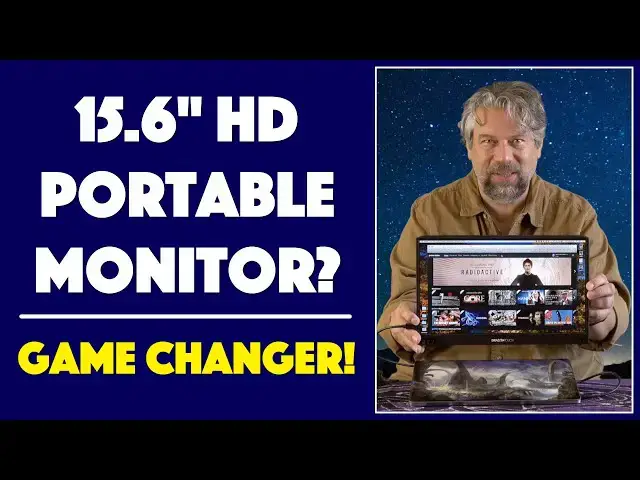
Whether you're using a compact laptop with a 13-inch screen, a full size laptop or a desktop system, you can never have enough screen space, right? That's why tech expert Dave Taylor of https://www.AskDaveTaylor.com/ was so enthused to test out the Dragon Touch S1 Portable Monitor with its 15.6-inch HD screen. Hooked up to a PC or Mac via USB-C, it turns out to be flexible and terrific, but the HDMI connection proves a bit more problematic, as shown in this extensive demo and review. And then there's the audio design...
Check out the Dragon Touch S1 on Amazon: https://amzn.to/3jT0o1x
Show More Show Less View Video Transcript
0:00
A 15-inch portable monitor? Let's check this out
0:04
Dave Taylor here, and I'm checking out this. Well, I'm going to turn it this way, or better yet, let me open it up
0:16
because this is the Dragon Touch S1 portable monitor, and it's pretty slick
0:22
As you can see, it's a big screen, 15.1-inch screen, very nice
0:27
And it has this smart cover, which makes it really easy and portable
0:32
and the smart cover has three little tabs on the bottom, so you can actually set it up
0:36
and it will stand safely all by itself. Really, really handy if you need a second screen
0:43
There are three different settings. If you don't like that, you can unscrew the back and work with just the monitor
0:49
That works fine. And all the main activity on the monitor is there's three buttons on the lower left
0:57
that give you a very frustrating menu interface for settings and configuration
1:02
There's a hole on the right so that you can actually go ahead and run like a security cable through it
1:08
if you're using this as a second screen at a computer lab at a school, for example
1:13
And then, when we look at the edges, there's nothing on this edge, there's nothing on this edge
1:18
but on this edge, that's where all the connections are happening. So, in order, it is a mini HDMI interface, which is a little unusual interface
1:27
but they include the cable, two USB-C connections, which are by far the best way to connect
1:33
and then there's a micro USB connection. One thing I was very disappointed that they don't have is they don't have a 3.5-millimeter AUX or audio out
1:42
That would be a perfect addition to this, but they don't have that
1:46
It does have built-in speakers. The speakers are not massively robust. They are teeny tiny little speakers. I'm going to demo all of this
1:54
But before we get to the demo, before I put a signal on the screen
1:58
let me walk you through this extraordinary array of cables it comes with. So, first one that you might be interested in is the HDMI to mini HDMI
2:07
Now, this lets you hook up something like a PlayStation or an Xbox or an Apple TV
2:13
or anything like that that has HDMI. You plug that in. You plug this into this side
2:18
and you're good to go, sort of. The problem is that this doesn't have its own power
2:24
and HDMI is not a signal that includes power. So, then you will need to use, let's see, the wall plug, which I'm going to go ahead and plug in
2:33
because we'll need this for a demo. So, wall plug. It just happened to have an extension cord here
2:38
We'll leave this over here. And then there is, let's see, there is, here we go
2:45
there is a USB 3, which is the rectangular one, which plugs into here to USB-C
2:53
which then powers the display if you're using HDMI. So, now we have two wires, right? And if you don't have HDMI, but you have the display port
3:04
on your computer or whatever device you're using, it comes with an HDMI to display port adapter
3:10
That's really handy. They really didn't need to include that, but I appreciate that they do
3:15
But really, the prime way to connect is USB-C, and it comes with a USB-C to USB-C cable
3:23
And as I'll show you, it is by far the best way, and you're going to get the best signal
3:28
So, speaking of that, let's go ahead and just hook it up to my MacBook Pro
3:33
So, I'm going to plug in the USB-C on one end, get it like this, and then just watch what happens
3:41
as I turn on my computer. Let me plug it in first
3:45
And this generation of MacBook Pro is all about the USB-C. There ain't no other outputs
3:51
which is super frustrating. But I plugged it in, and it's already powering on
3:55
because there's power in that USB-C line. And now, I'm mirroring what's on my computer display
4:02
So, you can imagine, if you're at a sales call, if you're a teacher, if you just want to show your friends
4:07
what's going on, this is fantastic. I can use it and actually work on my YouTube channel on the back end
4:14
Or, obviously, I can use it for something like streaming video off of Amazon Prime Video
4:19
Netflix, Hulu, whatever. So, whatever you can get on your computer, you can mirror on here
4:25
Well, that's the Mac side of things. What about with a PC
4:29
Well, I just happen to have this Dell 2-in-1. So, let's go ahead and turn this on
4:38
And then, what I'm going to do is I'm just going to move that USB-C plug over to the Dell
4:45
And, if the technology gods are with us, then we should be seeing it mirroring on there any second
4:55
So, there we are. So, now, as you can see, I'm mirroring on my PC or my Mac
5:02
And the image quality is very good. If I want to go and just poke around and see what it looks like
5:09
you know, it's, well, as fast as the network connection is. But, the nuance, let's go ahead and just close this up
5:17
I'm not sure why it's so slow. But, you can see here on this photograph, it's pretty nice looking
5:23
It's a little blown out. It's not photo quality. It's also not like $750
5:29
It's a very constrained set of engineering requirements that they have here
5:35
because it needs to be portable and have no power or anything for a USB-C connection
5:40
I would say that if we compare the image on the PC with the image on the portable monitor
5:50
they're not too far apart. This is obviously a little better, but they put, you know, a lot more money
5:56
and I've paid a lot more money for this screen. For a second screen, for right about $170, that is not too shabby
6:05
So, it leads to the question, what else can you do with it? So, here's what else you can do with it
6:11
If you have the right adapter, you can use it for something like your iPhone
6:17
So, I have that adapter. It is not included from Dragon Touch. Please be aware, this is an expensive adapter
6:25
but it's lightning to HDMI. And, I'm going to do that. I'm going to plug in my iPhone 11 Pro
6:31
and then we're going to have to, this is going to be a little complicated, because number one
6:37
I need to use the HDMI cable, because that's what this is the connection for
6:43
And, that HDMI cable is going to plug into the mini HDMI on the display
6:50
So, let's get this correct. And, nothing happens. Right? Why does nothing happen
6:58
I already alluded to it, right? It needs power, and this cable can't deliver power to the screen
7:05
So, that's what this is for. So, now I'm going to use the USB cable that it's included
7:13
plugged into the wall, and then I'm going to plug it in here to one of the USB-C ports
7:19
and that will give it power, and then it will see the mini HDMI connection
7:25
And, with any luck, we will then have my phone on there
7:31
Now, it's not very glamorous. There is a way to change the orientation in the menu system
7:37
but let me just show you. This menu system, I guarantee, will drive you bonkers
7:41
You can see it in the middle there. There's the plus and minus that let you step through options
7:48
but the way they designed it is it's super frustrating. And, if we wait just a couple of seconds, it'll go away. And, now, if I do minus, then I can adjust
7:59
You probably can't see it. Right down there, there's brightness adjustment, right
8:03
So, you can do that, but you can't adjust contrast, and that's where this gets a little problematic
8:09
So, I'm going to launch this game, and we'll sign in to Game Center
8:14
I'm on the phone. You can do it. And then, once I'm signed in, I'm not going to sign in
8:19
I'm just going to go straight to this splash screen. So, look at the difference in color, right
8:25
On my phone, there's a lot of color nuance, and you can see it's supposed to be like a wooden surface
8:31
almost a pecan wood, but on this, it's really pretty blown out
8:37
And, the menu controls don't allow you. It shows you, but it doesn't actually allow you
8:43
to adjust the contrast, or the sort of, it's just like overblown
8:49
There's ways you could theoretically adjust it, but this is not a brightness issue
8:53
This is the contrast issue, and I can't adjust it. So, from an HDMI perspective, this is not an optimal view
9:01
I know that with this same setup, if I plug this into a television, it'll look beautiful
9:06
So, this is just a limitation of how it processes the HDMI signal
9:11
and I'm not exactly sure why it does this, but it's just important for you to realize that it does, in fact, do this
9:17
So, you know, could you use this? Could this be a demo you could utilize
9:22
Could you use this to debug your, you know, phone app development or something
9:26
Well, yeah, but you're probably going to get a lot more mileage and be a lot happier
9:31
if you hook this up to your computer that you're working with, rather than hooking it up to an HDMI source
9:36
And I can guarantee, if you're playing a video game on something that's this blown out in terms of colors
9:41
you will not be a happy camper. You will, in fact, be full of rage, and that might be great for the game
9:47
but it's not going to be good for your user experience. So, I'm going to unhook my phone, and we're going to just, like, turn off and unplug all these wires
9:57
I'm going to move things out of the way, because now I want to show you something else
10:01
So, we put the phone over here. We're going to put the Dell over here
10:07
So, we got everything unhooked. Now, I'm just going to hook up my Mac again
10:11
So, this is, again, USB-C to USB-C. Just need some space. And here's what's cool, is you can use any USB-C to USB-C cable
10:24
which I thought was actually really cool, because I have longer cables
10:28
So, I've tried this with, like, five-foot or six-foot cables, and it works fine
10:32
which means, again, there's just a lot of flexibility, and that's really what this is about
10:37
This is about giving you more flexibility and more screen real estate
10:41
So, what I want to show you is I want to show you just a little bit more about the tech here
10:46
So, this is HD running at 1920x1080, so it's exactly an HD resolution
10:53
which is fine for what it is, but odds are your computer screen's at a higher resolution than this
10:58
That's okay. If you're mirroring, then your computer ends up scaling down to match this
11:04
But if you do it as an extended display, which Mac and PCs both support very easily
11:10
if you do it as an extended display, then you're fine, and you can get the best of both worlds
11:14
where you can, for example, I could then drag this Prime Video screen onto here
11:20
and watch a TV show or a movie while I'm working. Perfect, really
11:24
I find this really great if I'm on a Zoom call, where it's just an informational call
11:29
and I'm one of 300 attendees, then I just put it onto this screen and continue working while I'm at it
11:34
So, no webcam or anything, so if you're on an interactive Zoom call
11:38
people are going to be like, why aren't you looking at your computer? That's very suspicious
11:42
Or, you will be looking at your computer, and then you can't see what's on the Zoom call
11:46
Anyway, mixing it up, right? It does include speakers, so let's go ahead and I'm going to see if I can convince it to give us some audio
11:55
Let's see. You know, these are these sort of things where it gives you audio when you don't want it
12:05
but maybe we can get the trailer here. No. So, this is the audio from here
12:11
Oh. And, okay, Amazon doesn't like me using this second monitor. Different sources allow different sort of technology and capabilities
12:23
I have found Netflix works just fine on the second screen, so I don't know
12:28
Amazon's being super uptight, but you could tell that audio was working fine
12:33
and let me bring up just some other audio really quick, and I will go to some royalty-free music
12:40
and let's try this. And, there really isn't any volume control here
12:48
There's some theoretical volume, I guess, that you can do here. So, this is maxed out. That is maximum volume. It's just not a lot. It's not enough, really
13:00
It's going to be frustrating to you. So, again, having an earphone or external speaker plug would be really a great addition
13:08
It doesn't include that. You can still monkey with your audio, so maybe it comes out of your computer
13:14
but the screen is over here, or you can use headphones or something. Whatever. There's solutions
13:19
But, again, a limitation of this is it does have built-in speakers. They're not very loud
13:24
So, I'm going to go ahead and turn this off. We'll go back to at least seeing this screen
13:30
and what else can I tell you about it? So, it's not a touch screen
13:35
That's really important, because the company is called Dragon Touch. Well, Dragon Touch, cool name, not a touch screen, important to know
13:42
Don't get your hopes up that your Mac suddenly has a touch screen. It doesn't
13:46
And, it is 10.5 millimeters thick and 625 grams. It's really pretty remarkable
13:53
So, I have been sort of focusing on some of the limitations, but recognize that it is an issue with HDMI
14:00
The audio isn't great. The menu system is super frustrating. And, just like one more button would make it so much easier to work with
14:07
But, all of that aside, this is a great second screen at a remarkable price
14:13
And, if you're using it with a Mac or a PC, especially with USB-C, it's really pretty darn clean
14:20
It gives you a really nice perspective, and it's very watchable, very viewable
14:27
and very helpful for people that actually want to be able to just get more screen real estate
14:32
without spending thousands or upwards of $500 on a high-end monitor or something
14:38
Which leads us to the final question, which is, how much does it cost
14:42
But, before we get there, I'm going to ask if you can hit me up with a like if you like this video and find this useful
14:48
And, hit me up with a subscribe if you want to join up, because I get access to a lot of gear
14:53
And, as you can tell, I'm super candid and honest with my reviews
14:57
So, let's connect. Awesome. Now, this is the Dragon Touch S1 Portable Monitor
15:05
It's a 15.6 inch HD display, and it's $169.99 at Amazon.com. And, if you hook it up the right way with the right source device, it's a remarkable piece of technology
15:18
And, with that, I'm going to go back and watch Vivarium, which means I'll catch you in my next video
#Computer Hardware
#Laptops & Notebooks
#Consumer Electronics
#Gadgets & Portable Electronics
#Virtual Reality Devices