live_tv
Livestream Starting Soon
00
Hours
:
00
Minutes
:
00
Seconds
Up next in 10

Link here: https://ezgif.com/
https://www.pinterest.com/pin/6192518227226657/
My Art Work Links:
https://www.instagram.com/acgraphgicartis101/
https://www.tiktok.com/@anthonycadette15?lang=en
Stream channel links:
https://www.twitch.tv/anthonyxcadette
https://trovo.live/s/anthonycadette?roomType=1
https://dlive.tv/BlackLiquid
https://anthonycadette.newgrounds.com/
Show More Show Less View Video Transcript
0:01
hey guys your boy Anthony and I'm here
0:04
to show you guys how to import
0:07
GIF sequence or animation
0:10
sequence frame by frame animation into
0:14
clip Studio your frames and them
0:17
also import it but this video will be
0:20
quite different from other videos that
0:22
you have seen so far either sure yeah in
0:25
depth and what I just do once it comes
0:27
to reference or if I want to retouch up
0:31
something on my animation or something
0:33
like that yeah son or if I'm looking for
0:36
reference and stuff online
0:38
so first thing first you want to go
0:40
online
0:42
right so I did this already this here is
0:46
called
0:47
easy gift
0:49
dot com this will be in the description
0:51
down below
0:53
right so what I am doing in this thing
0:55
here this thing here if you're playing
0:57
GIF for videos or anything like that you
1:00
could come with them to GIF to GIF I
1:03
keep saying GIF GIF or MP4 videos or you
1:08
could you could do practically anything
1:11
in its
1:13
but it have its limits because it's a
1:15
free website
1:16
when it comes to videos and stuff it
1:19
will only take up to 50 frames that is
1:22
just a free version part of it it will
1:24
only convert to 50 frames
1:27
if you if you're just video or gif image
1:31
is that long have that amount of frames
1:34
in it
1:35
all right so
1:38
let's say I go into Pinterest
1:40
and I'm looking for reference I want a
1:43
walk cycle I want to run cycle I want
1:46
some kind of cycle of Animation as a gif
1:51
you understand I'm just looking for the
1:53
the movements so I come here right click
1:57
and I save this
1:59
right then I go across to the um easy
2:02
gif
2:03
and I click choose file and I go into
2:06
the folder with all of them
2:09
so now I can click this which I download
2:12
I'll put it in here and upload it
2:17
it will upload
2:19
right and make sure you and the GIF to
2:22
MP4 because we're gonna be going into
2:24
After Effects afterwards I'll be showing
2:27
you guys something in our defects which
2:28
are about me you know some of you guys
2:31
already known or not but but the
2:33
newcomers on them this might blow your
2:35
mind
2:36
all right so we come in here
2:39
and we converted
2:43
and you convert into MP4 video when it
2:46
converted that you click save and you
2:50
save it on your desktop you save it
2:52
wherever you're gonna be saving it right
2:54
you save it so moving on now to the next
2:58
topic now
3:00
After Effects
3:02
right way enough defects now
3:06
and enough defects here now you want to
3:09
drag in what you come for your video you
3:13
make
3:14
so you drag in that MP4 video it will
3:17
only convert MP4 videos into the
3:21
sequence you're looking for
3:23
right so I come here I drag the center
3:26
new composition
3:29
I don't like the resolution well I want
3:32
the resolution to be small so I go up
3:34
here into composition yeah
3:39
I go into composition settings
3:43
and you can see here the width and the
3:45
height the width is 500 the height is
3:48
440.
3:49
so I will restart the 1920.
3:55
by 1080
4:00
and for you guys who opened in this for
4:02
the first time and doing this for the
4:04
first time make sure this here is on
4:08
clicked make sure the box is empty
4:11
I repeat make sure the box is empty
4:15
you run a mess with anything else here
4:18
all right
4:20
that is that now you come here now
4:23
and yes
4:25
stretch this out
4:28
as big as it was all right you wanted as
4:31
big as you want no matter body quality
4:34
and stuff like that the reason why it's
4:36
showing so blurry is because I have it
4:39
here and quarter
4:41
I'll show you again
4:43
sir
4:45
quarter if I put it on full it gets
4:48
cleaner
4:50
I know I'm not messing with when I
4:52
rendering and stuff like that so I'll
4:53
leave it that quarter
4:55
yeah so and then I'll come back up here
4:57
into composition and I go to add to
5:01
render queue
5:03
it's going to run the queue
5:06
I don't want two of this only one
5:09
click this
5:11
and I come up here
5:14
so this here format
5:16
format and then I come here to PNG
5:20
sequence
5:23
PNG sequence I click that
5:25
press ok
5:28
now before you you render this make sure
5:32
you have a folder
5:34
on your desktop
5:35
so you could render it into that folder
5:38
so you come here into output two
5:41
and it could output to the folder on
5:43
your desktop
5:45
you're going to desktop you could right
5:46
click create new create a new folder
5:50
right and render it onto your desktop
5:54
but I know some of you guys would like
5:56
to see the process so
5:58
I'll create a new folder I click it
6:02
open it save
6:05
and then I click this render
6:08
and that will render out
6:11
hear that song right there glorious all
6:15
right so you click that we extorted that
6:18
we don't need that no more we don't need
6:20
that
6:21
yeah some of you opened us
6:24
open this and there you go all of the
6:27
frames and
6:29
to you
6:32
we need to
6:34
flip studio now
6:36
yeah so I'm going into Club studio now
6:38
if this video has helped you so far or
6:40
anything and Enlighten you in any way
6:43
please like And subscribe let me move on
6:46
to the next topic the next thing now
6:53
all right
6:55
we are in clip studio now
6:57
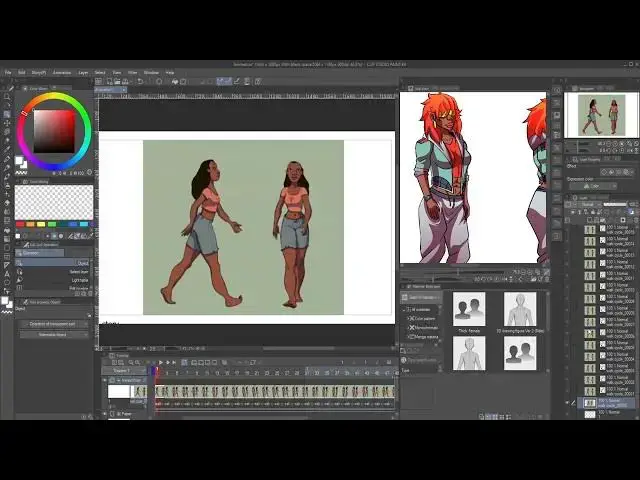
so in club Studio what you want to do
6:59
now as you can see here this is the
7:01
character of the animating
7:05
and walk cycle
7:09
the character make here
7:12
it's already drawn
7:14
which I'll be
7:15
animating and walk cycle
7:19
right so this is a commission though
7:24
but this is redrawn version of the
7:26
character that I've got given to draw
7:29
and this is what I'll be animated here
7:33
right so I know what her name is but
7:37
this commission so moving on now come
7:40
here new
7:43
and in here now
7:46
I animate with 1920x1080.
7:49
resolution 600. down here
7:54
timeline name you can name it whatever
7:57
frame rate by 30 probably about time by
8:00
60 you could restore 120 500 whatever
8:04
right
8:06
um sequence number and stuff you don't
8:08
need to mess with that so I press OK and
8:10
just come up
8:12
right so we have this
8:16
so we come up here now the next step now
8:18
you want to go up to animation
8:23
right so you want to go up to file
8:26
up the file
8:28
and go to import
8:32
the file Imports and then you will come
8:34
out to create file object
8:40
and that will go to the folder here you
8:42
go to your folder your director you get
8:45
this stuff you're going to your work
8:47
cycle you're going to here all of these
8:49
here you click this the first one
8:54
go down
8:56
yeah the whole shift I click the last
9:00
one this is his shortcut if you guys
9:03
said no no
9:05
they press open
9:07
now that sequence will load and it will
9:10
come into your layers here here we are
9:13
right here
9:14
now you want these to come
9:17
to timeline
9:19
let's first one here this first frame
9:21
here click that then you go up to
9:24
animation they're going to edit track
9:29
to assign multiple cells
9:34
this will pop up here then you go to
9:37
assign by sell me
9:41
they appear too so start meaning it will
9:46
start with one but you don't want that
9:48
I'm going to start with the animation
10:00
0 to 23. box site if you want here
10:05
number of frames you can put it by two
10:09
if you get one two
10:29
three
10:32
so if I press this here let's decide
10:41
it's done
10:43
and it's the screen
10:45
as how I want it how I render it that's
10:48
how it fits and that's how I want it to
10:50
fit
10:52
be resizing any nonsense and stuff like
10:56
no
10:57
somebody in the comments in our videos
11:00
watching set at all
11:03
if he put in his Rafa anime his rough
11:05
schedule his line artwork and he wants a
11:08
colored he can't in can't interact with
11:11
it the reason for that is because all of
11:14
these here
11:16
so if I write click on one of them
11:21
image material layer that is what delay
11:25
the the different images you have here
11:28
the layers you have here is name ads in
11:32
order to do that
11:34
it's going to be paintedly
11:36
you have to right click on it and you
11:38
have to go on rasterize the only way
11:41
around you can rasterize all of the meta
11:43
rasterize them one by one
11:46
if it's a lot of frames it's it's gonna
11:50
be headache the other asteroids each and
11:52
every one of them
11:55
you understand
11:57
so I'll come here rasterize it have an
12:00
easier way to do this which you are to
12:04
make a shortcut
12:06
you will have to make a shortcut
12:09
you understand a shortcuts a shortcut
12:13
um
12:14
like the CIA Auto Action shortcut you
12:17
will have to make in order to do this
12:21
and I will have to show you guys in the
12:23
next video how to do that the Auto
12:25
Action shortcuts on how to set up for
12:27
animation and stuff like that in my next
12:31
video I will show you guys that so as
12:33
you can see here it is going through
12:35
here
12:36
pressurize
12:38
across the rise
12:41
but you see no this is not a rough
12:43
sketch so
12:46
I don't need to draw
12:48
or color anything in this I'm just using
12:51
this as reference
12:54
just to get across how I want this
12:57
character to look when they walk in with
12:59
the same walk cycle
13:02
the thing I look like the character but
13:03
they're gonna be using the same steps
13:05
you know starting the same movements so
13:08
I just using this as reference like get
13:10
the same movements
13:12
of this character here from Lilo and
13:15
Stitch
13:16
you understand so if this video was
13:20
insightful and it's
13:22
it um pick you guys interests yeah so
13:25
you guys learned something new
13:27
something I didn't you never seen before
13:29
or something ever think about
13:31
please like And subscribe
13:34
and
13:36
follow for more
13:38
if the video was inside photo and if it
13:41
Enlighten you
13:42
like And subscribe
13:44
all right I hope the video wasn't too
13:46
long and I hope you didn't waste your
13:48
time
13:49
just let me know in the comments if it
13:52
was uh if it was good for you guys or
13:55
not all right
13:57
letters bye-bye
14:00
thanks for coming
#Online Video
#Multimedia Software