Up next in 10

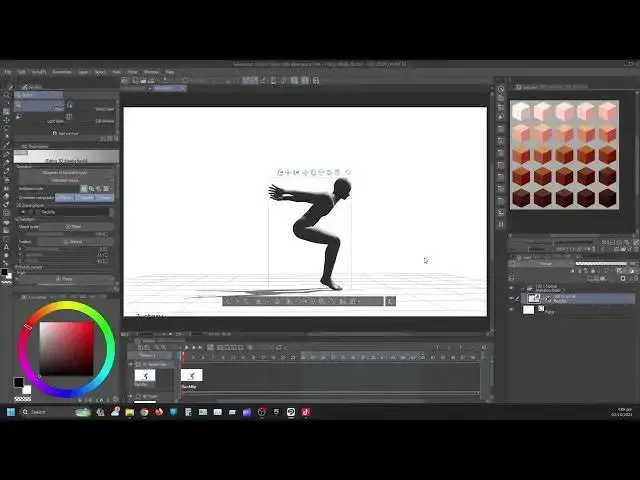
CSP Pose Link: https://assets.clip-studio.com/en-us/detail?id=2103247
Follow and support if you can.
https://ko-fi.com/liquidlion/tiers
https://www.instagram.com/acgraphicartist101/
https://kick.com/anthonyxcadette
https://www.tiktok.com/@anthonycadette15?l...
https://www.twitch.tv/anthonyxcadette
https://discord.gg/UJbRsdEjs5
Show More Show Less View Video Transcript
0:01
hey guys it's your boy Anthony and I'm
0:03
here to show you guys how to use post
0:06
sequence in clip Studio
0:09
P the latest version of clip studio is
0:12
the only one you'll be able to use post
0:14
sequence in and the pro sequence that
0:17
they offer you was basically two in
0:22
general right you will not be able to
0:24
reanimate them or anything like that
0:27
which is a shame but you'll be able to
0:31
use them for
0:33
animation you can't make them into what
0:35
you want them to be but you can use them
0:38
to do
0:40
animation you understand moving on let's
0:44
not waste time yet first thing first
0:47
while you in clip
0:49
Studio you want to come here to your
0:51
side where you have all your materials
0:54
as you can see my cursor you want to
0:56
click that open the little arrow to the
0:59
top right
1:01
corner you see it hope you could you
1:04
know see it all right I'll Zoom that up
1:08
so you see you can't see I'm blinding
1:11
you so right here you will see
1:15
3D you want to click on
1:18
trading and inside of here this is what
1:21
will come these two here what will come
1:26
in clipio
1:28
3.1
1:30
0 all right you have to download these
1:34
in order to download them you have to
1:37
grab one just like any other 3D any 3D
1:40
material and drop it
1:44
within the timeline here well within the
1:48
timeline here basically you're not
1:49
dropping any timeline just dropping it
1:51
on the surface here where the curs is
1:54
you see it didn't come up here all
1:58
right you for that is because you didn't
2:01
activate it on the
2:03
first
2:05
frame so you want to go on the first
2:08
frame here you're going to right
2:10
click and you want to hit it back
2:13
flip
2:16
right I will show it again so you know
2:19
you can see I on the understand right
2:22
click come up here click the back flip
2:26
one this is the 3D object here
2:30
don't need this one
2:33
here back flip so you choose angle by
2:39
clicking and grabbing where you want to
2:42
start the back
2:45
flip this is the back flip one and the
2:47
other one is the Run Cycle
2:49
one this one have more frames than the
2:53
other one that you're going to
2:55
download you understand you got to make
2:58
sure you have clip you have a clip
3:00
Studio
3:01
account so you can download them of the
3:04
clip
3:06
Studio
3:08
store right
3:10
so as you can see here this back flip
3:14
one in order to see
3:17
this you have to go into the the
3:20
sequence in order to go into the
3:22
sequence of this you want to go here you
3:25
want to see the animation sequence you
3:27
to go down here adjust body shoot and
3:32
size see when I click this little icon
3:35
underneath here this basically the
3:37
settings
3:39
FS without this post sequence inside of
3:43
here you're not going to see post
3:45
sequence in general you're not going to
3:48
see it at
3:50
all right moving
3:53
on so inside here now post sequence you
3:57
want to click post sequence and here
4:01
right here which I will zoom up for you
4:04
guys bring it
4:09
out that's what you're going to see you
4:12
see it here on one and my says right now
4:16
it's on
4:18
one I click up you see how then in move
4:29
you have about 22
4:32
frames so 22 of these frames
4:37
here is the post
4:40
sequence in order to animate this onto
4:43
your animation well to the timeline here
4:47
you have to select each of them so this
4:49
is the first frame here and with my
4:51
settings that I have which I made a
4:54
video
4:55
for I'm going to go to the second frame
4:59
so I'm to go to frame tree cuz I'm going
5:01
to be doing this on
5:04
twos and I'm going to
5:07
click
5:10
one which I have set for you know adding
5:13
a key
5:14
frame add in a new frame new frame not
5:17
key frame new
5:19
frame I'm going to come here while this
5:22
is open this is how you're animating
5:25
it so you're go to
5:28
two to three again bam hit that
5:33
again to
5:36
three get a nine
5:42
here 12
5:45
[Music]
5:47
here
5:51
H right so got here so
6:07
five
6:16
six seven and that's all basically what
6:19
you're doing when you're going forward
6:22
so this is just a quick tutorial in
6:25
showing you guys cuz I don't want to
6:26
waste you guys time I know everybody
6:28
attention span very short these days so
6:31
just like mine too so I want to go
6:34
through all that all right so so
6:39
far that we have right that's what we
6:41
have right
6:43
there once you play it that's what you
6:48
see not the full animation but I'll show
6:52
you guys a slip it and how to animate
6:56
with
6:57
it okay so if you guys like what you
7:01
see and you want more please like And
7:04
subscribe
7:07
and you know follow for
7:11
more latest for now you guys stay safe
7:16
whever you are in the world you guys Ro
7:18
thanks for clicking on this video I am
7:20
out
#Comics & Animation
#Software