Up next in 10

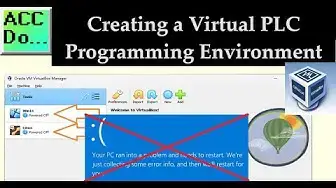
Have you ever been in a situation where you were programming a PLC, and your computer suddenly displayed a blue screen of death? Virtual environments can help you. This issue is becoming more relevant as PCs are now part of industrial control. This means that when your computer crashes, it can cause a machine to go down, resulting in downtime and loss of productivity.
We will set up a virtual PLC programming environment on our computer using Oracle VirtualBox. This will enable us to run our applications on a virtual computer. In case of a critical error, we can close and restart the virtual computer again. VirtualBox also allows us to use different operating systems. We will install Windows 11 and Linux operating systems on our Windows 11 computer. This gives us the freedom to choose the programming environment we prefer.
To begin, we need to install Oracle VirtualBox.
Detailed information and links can be found on the corresponding post located here.
https://accautomation.ca/creating-virtual-plc-programming-environment/
00:00 Creating Virtual PLC Programming Environment
01:25 Installing Oracle VirtualBox
04:17 Obtaining Windows ISO
05:53 Retrieving Your Windows Product Key
07:10 Installing a Virtual Windows Computer
15:35 Obtaining Linux ISO
16:51 Installing a Virtual Linux Computer
PLC Beginner’s Guide to PLC Programming
https://accautomation.ca/programming/plc-beginners-guide/
Here are the controllers that we have covered at ACC Automation:
BRX Do-More Series (Do-More Designer Software + Simulator)
Show More Show Less View Video Transcript
0:00
Hi everyone. Today, we will be looking at creating a virtual PLC programming environment
0:12
Have you ever been in a situation where you were programming a PLC, and your computer
0:16
suddenly displayed a blue screen of death? Virtual environments can help you. This issue
0:22
is becoming more relevant as PCs are now part of industrial control. This means that when
0:27
your computer crashes, it can cause a machine to go down, resulting in downtime and loss
0:32
of productivity. We will set up a virtual PLC programming environment on our computer
0:37
using Oracle VirtualBox. This will enable us to run our applications on a virtual computer
0:44
In case of a critical error, we can close and restart the virtual computer again. VirtualBox
0:50
also allows us to use different operating systems. We will install Windows 11 and Linux
0:55
operating systems on our Windows 11 computer. This gives us the freedom to choose the programming
1:01
environment we prefer. To begin, we need to install Oracle VirtualBox. Detailed information
1:07
contained in this video can be found at accautomation.ca. A link has been put in the description below
1:14
The website offers extensive links, references, and coding samples, making it a one-stop shop
1:20
for all your automation queries. accautomation.ca Installing Oracle VirtualBox
1:29
Oracle VirtualBox is a powerful virtualization software that allows you to run multiple operating
1:34
systems on a single computer. Its primary purpose is to create a virtual environment
1:39
isolated from the host operating system, enabling you to run different operating systems and
1:43
applications without affecting the underlying system. VirtualBox is an open-source software available for free and can be installed on Windows, macOS, Linux, and Solaris. It is
1:55
widely used by developers, IT professionals, and enthusiasts to test applications, run
2:00
legacy software, and experiment with different operating systems. Functionality includes creating and managing multiple virtual machines, allocating system resources such as CPU, memory
2:12
and storage to each virtual machine, and configuring virtual networks. VirtualBox also supports
2:18
a range of features, such as snapshots, which allow users to save the current state of a
2:23
virtual machine and revert to it later, and virtual machine cloning, which enables users
2:27
to create a duplicate copy of a virtual machine. Download Oracle VirtualBox at virtualbox.org
2:35
Select the Download VirtualBox 7.0 button. Select Windows Hosts to start the download
2:41
for our Windows 11 machine. While this is downloading, check to ensure that the virtualization
2:46
is enabled in your basic input and output system, BIOS. Press the Control, Shift, and
2:52
ESC keys to call up your Task Manager in Windows. Under the Performance tab, find the CPU. In
2:59
the CPU settings, ensure that Virtualization is enabled. If this setting is not enabled
3:05
then you will have to enable this in your BIOS. Each computer is slightly different
3:10
but it should be an item usually under the Advanced settings. Double-click on the installation
3:15
file that you downloaded. This will start the installation of the software. The introduction
3:20
splash screen will appear. Select Next. VirtualBox will now display where the files will be kept
3:28
We will leave everything as their default and select Next. A warning screen will now
3:33
indicate that the network connection will temporarily be disconnected. We will proceed
3:38
with the installation and select Yes. Missing dependencies will now be displayed. We can
3:44
install these later if required. Select Yes to continue. We are now ready to install the
3:50
Oracle VirtualBox. Select Install. Our software will now be installed on our computer. When
3:57
the installation is finished, we will receive this screen. After installation, the Start
4:02
Oracle VM VirtualBox 7.0.14 will be selected as a default. Select Finish. Our VirtualBox
4:10
will now be running in our window. A desktop icon can be used to start the program at any
4:16
time. Obtaining Windows ISO. We will obtain our Windows ISO file from our computer using
4:24
the Create Windows 11 Installation Media program. Select Download Now. When the file has finished
4:40
downloading, double-click on the file to start the application. You must agree to the
4:50
license terms. Select Accept. We will use the recommended options for this PC. Select
4:59
Next. When asked to choose the media, select the ISO file. Select Next. We will use the
5:08
default path to store the Windows.ISO file. Select Save. An ISO file for an operating system
5:15
is a disk image file containing all the files and folders required to install and run the system. It
5:21
is a digital copy of the installation media, such as a CD or DVD, and can be used to create a
5:27
bootable USB drive or DVD. When you download an operating system ISO file, you can use it to
5:33
install the operating system on your computer or to create a virtual machine. Many operating
5:39
systems, including Windows and Linux, are available for download as ISO files from the respective
5:44
vendor's website. Select Finish after the Windows.ISO file has been downloaded. Retrieving your Windows
5:55
product key. We can use the Windows Registry Editor to get our Windows product key. A Windows
6:02
product key is a unique code made up of 25 characters that is used to activate a copy of
6:06
the Windows operating system. It is usually required during the Windows installation process
6:12
and is also needed when upgrading to a new operating system. The product key is designed
6:17
to prevent piracy and ensure that each copy of Windows is properly licensed. It is important
6:23
to keep your product key in a safe place as you will need it if you ever need to reinstall or
6:27
reactivate your copy of Windows. Navigate to the following location. Computer backslash HKUI
6:34
underscore local underscore machine backslash software backslash Microsoft backslash Windows NT backslash current version backslash software protection platform. Your Windows product key
6:44
can be found under the string name backup product key default. Copy this and store it in a safe
6:57
location. We will need this for our next step of installing the virtual Windows computer
7:09
Installing a virtual Windows computer. Call up the Oracle VM Virtual Box Manager. We currently
7:18
do not have any virtual machines installed. Select the new icon in the tools menu. The
7:25
create virtual machine window will be displayed. We will name our machine Win11. We will leave
7:31
the folder as the default location but under the D drive. Select the Windows.iso file that
7:37
we previously downloaded. Select next. We can now select the hardware specifications for our
7:48
Windows 11 virtual machine. A Windows 11 minimum specification is 4096 RAM and 2 CPUs
8:08
Our machine will have 8192 RAM and 4 CPUs. Select the enable EFI option for this installation
8:17
Select next. We will set the virtual hard disk to the minimum specified for Windows 11 which is 64GB
8:23
Our machine will not automatically use all of this memory at once unless you select the pre-allocate
8:29
full size. Space will be used as required up to the limit set. Select next. The summary will be
8:37
displayed for review. Select finish. Our Win11 virtual machine is now displayed on our Oracle
8:44
VM Virtual Box Manager. Select settings for Win11. All of our settings that will be used for
8:50
our virtual Windows 11 machine are now displayed. We can go back anytime and easily modify our values
8:56
for this machine. Select display, change the video memory to 128MB in the display settings
9:03
and enable the 3D acceleration. Select ok
9:20
Select the start icon for the Win11 machine. This will start our new virtual computer
9:37
Our Windows setup screen will be displayed. We will leave everything as their default and select next
9:44
Before we select the install now button, we will modify the system registry so that our virtual
9:49
machine will run without errors. Press shift plus F10. This will call up a command prompt
9:56
Type regedit at the command prompt to start the registry editor. When the registry editor opens, navigate to hky
10:10
local machine backslash system backslash setup. Right click on the setup key and select new equals key
10:22
Name the key labconfig and press enter. Now right click on the labconfig key, select new equals dword 32-bit value
10:34
create a value named bypass tpm check and set its data to 1
10:40
With the same steps, create the bypass rm check and bypass secure boot check values and also set their data to 1
11:10
So so
11:39
close the registry editor and then type exit in the command prompt followed by enter to close the window
11:47
Now we will install the virtual machine. You can now click on the install now button to proceed to get Microsoft Windows 11 installed as a virtual machine on top of VirtualBox
12:00
When the activate windows is displayed, you must enter the Windows product key that we retrieved previously
12:06
Select next. The software license terms are next. You must accept and then press next
12:13
When asked about the type of installation, select custom, install Windows only, advanced
12:23
Since we have only one disk drive for our virtual machine, select next. Windows will now start
12:29
installing. We will speed up the video so you can see all of the different steps of the installation
13:12
So
13:24
so you will be asked for our Microsoft sign-in account
13:44
Enter your credentials so that you can retrieve your customized settings. Create a pin to log on to this virtual machine easily. All of the privacy settings for this
14:00
machine will be turned off. Select next. We will then be asked a number of questions
14:06
on our Windows 11 installation for our virtual environment. So
14:30
once this is complete, our Windows 11 machine will run inside a window
14:35
Remember that while running, this resource takes resources from the main machine
14:39
A pause can be used to pause the application from the main menu under settings
14:44
The screen will turn black and white, indicating that it is paused. Select pause again to unpause
14:50
the virtual environment. We can shut down this Windows 11 virtual environment in two different
14:56
ways. The Windows way by selecting start and then power shut down. You can also use the main menu
15:03
machine ACPI shutdown. To start Win 11 in our virtual environment again, you can double-click
15:12
it in the Oracle VM Virtual Box Manager, or you can select it and then select the start icon
15:21
Enter your pin to start the Windows application again. Obtaining Linux ISO. We will now get a Linux ISO file to install a Linux virtual computer
15:44
environment on our Windows 11 main machine. The Ubuntu Linux desktop environment can be
15:50
downloaded at ubuntu.com. On the main web page, select get Ubuntu 23.10
16:02
Under the Ubuntu downloads desktop, select download Ubuntu desktop. We will select the latest version of Ubuntu. Select download 22.04.3 to start the download
16:15
Ubuntu is a popular Linux-based operating system designed for use on a wide range of computing
16:20
platforms, from enterprise servers to personal desktops, as well as cloud and IoT, internet of
16:25
things, devices. It is known for being a reliable, secure, and user-friendly operating system suitable
16:33
for various applications and use cases. As an open-source operating system, Ubuntu is freely
16:39
available to download, use, and modify, making it a popular choice among developers, IT professionals
16:45
and enthusiasts worldwide. Installing a virtual Linux computer. Call up the Oracle VM Virtual Box Manager. We currently have one virtual machine installed
17:00
the Windows 11 virtual environment. Select the new icon in the tools menu
17:05
The create virtual machine window will be displayed. We will name our machine Linux
17:13
Select the Ubuntu 22.04.3 desktop amd64.iso file that we previously downloaded. You will see that
17:22
the Virtual Box software detects that we are installing a Linux system, and the virtual machine
17:27
is a Ubuntu 64-bit. Select next. We will keep the username as the default
17:34
but change the password to something we can remember. Select guest additions. This will enable our Linux virtual machine to run quickly in the
17:47
environment. Select next. We can now select the hardware specifications for our Linux virtual
17:55
machine. Select 4096MB for the base memory and 4 CPUs. Remember that while running, this resource
18:03
takes resources from the main machine. If we were to run this and the Windows 11 virtual
18:07
environment simultaneously, we would be close to our host machine limits. This will affect the
18:13
performance that we will observe. Select next. We will leave the virtual hard disk as the default
18:20
We will leave the virtual hard disk as the default 25GB. Select next. A summary of our Linux virtual
18:28
environment will be displayed. Select finish. Our Linux machine will now power up
18:44
As our software is being installed, we can see some of the features of this operating system
18:50
So when the installation has finished, enter your password to log into the system
19:19
We can always change the environment settings to improve the virtual machine response
19:30
We can start, pause, and stop this Linux virtual machine environment anytime
19:43
The Oracle VM VirtualBox Manager now has two different operating systems that we can use
19:48
anytime for our PLC programming. VirtualBox allows us to experiment with different operating
19:54
systems without interfering with our main machine. This gives us the freedom and confidence to choose
19:59
our preferred programming environment. If you enjoyed this video, please hit the like button
20:11
below. If you have any questions about this video, please leave a comment below, and I'll do my best
20:16
to answer them. If you want more information about us or you want to get our free ebooks on
20:21
numbering systems or robust data logging, please click on the link in the description below to get
20:26
it. A new video is put out every Monday, so hit the subscribe button to get more videos like this in
20:32
the future. Remember to hit the bell beside your subscription to receive the notifications
20:38
Thanks so much for watching. I'll see you next time. Stay safe
#Industrial Materials & Equipment
#Consumer Electronics
#Programming
#Operating Systems
#Software Utilities
#Computer & Video Games
#Video Game Emulation
#Virtual Reality Devices
#Development Tools
#Windows & .NET