Up next in 10

Winget Package Manager Tutorial to Install,Upgrade & Uninstall Windows Programs in Terminal
Jan 22, 2025

Buy the full source code of application here:
Hi Join the official discord server to resolve doubts here:
https://discord.gg/cRnjhk6nzW
Visit my Online Free Media Tool Website
https://freemediatools.com/
Buy Premium Scripts and Apps Here:
https://procodestore.com/
Show More Show Less View Video Transcript
0:00
uh hello guys welcome to this video so
0:02
in this video I will show you uh what is
0:05
winget winget is actually a package
0:08
manager which solves a problem of uh
0:12
installing upgrading or uninstalling
0:14
Windows apps very easily using your
0:16
command line tool so it works in the
0:18
command line so you just need to once
0:21
you install
0:25
winget just type here Wing get and the
0:28
command will be successful so
0:30
w i n g t so this is actually the name
0:34
of the tool if you want to install it
0:37
simply type V get download you can go to
0:41
their GitHub Depot as
0:44
well and they do offer this exe
0:52
file so you can go to app
0:56
installer and click on this install
0:59
button so as soon as you click the
1:01
install button you can install this tool
1:04
from this Microsoft store I already
1:08
installed it so once you install
1:11
this you will be able to access this
1:14
tool from the command line
1:17
so if you want to get help the list of
1:20
commands it supports so just write Dash
1:22
dasel and now it will show you all these
1:25
commands so if you want to install a
1:27
particular package you can use install
1:29
command
1:30
and then show is the command responsible
1:35
for showing information if you want to
1:37
search for a package let me show you so
1:40
let's suppose I want to
1:44
install a package which is notepad++
1:47
which
1:50
is
1:52
a extended version of notepad here you
1:55
can write source code as well so as I
1:57
click this or enter this command
2:00
automatically in the background it will
2:02
automatically go to notepad++ webbsite
2:05
and install this so 6.34 megabytes and
2:09
then the installation will automatically
2:11
start and you just need
2:13
to so you can see now successfully
2:16
installed without this tool you need to
2:19
manually type notepad++
2:21
go to their website and install the exe
2:25
file so this actually saves a lot of
2:28
time so if you now search notepad++ you
2:31
can see it has successfully installed on
2:33
your system and I can use this tool so
2:36
now let's suppose if I want to somehow
2:39
remove this so we also have the
2:41
uninstall command you simply type
2:44
uninstall followed by the which program
2:47
you want to uninstall so we type this so
2:50
it does the same thing and this time it
2:52
removes the program it actually you need
2:56
to refine this so you can see multiple
2:58
install packages found
3:00
so you need to exactly tell which
3:02
program to install so I will say install
3:06
this one notepad++
3:10
dot
3:12
notepad++
3:16
so you can see the uninstalled setup
3:19
will run and you can see successfully
3:22
uninstalled so in this way you can
3:24
remove programs so I can now not search
3:28
for notepad++
3:30
so it successfully removed from the
3:31
system so now let's suppose if you want
3:34
to search for a particular program which
3:36
is installed on your system let's
3:39
suppose uh OBS
3:43
studio so you can see we have installed
3:47
OBS
3:48
studio and these versions are installed
3:51
right here so it gives you information
3:55
about the installed package so same we
4:00
also have the show command as
4:09
well so if you want to search
4:18
for so then it will tell you more
4:20
information about this program which is
4:22
the license who install this so
4:24
installer type you can basically get
4:27
more information about the particular
4:29
ular tool that you install in your
4:31
windows so there is also this show
4:34
command as well so
4:36
similarly there are more commands as
4:38
well which
4:40
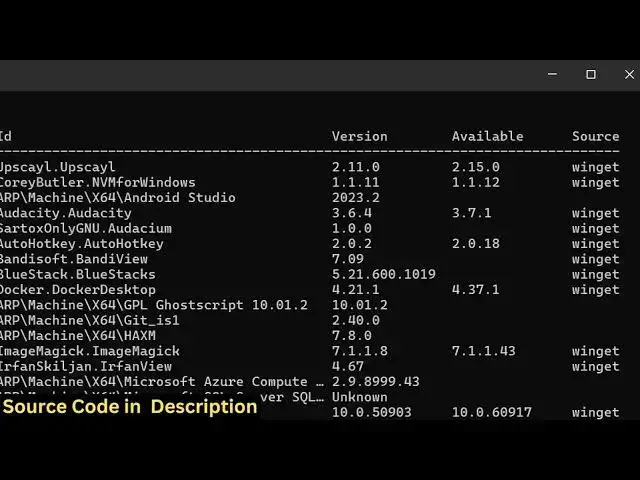
is there is also a list command as well
4:44
so it list outs all the programs which
4:46
are installed on your windows so it
4:49
actually gives you the list you'll see
4:52
so it actually gives you the list here
4:54
so all these programs are installed on
4:56
your
4:58
system so so wi get list so this is
5:01
actually the command
5:03
here it also find outs which version is
5:06
installed so this is really important
5:08
because if you are installing a new
5:10
version of Windows and want to install a
5:12
specific version then it actually find
5:14
out which version is installed so it's
5:17
very good for so now if you want to
5:21
export this into a txt file uh you can
5:24
even do that as well
5:26
so there is a
5:31
dasho and then here you can
5:37
provide I think there is this command
5:39
here I can make use of chat GPT so B get
5:44
command to get list of programs in txt
5:49
file command so if you just write this
5:52
it will give you the command here uh
6:11
so yeah so here you need to replace
6:13
whichever path which you need to have so
6:16
I just putting it in the documents
6:19
directory so if I run this
6:25
now so it will now create this file
6:28
which is installed Das PR pr.
6:31
txt so it is installed inside
6:35
the this is the txt file guys if you see
6:39
it actually list out all the programs
6:41
here which is installed alongside with
6:42
their version so this is really useful
6:45
because you can share this file with
6:47
your friends so
6:49
whichever they are looking forward so
6:51
they list out the version as well so
6:53
which version is installed so this is
6:56
really a handy
6:58
command and we we also have the command
7:00
to upgrade so so if you just type here
7:04
Ving get
7:05
upgrade so if you want to update any of
7:08
the software you simply type
7:11
here the tool name and then it will
7:14
upgrade or install the latest update so
7:18
you can see it is doing it in the
7:21
background so it is installing this
7:25
update so if the upgrade is available
7:27
then it automatically does this
7:30
so this is actually a useful tool so in
7:34
this way you can use this tool in the
7:36
command line to manage your windows apps
7:39
which is installed so thank you very
7:40
much for watching this video and do
7:43
check out my website as well uh free
7:46
mediat tools.com uh which contains
7:49
thousands of tools regarding audio video
7:51
and MH and I will be seeing you guys in
7:54
the next video
#Software
#Software Utilities