Up next in 10

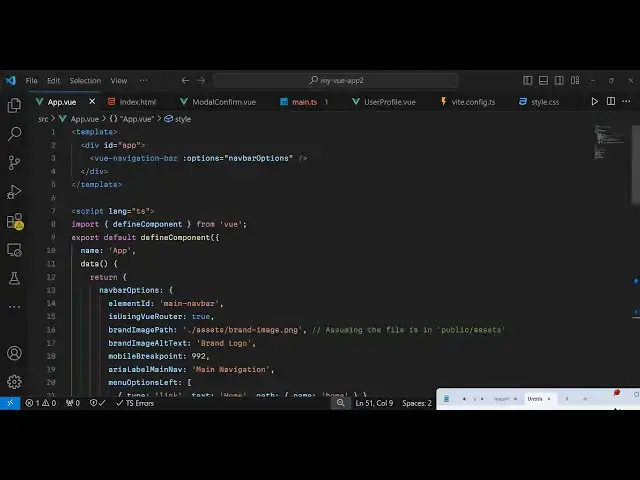
Vue.js 3 vue-navigation-bar Tutorial to Make Responsive Hamburger Sidebar Navigation Menu in TS
Jan 9, 2025

Get the full source code of application here:
https://gist.github.com/gauti123456/c1cd30665c68bfa291fe05d2cdd232c1
Show More Show Less View Video Transcript
0:00
uh hello guys welcome to this video so
0:02
in this video I will show you how to
0:04
make this hamburger navigation menu
0:07
inside the view js3 so there is a
0:10
package which allows you to make this
0:12
navigation menu so on desktop devices it
0:15
will look something like this but if you
0:17
resize the window it will change to
0:20
Hamburger icon if you see on desktop
0:23
devices on mobile devices it will look
0:26
something like this on tablet as well so
0:28
once you click it this menu will open
0:31
you will
0:32
see we also have this cross icon if you
0:35
want to close this so This navigation
0:37
menu will appear something like this so
0:41
so if you want to design this menu there
0:43
is you can simply integrate this using
0:45
this package let me show you the package
0:47
name so if you go to npmjs.com just
0:50
search for this package view navigation
0:54
bar view
0:56
navigation bar so this is actually the
0:59
package
1:00
uh I've already installed it so the
1:03
command is very simple this is a command
1:07
and it's almost got 470 weekly downloads
1:10
it's compatible with the latest version
1:12
which is vuejs
1:15
3 and now to get started first of all
1:20
you need to go to the main.ts file
1:22
inside we have developing it inside
1:24
typescript so so here you just need to
1:27
configure this module
1:30
by importing this module so I will show
1:33
you step by
1:39
step so just
1:44
wait so here first of all you need to
1:47
import the actual
1:49
module and the CSS file so we import the
1:52
module using the import statement so
1:55
import view
1:57
navigation bar and it will be coming
2:00
from this package which is
2:03
view navigation power so 56 kiloby size
2:08
package so we import this package then
2:10
we also need to import the CSS file as
2:13
well so view navigation bar and it's
2:15
located inside
2:17
disc and view navigation bar
2:22
CSS this is your CSS file as well so 10
2:25
kiloby of CSS file so we import the
2:28
module and the CSS file so then we need
2:30
to create a
2:31
simple
2:33
component app. component and we pass
2:36
this view navigation bar we registering
2:39
this component inside vuejs application
2:42
and simply passing it so that's all the
2:45
configuration we import this CSS and
2:48
then we registered this component now
2:50
you can close this file and come just
2:52
come to the app. view comp so right here
2:56
we will inside our template
3:00
we will have the div I will just give it
3:03
an ID here to this app and then we'll be
3:07
embedding this view navigation bar and
3:10
here we need to pass the options so this
3:13
options parameter we will Define it
3:16
inside navigation bar options so right
3:20
here now we need to Define this
3:22
component so right in the typescript
3:27
code so we pass an language here which
3:31
will be typescript so inside this we
3:34
first of all import this module so
3:38
import you just need to first of all
3:41
Define component View and then export
3:45
default it will Define this component
3:48
and the name will be app and secondly we
3:52
need to pass the actual data so data
3:56
this is the standard way in UJS how you
4:02
pass some so we are basically passing
4:06
this options array sorry object nav bar
4:10
options so we are passing this object if
4:13
you see to this component nav bar
4:16
options so it takes options which is
4:19
element
4:22
ID so main
4:27
Navar so this is and then the second
4:30
option is is using view
4:34
router it also supports view router as
4:38
well so you can set this option to true
4:41
so view routing as well and then you can
4:44
provide your brand image path so if you
4:47
have a company logo you can provide this
4:50
image path
4:53
directly and then you can also
4:57
provide company name let's suppose I
4:59
replace it free mediat tools.com
5:02
then you can set this mobile
5:11
breakpoint so it actually takes this
5:14
integer value so say 992 and
5:21
then main nav so here you can give the
5:25
navigation menu name here which is main
5:28
navigation
5:31
and then you can have a series of
5:33
options in the menu so you can Define
5:36
these
5:37
options or menu items so this will be a
5:42
type of link and then we can provide our
5:45
text so I will say home then we provide
5:48
the path so name here will be home the
5:52
name of the component so in this way you
5:54
can Define the options inside it so in
5:58
the similar way I will Define two more
6:01
options which will be
6:04
for about and services
6:07
so these are all three hyperlinks uh if
6:10
you see if you refresh your browser uh
6:14
just go to Local
6:17
Host so it is saying that menu options
6:22
left I think I made a mistake right here
6:26
uh
6:33
menu
6:36
options let me paste
6:45
it so now you can see we have three menu
6:48
items home about services so in this way
6:51
you
6:52
can add more items to the menu so now we
6:56
also have the option to write menu items
6:59
on the right hand position so menu
7:01
options
7:04
right it also takes an array and then
7:08
you can add either menu items or buttons
7:13
in this case we will be having the
7:15
buttons so type buttons we'll have two
7:17
buttons for sign up and login so these
7:21
two buttons will be appearing on the
7:23
right hand side by default the
7:25
background color will be blue you can
7:27
even customize this as well so now what
7:30
happens when you uh resize the window
7:32
automatically this changes to Hamburger
7:35
icon and now if you click on that
7:37
hamburger icon the menu opens
7:40
automatically so so by default it comes
7:44
with this default styling and this
7:46
module allows you to make this nice
7:49
little hamburger navigation menu inside
7:52
which is completely responsive you will
7:54
see on mobile it will look something
7:55
like this and then on tablet or desktop
8:00
so you can use this package to build
8:02
this awesome looking
8:04
navigation hamburger menu then if you
8:08
want to customize this you can even
8:10
write your own custom Styles so just put
8:13
a style tag and then right here you
8:19
can I have given all the source code in
8:22
the description so you can you can
8:24
change the font size font family all
8:27
these things but the function ity
8:29
Remains the Same you see the hamburger
8:32
icon will appear so this is compatible
8:35
with the latest version VJs 3 so you can
8:37
use this module so thank you very much
8:39
for watching this video and do check out
8:41
my website as well free mediat tools.com
8:45
uh which contains thousands of tools
8:48
regarding audio video and image and I
8:51
will be seeing you guys in the next
8:52
video