Up next in 10

Vue.js 3 Tutorial to Show Material Design SVG Icons Using vue-material-design-icons in TS
Jan 9, 2025

Get the full source code of application here:
https://gist.github.com/gauti123456/27c1392c1a89de7c6c254cd02a205bb1
Show More Show Less View Video Transcript
0:01
uh hello guys welcome to this video so
0:03
in this video I will show you how to
0:06
integrate and show material design
0:10
icons SVG icons right inside your view3
0:13
application so we are having these icons
0:16
if you see it's material design SVG
0:19
scalable Vector graphic icons and there
0:22
is a certain package and view three
0:24
which you can use the name of the
0:26
package
0:28
is view material design icons so if you
0:31
just go to npmjs.com just search for
0:34
this package which is
0:38
view material design icons this is
0:42
actually the name of the
0:44
package and it's specifically designed
0:47
for view3 the command is very simple uh
0:51
I have already installed it so this is
0:53
actually the
0:54
command and it's having almost 177,000
0:57
weekly downloads so now to use this just
1:02
inside your app. view
1:04
file we will first of all inside of a
1:09
template we will have a
1:12
div and I will just give it an ID
1:16
here of app and inside this you will
1:19
have an H1 tag with just saying view
1:23
material
1:25
design icons example so
1:31
so we can directly now use the view
1:34
material icons but before that inside
1:37
our typescript code we just need to
1:40
import one by one the icons using the
1:44
import statement so we just write import
1:47
followed by the name of the icon menu
1:49
icon which will be coming from this
1:52
package view material design icons SL
1:55
menu do View
2:00
in the similar way we again need to
2:03
Android icon one such another icon view
2:07
material design icons and slash Android
2:11
view so we are one by one importing the
2:13
icons name from this package and after
2:17
importing it we just need to export this
2:19
to the VJs component so we just write
2:22
export
2:23
default and then we export the name of
2:26
the component which is app put a comma
2:30
and then we export the components that
2:32
we need to have one by one so we'll say
2:35
menu icon then we import the Android
2:39
icon so we are importing it and then
2:42
exporting
2:47
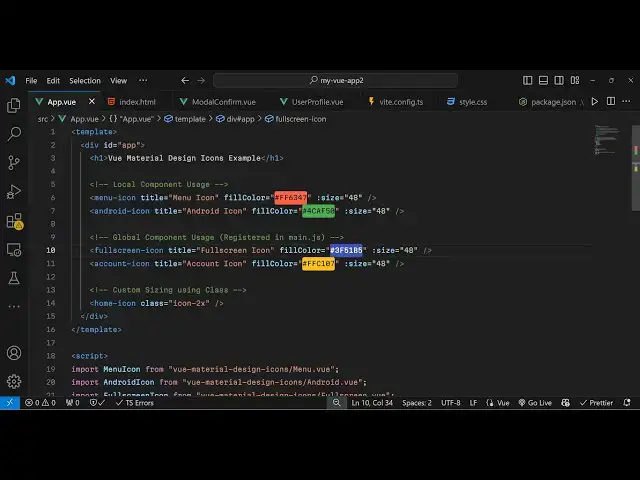
it so now we can directly use
2:50
it inside the HTML so just we write the
2:56
component menu icon and then we provide
2:59
a title
3:02
which is menu icon and we can even
3:06
control the color as well of the icon by
3:09
providing a hexadecimal code right here
3:11
which
3:12
is 6
3:18
3 and then we can even control the
3:22
size parameter is also available so
3:26
size so you can say 48 in numeric
3:30
value so if you just refresh here uh the
3:33
browser and just see you will see this
3:36
menu icon appearing in orange color and
3:39
having a size of
3:42
48 in the similar
3:45
way we will use this Android icon as
3:48
well so I will simply copy
3:52
this and paste it and here I will
3:54
replace
3:57
Android so you will now see let me
4:00
change the color
4:03
here uh to different
4:09
color so now it's a green color
4:12
icon and in similar way uh we have more
4:15
icons available which is the full screen
4:18
and the Andro account icon as well so
4:22
full screen icon account icon so again
4:24
we'll be exporting this the
4:27
configuration part is very simple we
4:29
import the icon then we export this and
4:32
then we can directly use it in the HTML
4:36
so we can control the color and the size
4:40
you can pick any color of your choice by
4:42
this property fill color and the size as
4:44
well
4:45
so if you refresh you will see the icon
4:48
will
4:55
appear so this is actually the package
4:58
guys which allow you to use material
5:00
design icons inside your view3 app and
5:04
this is actually the package I've shown
5:06
you step by-step instruction so thank
5:08
you very much for watching this video
5:10
and do check out my website as well free
5:13
mediat tools.com uh which contains
5:15
thousands of tools regarding audio video
5:17
and image and I will be seeing you guys
5:20
in the next video
#Skins, Themes & Wallpapers