live_tv
Livestream Starting Soon
00
Hours
:
00
Minutes
:
00
Seconds
Up next in 10

Visual Studio Code Extension to Show Size & Info of NPM Packages in IDE While Coding Full Tutorial
Jan 9, 2025

Visual Studio Code Extension to Show Size & Info of NPM Packages in IDE While Coding Full Tutorial
Show More Show Less View Video Transcript
0:00
uh hello guys welcome to this video so
0:02
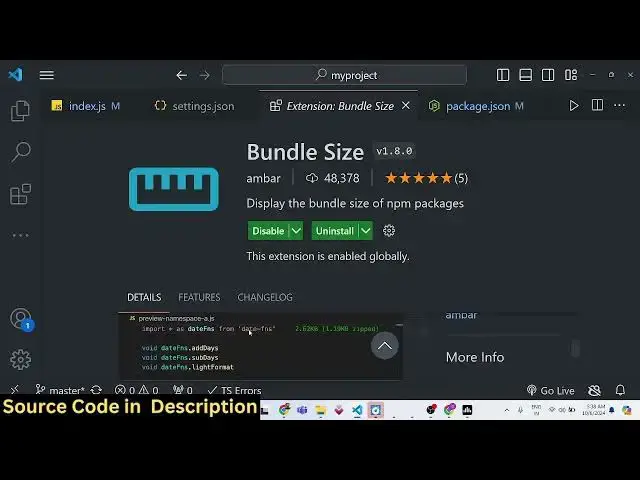
in this video I will show you a visual
0:04
studio extension which actually shows
0:06
the bundle sizes of npm packages while
0:09
you are importing them inside your
0:11
application so for that uh there is
0:15
actually an extension that you need to
0:16
install simply go to the extensions tab
0:19
right
0:20
here just click it and right here just
0:23
search for bundle so as you will search
0:26
for bundle the second uh extension which
0:29
comes right here bundle size it is
0:31
developed by this developer Amber and it
0:34
has got 48,000 we uh downloads simply
0:38
click it and it will show you the live
0:40
preview of
0:42
it as you import any third party
0:45
packages it will show you the size here
0:48
on the right hand
0:49
side and simply click on install and now
0:53
the extension has been globally
0:55
installed so now you just need
0:58
to First of for make the package.json
1:01
file
1:02
np- this will create a package.json file
1:06
and now you can install any third party
1:08
package
1:09
npmi express which is a web server
1:12
malter is a file upload Library so any
1:15
you can install any third party packages
1:17
so now you can see the packages is
1:20
installed so now we can simply make our
1:23
index.js
1:28
file so
1:31
just change the type parameter here to
1:35
module because we will be using the
1:37
import
1:38
statement so import
1:42
Express from Express so now as you
1:46
basically do this on the right hand side
1:48
if you see it is exactly telling you the
1:50
size of this package which is 796 kiloby
1:54
but uh for production the code will be
1:57
minified and it will be coming out to be
1:59
26 4 kilobyte Z and if you hover onto
2:02
this
2:03
package you will actually see more
2:06
details of this package breakdown of
2:09
each and everything which is there in
2:10
this package the overall size is 796
2:14
100% this is taking 133 kiloby size so
2:18
it is basically showing the dependencies
2:20
of this Express web server package it is
2:23
breaking down all the minute details all
2:27
the external packages which this package
2:30
dependent upon so this is a very handy
2:33
extension guys in Visual Studio while
2:35
developing your application it's really
2:37
easy to see the bundle size of each and
2:38
every package you will actually see this
2:41
package.json file for this Express
2:43
package it is actually dependent upon
2:46
these uh packages you can see the actual
2:50
details of d as well
2:54
so similarly we will we can also import
2:57
molter package as well similarly
3:02
then again you will see 212 kilobyte
3:05
this is the overall size 43 kilobyte
3:08
zipped and you can actually see the
3:11
details of this
3:14
package all the other packages which
3:17
this package dependent upon you can just
3:22
see now you can actually use
3:27
this to constructed app lessen
3:37
5,000 then you can actually make your
3:41
application this is really handy uh
3:44
while developing the package you are
3:45
simply seeing the details of all the
3:48
third party packages so this makes it
3:49
really easy if you want to just detect
3:52
which packag is taking how much space so
3:55
now you can simply open this uh
3:57
application
4:01
so basically we haven't created any
4:04
route but you get the
4:07
concept I just wanted to show you this
4:22
extension so now you can see we are
4:25
having the simple Express app and we are
4:27
actually using these two packages
4:30
now to actually change the details of
4:32
the colors you have a user settings of
4:36
this you can simply uh type on your
4:39
keyboard control shift p it will open
4:41
this shortcut of and here you can just
4:44
type here user settings this is the uh
4:48
Json file which is there for vs code if
4:51
you want to change the settings of any
4:54
extension in vs code simply you can
4:57
change these settings in this file which
4:59
is the user settings Json file simply
5:02
open that and you will open this
5:04
settings. Json file so for each plug-in
5:06
which is available for each extension in
5:09
vs code we can change the settings by
5:12
changing this Json
5:14
file and all the extensions which are
5:17
installed uh so for this extension also
5:20
if you go to
5:22
the doc docs here they will exactly tell
5:26
you the
5:31
so these basically comes with this own
5:35
you will actually see all these settings
5:36
comes with the default settings so you
5:39
can simply copy
5:42
this
5:46
uh just copy
5:51
this and just put a comma and paste it
6:03
I think uh we need to search for this
6:12
bundle if you want to basically change
6:14
the color here uh let's
6:17
Suppose there is a setting for this
6:19
which is
6:34
uh so here basically it the default
6:37
color is this one which is red color you
6:40
can also change this color as
6:42
well uh this is actually a property
6:45
basically it tells you it is a string
6:47
value default value is this uh so
6:51
description is the default color for the
6:53
size text so you can change this color
6:56
by providing a string value of whichever
6:58
color that you want let's suppose I want
7:00
to change it
7:03
to uh black color so I will simply put
7:08
here 0 0 0 and
7:14
now if you refresh I think
7:21
uh I think we do need to restart this
7:24
after you make those settings
7:27
changes you again need to restart your
7:30
vs
7:46
code so if you see uh the settings files
7:50
that we do bundle info color
7:59
so in this way guys you can change
8:01
individual settings as well as well so
8:04
just search for that
8:07
package bundle
8:23
size info color caution
8:26
color danger color loader all these
8:31
settings are
8:35
there so what you can do you can even
8:37
take help inside
8:42
uh I have uh this uh GitHub co-pilot
8:48
enable so what I can do
8:54
basically I can actually make a task
8:57
here
8:58
uh just just ask it in the
9:08
chat uh please uh you can simply say
9:12
here uh please provide the
9:20
x the
9:24
settings for bundle
9:26
size vs code extension
9:29
to change the default color of red to
9:35
blue so we have this guub copilot
9:38
installed so it will
9:40
actually you can see uh you need to
9:53
modify so it will give you this settings
9:56
uh so what I will to paste this setting
10:11
this is this is actual overall extension
10:13
guys uh bundle
10:16
size so the main thing is it is doing it
10:19
whenever you importing any third party
10:21
package it's showing you the size of the
10:23
that package so it's really helpful for
10:26
developing your applications so thank
10:28
you very much for watching this video
10:30
please hit that like button subscribe
10:31
the channel as well
#Programming
#Software