Up next in 10

Vex Modal Library Example to Build Beautiful Popup Dialogs & Alert Boxes with HTML & JavaScript
Jan 9, 2025

Vex Modal Library Example to Build Beautiful Popup Dialogs & Alert Boxes with HTML & JavaScript
Show More Show Less View Video Transcript
0:00
uh hello guys welcome to this video so
0:02
in this video we'll be looking at a
0:03
library which is used to display popup
0:07
dialogues and models so the name of the
0:10
library is vex vex it's a beautiful
0:14
functional um model dialogues Library so
0:18
this is their official website vex vex
0:22
so the these These are the different
0:25
dialogue boxes this is a simple alert
0:28
box this is a confirm
0:31
box here you can take user input in the
0:33
prompt here it has various themes which
0:37
it supports so we will be looking at a
0:39
very simple example in the
0:42
browser and
0:44
uh where you will be accepting the
0:46
username and the password so when we
0:49
click the submit button we will let the
0:51
user know what username that they have
0:54
typed in this alert box so I will show
0:56
you how to implement this library inside
0:58
JavaScript
1:01
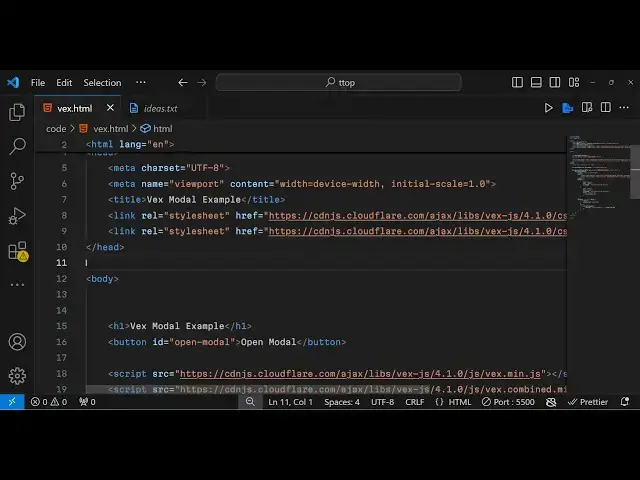
so the name of the library is Vex so if
1:05
you just write this on Google Vex models
1:09
this is actually the
1:12
library so now to get started I have
1:15
already included the CDN for using this
1:19
so I've given all the source code in the
1:21
description of this video so you can
1:22
copy paste all the source code so we
1:25
have included basically the
1:27
CDM right here
1:35
so let me just delete this custom
1:38
JavaScript
1:40
code so we have included the CDN for the
1:43
CSS and for the JavaScript which is
1:46
there so you can find all the source
1:48
code in the description so now to get
1:50
started we will have this simple heading
1:54
which will simple say Vex model example
2:01
then we will be having a simple button
2:03
and uh we will give it an ID here of
2:06
open
2:09
model so when we click this button we
2:11
need to write the custom JavaScript code
2:13
for this so what we need to do write
2:16
here we will first of all set the theme
2:19
of
2:21
the Vex model so if you just go to their
2:25
official website go
2:28
to D these are different demo here
2:33
so just go to
2:36
their official
2:39
documentation so this is their
2:41
documentation so if you go to the theme
2:43
section they have different themes out
2:46
there if you see default theme operating
2:48
system plane theme wireframe so all
2:51
these themes you can see this is a
2:53
default theme this is actually the op
2:56
theme operating system theme this is a
2:58
plane theme this is the this one so it
3:01
has various themes out
3:05
there so in this way we can set first of
3:09
all the theme by using this Vex do
3:14
default options do class name and we can
3:19
set this theme Vex theme
3:23
wireframe so we actually set this theme
3:26
and now we will bind this uh
3:30
on click listener to the button so we
3:32
will Target this by the ID that we have
3:34
given so when we click this button we
3:37
will execute this call back function so
3:40
inside this call back function we will
3:42
actually use this function Vex dialogue
3:45
open open function actually creates a
3:48
dialog box and inside this we need to
3:51
pass some options so the first option is
3:53
the actual message that you want to show
3:56
to the user so you'll simply say this is
3:58
a Vex model
4:01
so the second option takes is the actual
4:05
input that you want to show so in this
4:08
case we will be showing two input fields
4:11
for accepting the username and the
4:13
password so first input field here it
4:16
will be accepting the username so you'll
4:18
be giving a name property of username
4:20
and type is equal to
4:23
text and placeholder will be simply be
4:26
saying
4:27
enter username
4:31
and
4:34
uh this should be
4:37
required so after
4:41
this just put a
4:43
comma and for the second one this will
4:46
be for
4:47
password so input type will be here
4:56
password so after this we just need to
4:58
call the join function and like
5:02
this and then the third property comes
5:04
is the buttons so you can even show
5:06
buttons inside alert box so we can we
5:10
will show two buttons so for each button
5:12
we need to pass an object so the first
5:15
button will be a submit button so the
5:17
text will be simply be saying submit the
5:20
form and we'll give it a class name as
5:23
well which is inside this Vex
5:28
Stog so so this is actually the library
5:31
which provides this class Vex dialogs
5:34
button primary similarly we will copy
5:37
this one more time and the second button
5:40
here will be Ty will be button and this
5:43
will be for cancel so this will be
5:50
secondary so if you just refresh your
5:55
application click this you will see that
5:57
now this uh next model this is actually
6:00
the title and these two input Fields
6:03
where you'll be accepting the username
6:05
and the password and then we have these
6:06
two buttons cancel and submit you can
6:09
just see the actual dialog box which is
6:11
appearing right here when we click the
6:14
cancel button it doesn't close now to
6:17
bind this now to close the dialogue box
6:21
when we click the cancel button we need
6:23
to bind an on click listener right here
6:25
to this cancel button so click event
6:27
handler we just need to write this
6:29
function
6:30
so when the user clicks this cancel
6:32
button we just need to close the so it
6:35
provides this close method and this
6:37
close the dialog window so now what
6:39
happens if you open this dialogue if you
6:42
now click the cancel button it will
6:45
close the dialogue very simple we binded
6:47
this click event handler and then we
6:51
have actually the call back function
6:53
which is responsible to actually get the
6:57
things which is entered by the user in
6:59
inside username and password so this
7:02
inside this data variable we will be
7:04
getting the actual data which is
7:07
submitted by the user so if no data is
7:11
present then we'll simply say it is
7:13
cancelled if the we C the user input
7:17
then we will show it in in a dialog
7:20
window so again we'll be using Vex
7:21
dialog open and this time we'll be
7:24
showing the
7:26
message which is your username is
7:31
is data.
7:35
username that's all so you will
7:38
basically see now we have this bed this
7:40
call back function so this will actually
7:42
show the data which is submitted by the
7:44
user which is username so now if I enter
7:47
any username and then enter the password
7:49
click on submit you will see your
7:52
username is this username that you
7:54
submitted like this so as I already told
7:58
you we have various themes out there we
8:00
can change the theme name here and then
8:01
we need to include the CSS files for the
8:04
respective theme that you are including
8:05
it very simple model window Library guys
8:09
in JavaScript you can use it for any
8:12
sort of application and uh it's very
8:14
lightweight as well open source Library
8:17
this is their documentation you can
8:19
check out it lot more examples are given
8:22
so thank you very much for watching this
8:24
video and do check out my website freem
8:26
mediat tools.com which contains lots of
8:28
free media
8:30
tools related to audio video and image
8:32
and I will be seeing you in the next
8:34
video