Up next in 10

This VSCode Extension Allows you to Edit & Modify CSV Files With Table UI & Excel Editor Full Setup
Jan 9, 2025

This VSCode Extension Allows you to Edit & Modify CSV Files With Table UI & Excel Editor Full Setup
Show More Show Less View Video Transcript
0:00
uh Hello friends welcome to this video
0:02
so in this video I will actually show
0:03
you a visual studio code extension which
0:07
allows you to edit your CSV files with a
0:10
buil-in
0:11
editor so it looks something like this
0:14
you will see that we have the sample.
0:16
CSV file right here comma separated
0:19
value file which is a CSV file and we
0:23
actually Define three columns right here
0:25
name Age Country and three rows of data
0:29
this is actually the file right
0:32
here so the thing is that this plug-in
0:38
this extension creates this option right
0:40
here on the right hand side edit CSV
0:43
simply if you click it you will be
0:45
redirected to this uh editor where you
0:48
can actually edit the CSV file you can
0:52
add
0:54
rows you can see that how easy it is
1:00
you can add a column as well if you want
1:02
to add a
1:09
column and if you are want to save these
1:14
changes simply click this option apply
1:15
changes to file and
1:17
save so this file is this so if you now
1:20
click this button so your changes will
1:22
be saved and now if you see the column
1:25
this fourth column that we added is
1:28
successfully reflected back into to the
1:30
original file so now you can just see
1:32
here now it contains four columns so
1:35
this extension that we are using uh let
1:37
me show you this extension you need to
1:39
go to first of all the extensions tab
1:41
right in vs code and just search for
1:45
this extension which is edit
1:48
CSV so just write this inside the search
1:51
bar and you will actually see the very
1:52
first extension which comes right here
1:54
it is developed by Janice DD and it's a
1:58
simple extension to edit C PV files with
2:00
a table
2:02
UI
2:04
and let me uninstall it and install it
2:08
from
2:10
scratch it's a very popular extension it
2:13
is caught
2:15
almost a million downloads you will see
2:17
1.6 million downloads it's a very
2:20
popular
2:21
extension and uh if you work with CSV
2:23
files then it's a must extension to have
2:26
in vs
2:28
code so once you just install it simply
2:31
create a simple sample. CSV
2:35
file you can just Define some or you can
2:39
simply open the
2:41
editor like this you can click the dpin
2:44
icon if you want to started from
2:47
scratch so now there is a very single
2:50
column right here
3:00
so now you can add a column here by
3:02
clicking these buttons right
3:10
here then we can add some records right
3:13
here
3:30
so in this way you can just add uh as
3:33
many records as you
3:45
want so you click on this button apply
3:48
changes to file so if you click this
3:50
button you will see the records will be
3:52
added
4:00
so we have the read options as well if
4:02
you want to add a d limiter
4:05
comment these are some Advanced options
4:07
that you want to have similarly we have
4:10
the right options as
4:11
well so this actually shows you the
4:14
preview of the
4:20
file so the basic functionality is very
4:23
simple you create a sample. CSV
4:28
file then you click this button which
4:32
appears on the right hand side edit CSV
4:35
and then it has a built-in table editor
4:39
where you can edit the files right here
4:42
individually you can click it as well if
4:44
you want to insert this row at this
4:47
location so you can just add the
4:56
record so now if you want to add the
4:58
record in insert this row below then
5:02
this so add any location you can add the
5:07
rows right here by right clicking the
5:09
mouse you can
5:11
simply if you want to insert the column
5:13
right you can insert this
5:22
column this makes it very much easy if
5:25
you have a very long CSV file if you
5:28
want to edit that CSV file so this makes
5:30
it really easy to edit those long files
5:34
you can add columns add rows at any
5:36
locations by clicking with the mouse
5:39
right here you can individually remove
5:41
any rows if you want to remove the
5:43
second row from the CSV file simply
5:45
select this option and now it will
5:47
remove that second row you can
5:49
individually click any of the rows
5:52
similarly if you want to delete this
5:54
column either you can click this Des
5:56
spin icon or you can simply say remove
5:58
column so that column will be removed so
6:02
this is a must extension if you work
6:05
with CSV files while you develop your
6:08
projects so it makes it really easy to
6:13
actually edit the files so let me just
6:16
show you a sample CSV file which is a
6:20
pretty long file
6:24
having a lot of
6:27
Records so if you
6:30
let's suppose if you have a th records
6:33
CSV file let me download this
6:39
file so now you can see we have these
6:41
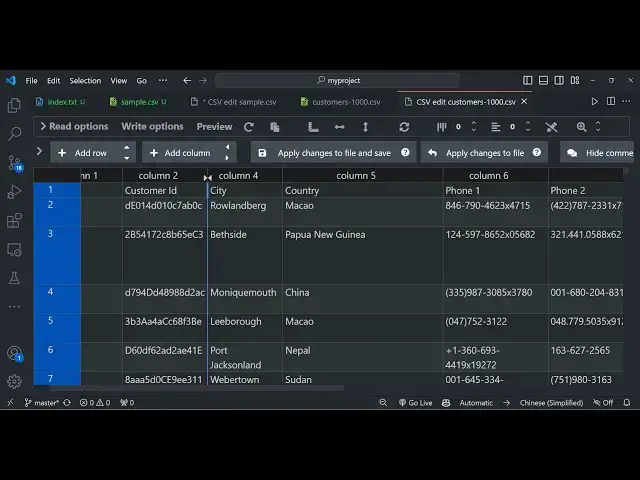
thousand records out there so it's a
6:43
pretty long CSV file so now the power of
6:48
this extension takes place so click on
6:50
this button and now you'll see all these
6:52
thousand records are showing it in the
6:54
editor and uh now if you want to
6:58
individually remove any Row from here if
7:00
you want to remove this row simply click
7:03
this remove row so now this row will be
7:07
removed like
7:09
this if you want to remove this row now
7:12
that remove uh row will be removed from
7:15
this CSV file now at any location let's
7:19
suppose at this 270 location after this
7:22
record if you want to add a brand new
7:24
record you can simply say insert row
7:28
below
7:30
and now here you can add your
7:33
record like
7:38
this so you can just see the power of
7:42
this extension so at any location you
7:44
can just click on right click on the
7:46
mouse and all these options will appear
7:49
you can insert row above below insert
7:51
column Left Right remove row column
7:56
alignment as well you can just
7:59
if you want
8:01
to make it appear in the right position
8:04
center all the positions are
8:09
supported so by default the alignment is
8:12
left of the text if you want to hide
8:15
this particular column you can select
8:17
this option so that column will be
8:21
hidden you can even uh control Z if you
8:24
want to undo reward back
8:36
so after you make the changes if you
8:38
want to save this you will simply say
8:43
that apply changes to file and
8:49
save so if you click this button the
8:52
changes will be
8:56
saved let's suppose if you want to
8:58
remove this call colum first name column
9:00
remove it again click apply changes so
9:04
now if you see that first name column
9:06
has been successfully
9:08
removed you also want to remove the last
9:10
name column as
9:12
well that column is also removed so it
9:16
basically as you remove or add columns
9:19
it refreshes automatically so it's a
9:23
realtime CSV editor in vs code so you
9:27
don't need any third party software for
9:29
edit your CSC files you can just do it
9:31
from the editor
9:34
itself vs code and
9:39
uh I've shown you the full setup process
9:43
on how to install it and use it and
9:46
uh thank you very much for watching this
9:49
video and please hit that like button
9:51
subscribe the channel for more videos
9:53
like this and I will be seeing you in
9:55
the next video
#Other