Up next in 10

This Ultimate Image Manager & Editor in VS Code allows to Compress, Convert & Crop Images with Ease
Jan 9, 2025

This Ultimate Image Manager & Editor in VS Code allows to Compress, Convert & Crop Images with Ease
Show More Show Less View Video Transcript
0:00
uh hello guys welcome to this video so
0:02
in this video I will introduce to a new
0:04
Visual Studio extension which allows you
0:06
to actually do allinone image manager
0:10
things you can compress images you can
0:12
view images right in the editor itself
0:14
you can crop images you can find details
0:18
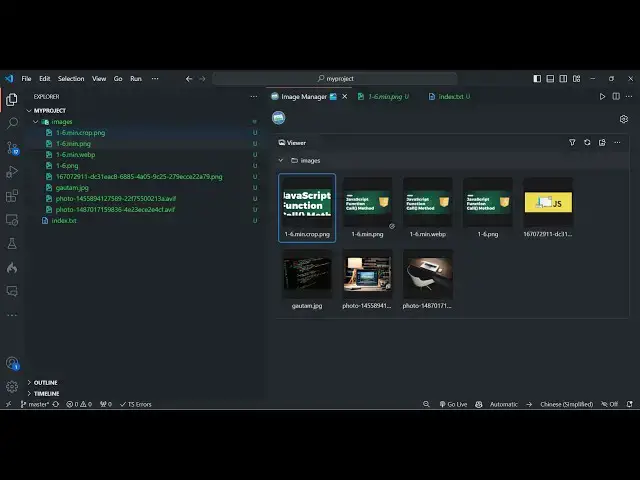
about this images so it will look
0:19
something like this you can preview
0:21
images right here there are lots more
0:25
options you can convert images from one
0:27
format to another you can compress
0:28
images you can crop
0:30
images and you can find out details
0:32
about images right in the editor itself
0:35
so the name of the extension is this
0:37
image manager if you go to the
0:39
extensions tab inside vs code and just
0:42
search for this extension which is image
0:46
manager so after typing image manager
0:49
the very first extension which comes
0:51
right here this is the actual extension
0:54
MCO and
0:57
uh I've already installed it
1:01
so you will basically see a install
1:04
option you need to click on
1:06
install so the extension will be enabled
1:09
globally so after enabling it you just
1:13
need to close this and now you just have
1:16
it to have a series of images while
1:18
you're are developing your project so I
1:20
have this images folder and we have a
1:22
set of images right here you can take
1:24
all image extensions are supported PNG
1:28
jpg so we have a lot of extension ions
1:30
of images there in the images folder we
1:33
need to right click the image and you
1:35
will actually see this option image
1:38
manager you just need to toggle this for
1:40
the very first time so now this window
1:43
will
1:44
open and you will actually see all your
1:46
images right in the gallery like
1:49
structure and you can individually
1:51
select any image if you want to select
1:53
the preview simply select this option so
1:55
now you can actually flip the image in
1:58
vertical Direction horizontal Direction
1:59
ction you can rotate your images right
2:01
in the editor itself like this all the
2:05
basic image operations you can perform
2:07
right here without having to having a
2:09
major
2:10
editor and then right click it and now
2:13
you will actually see lot more options
2:15
available to you you can actually copy
2:18
the path of this image because in
2:21
programming you will actually need
2:23
situations if you need to have the C
2:26
path of the image so you can directly
2:28
copy the path right here
2:30
and uh then you can store this
2:35
path it will give you this path here you
2:38
will see that so this is really useful
2:40
it will save you a lot of
2:43
time and apart from that you can even
2:46
have the relative path if you want to
2:48
have the relative path not the full path
2:51
it also gives you the relative
2:54
path then we have the option to if you
2:56
want to have the base 64 code of the
2:59
image
3:00
then also there is this uh redate option
3:03
available to you if you want to get the
3:06
base 64 code of this image it will give
3:08
you you can store this code right
3:13
here then we have the compress option so
3:16
if you want to compress your image so
3:18
many of times if you want to uh move
3:21
your application into production you
3:23
need to compress your static assets such
3:26
as images and your code you simply need
3:28
to click compress and now a new window
3:30
will open right here and it will
3:32
actually have all these options you can
3:35
control the compression level from 0 to
3:37
9 9 uh means the smallest zero means uh
3:42
no compression so image quality you can
3:46
set 100 is the high quality one is the
3:49
low let me compress it to
3:52
50 compression level the maximum then
3:56
you can even control the size of this
3:58
image format if you convert this to a
4:01
different format I will set it to
4:04
original if you want to preserve the
4:06
original file simply select yes and uh
4:10
the minified will file will have this
4:12
suffix do Min click on the confirm
4:15
option and now your file will be
4:18
successfully compressed and if you see
4:21
it has have this main extension if I
4:24
just compare the size right
4:28
here you will actually actually see the
4:30
original size wor 324 kilobyte and now
4:33
the compressed size is 70 kilobyte so
4:36
significantly the image size has been
4:38
reduced and you can just see the quality
4:40
of the image it remains so constant so
4:43
in this way you can uh without leaving
4:45
your editor you can directly compress
4:47
your images as well without having to
4:50
leave your editor simply a click is
4:53
required then we come to the uh convert
4:56
format if you want to convert let's
4:58
suppose this is a p image if you want to
5:00
convert to a different image extension
5:02
such as jpg webp GIF all these formats
5:06
are Rim made available simply select the
5:08
extension let's suppose I want to
5:10
convert this into web P image you want
5:13
to keep the original file simply select
5:15
yes and then click confirm so now you
5:18
will see your web uh your file has been
5:21
converted to webp
5:23
file it opens in the
5:25
browser so it will save you a lot of
5:28
time all these operations you don't need
5:30
to leave your editor you can directly do
5:33
it inside vs code so then we come is the
5:38
crop operation if you want to crop your
5:40
images you can select the crop option
5:44
and you will rimed see this uh crop
5:47
editor right built inside the vs code
5:50
you'll
5:51
see you can simply crop your image
5:55
whatever portion that you want to crop
5:57
after selecting this simply click the
5:59
preview option so it will look something
6:01
like this click on the save option to
6:03
Simply Save the cropped image and now
6:07
the image will be simply cropped it will
6:10
have this suffix crop.png you will see
6:14
that you can see that it's all-in-one
6:16
image editor in vs code extension so if
6:19
you want to compress crop convert images
6:22
from one format to
6:24
another you can do it right in the
6:27
editor itself you don't need any third
6:29
party libraries or software
6:33
so if you want to rename this file to
6:36
any else you can rename to any other
6:39
name let's
6:42
suppose like this you can rename your
6:45
file right here in the editor
6:49
itself so if you want to delete this
6:51
file simply click the delete option are
6:53
you sure you want to delete this so the
6:56
image will be deleted if you want to see
6:59
addition information about this you want
7:00
to preview this if you want to see the
7:04
details of this image it will tell you
7:06
the name of the image the directory the
7:09
dimensions the width and the height the
7:12
size of the image which is 11.18
7:14
kilobytes is compressed now
7:19
so this is the extension guys that I
7:22
wanted to show you in this video and uh
7:25
it's a must extension for all Developers
7:30
so it's a fairly new extension and uh I
7:35
just discovered it today so that's why I
7:37
wanted to make this video
7:41
so so it's a very simple extension after
7:45
installing it
7:47
you can directly use it no need of any
7:50
advanced
7:51
settings it uh shows all the images in a
7:54
gallery like structure and all your
7:57
images are accessible you can perform
8:00
these operations with a simple click no
8:03
need to S your
8:05
enter
8:07
so thank you very much for watching this
8:10
video and if you like this video and
8:12
please hit that like button and also
8:14
subscribe the channel as well and I will
8:16
be seeing you in the next video
#Multimedia Software
#Software Utilities
#Other