Up next in 10

React.js XLSX.js Example to Create Excel File From JSON in Browser and Download it as Attachment
Jan 9, 2025

Buy the full source code of application here:
Show More Show Less View Video Transcript
0:00
uh hello guys welcome to this video so
0:02
in this video we looking at a simple
0:04
react CHS
0:06
application where we will look at how to
0:08
create Excel files from the Json data so
0:12
for this I will be using a package XLS
0:15
which is a very famous Library if you
0:17
want to actually create a Excel file so
0:20
this is my application let me show you
0:24
I'm running this application on Local
0:25
Host 3000 port number uh sorry Local
0:29
Host 5
0:30
173 it's react CHS application which is
0:34
running so it has a button out there
0:37
which says download Excel if I click
0:40
this button you will actually see the
0:41
Excel file will get downloaded and if I
0:44
open this Excel file you will actually
0:46
see there are three columns name AG
0:48
country and we have two rows of data
0:51
right here so inside this we are
0:54
actually having a Json object which we
0:56
have data object we have creating these
0:59
data name H country two rows of data and
1:03
we are downloading an Excel file inside
1:06
react chairs so now let's get started
1:08
how to build this application from
1:10
scratch so what I will do I will start
1:13
everything from scratch and for this you
1:16
do need to have installed this package
1:18
excels npmi Excel SS this is a package
1:23
Excel SS this is a package Excel file
1:28
diory after you install this you can
1:32
start your application npm runev so
1:35
first of all guys we will actually
1:37
create a functional
1:40
component and we simply say export
1:43
default app so we have a return
1:47
statement you'll have a functional
1:49
component and we'll simply say hello
1:52
world so if you see this is actually a
1:55
very simple functional component hello
1:57
vo is saying so it is running this
2:00
application Local Host 5173 with hot aut
2:03
reload Auto reload so right here inside
2:08
this we will have a simple
2:11
button we will have first of all
2:14
react
2:16
Excel file example after this you will
2:20
have a button which will simply say to
2:22
the user that
2:25
download Excel file and inside this
2:29
button be giving an onclick listener so
2:32
when you
2:34
click this button we will simply create
2:37
a function which will say create Excel
2:40
file now we need to Define this function
2:44
so you simply say create Excel
2:51
file so this function guys
2:55
basically we first of all declare a data
2:59
object
3:00
and inside this we
3:04
have data we will have the name
3:08
property name column let me
3:15
say we have the second
3:22
column so let me just declare these two
3:26
data
3:38
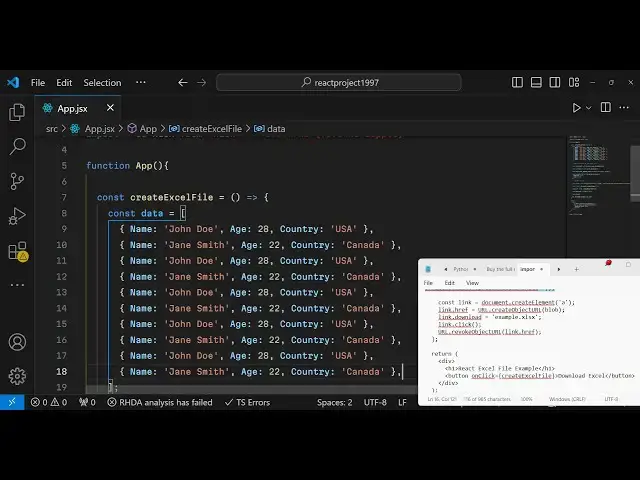
oh sorry this is an array of objects
3:41
sorry we have array of objects so we
3:44
have declared two
3:46
objects two rows of data so we have
3:50
three columns name AG
3:52
country after we declare this data we
3:55
can need to actually add a worksheet in
3:58
the Excel file
4:00
so for adding that worksheet we need to
4:04
import that module that we installed
4:06
first of all we'll importing the react
4:08
module from base react
4:13
library and then we need to import
4:16
actually the XLS
4:19
package as
4:21
XLS from XLS package so right here we
4:26
need to add a worksheet and we will
4:28
simply need to create a variable for
4:30
this we will simply say
4:33
worksheet exls
4:36
utils and it contains a function of Json
4:40
to sheet Json to she sheet guys actually
4:43
we have a Json data we created array of
4:46
Json objects we have two objects right
4:49
here which contains three properties
4:51
name AG country we will take this Json
4:54
data and create a sheet of Excel file
4:57
pass this data as an argument and now we
5:00
need to create a workbook and for this
5:02
we will be using again this function
5:05
utils and creating a new
5:08
book it's like this we using this
5:11
function after that XLS utils and it
5:15
contains this function book upend sheet
5:19
you'll be creating a new sheet inside
5:20
the Excel file and we will use this
5:23
workbook pass the first argument the
5:25
second argument is the worksheet that we
5:28
are using worksheet and here we need to
5:30
put the sheet name we will simply say
5:33
sheet one we are simply creating a new
5:36
sheet inside the Excel file so we're
5:39
giving a name to it you can give any
5:41
name of your choice after you give this
5:43
sheet name now you will actually create
5:46
an Excel file so Excel
5:50
buffer and then this excels module
5:53
create contains a write function which
5:56
actually writes Excel file using this
5:59
workbook
6:00
and it takes a second object which is
6:03
the book type that you need to specify
6:06
right here book type it can be either
6:09
CSV excels so in my case I'm creating an
6:12
Excel file so it will be excels file the
6:15
second parameter will be the type of the
6:17
file so it will be a
6:20
array and uh after it we need to convert
6:23
this into a blob so that uh we can
6:27
download this in the browser so for
6:29
creating it converting it to blob we
6:33
will be using a function we will
6:35
instantiate a new instance of blob
6:38
object and here we'll be passing this
6:40
Excel buffer that we are receiving and
6:43
the second parameter is the type
6:45
parameter so here you need to specify
6:47
the M type which is application SL Y and
6:52
the open
6:55
XML formats
7:02
so basically yeah uh just putting that M
7:08
type for the Excel file so that we can
7:11
download this so after you do this we
7:14
need to in uh download this in a link
7:18
tag so we create a new link tag by using
7:21
the create element
7:23
function and then we give it a file name
7:29
url. create object URL and uh pass the
7:34
blog give it a file name so when you
7:38
download the Excel file this example.
7:41
XLS will be the file name given and then
7:44
just click the link by using the link.
7:47
click and then we will
7:49
simply revoke this youor by revoke
7:53
object URL and then link
7:56
href so this completes the application
7:59
if you now try to test it you have a
8:01
button out there if you click this
8:03
button you will see
8:06
the all the data that you provided in
8:08
the Json object has been converted into
8:11
an Excel file and uh you can add more
8:14
data inside this so it's very easy just
8:18
go to the Json and just paste some more
8:21
rows of
8:23
data you can change the data name AG
8:26
country accordingly you can put any sort
8:29
of
8:30
columns depends upon you so in this way
8:33
you can create Excel files very easily
8:36
in browser using react CH and using this
8:38
package
8:39
XLS so this was a complete example that
8:42
I showed you in this video so thank you
8:44
very much for watching this video and do
8:46
check out my website as well guys free
8:48
mediat tools.com which contains tools
8:51
regarding audio video and image and I
8:54
will be seeing you guys in the next
8:55
video Until then thank you very much