Up next in 10

React.js Tutorial to Bind Keyboard Hotkeys and Shortcuts in Web App Using react-keyboard in JSX
Jan 9, 2025

Buy the full source code of application here:
Show More Show Less View Video Transcript
0:00
uh hello guys welcome to this video so
0:02
in this video I will show you in react
0:04
CH application how to add keyboard hot
0:07
keys and shortcuts to your application
0:10
so this is very useful for fast
0:14
efficient work without having
0:16
to without having to click on the
0:19
individual element you can bind a
0:20
shortcut keys on the keyboard so we have
0:23
these a nice little application where
0:26
you can add an item or remove it so we
0:28
have these two buttons available either
0:30
you can manually click the button right
0:32
here if you click it it will add the
0:35
item and similarly for removing it you
0:38
click the remove button then it will
0:39
remove it but what if that we have these
0:43
two shortcut keys available control a
0:46
sorry a for adding an item and D for
0:49
removing an item so if you press the a
0:52
keyboard key so if I press a I'm not
0:56
clicking the mouse so in this way you
0:58
can see how quick it is to add items
1:01
without clicking the mouse and now same
1:04
goes if I press the D keyboard key then
1:07
the items will get deleted so in this
1:10
way you can add shortcut keys or hot
1:14
keys to your react Chaser
1:17
application so there is a specific
1:19
package which allows you to do this uh
1:22
if you go to npmjs.com and just search
1:24
for this package which is react keyboard
1:31
this is actually the package react
1:33
keyboard so this allows you to this is a
1:38
command here I've already installed it
1:40
so you just need to install it 94 weekly
1:45
downloads so I will just show you a very
1:47
basic example so functional component
1:50
and then we need
1:53
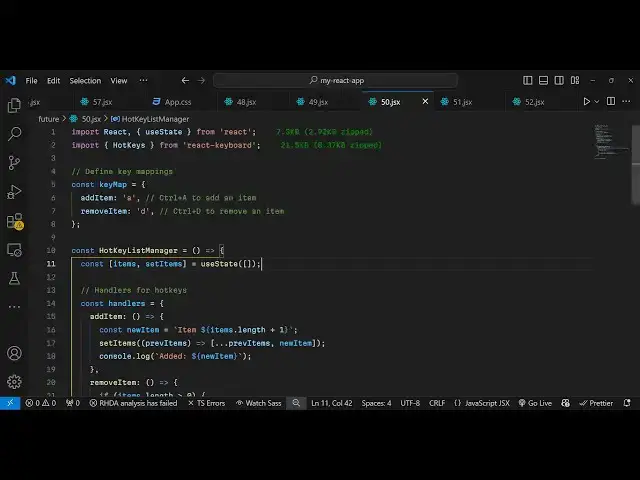
to in import this module hot Keys which
1:56
will be coming from react keyboard it's
1:59
all almost 22 kiloby
2:02
package and right here we Define our
2:05
shortcut keys as a global variable so
2:08
whatever shortcut keys that you want to
2:10
Define you create an object right here
2:12
and here you define the shortcuts so for
2:16
adding an item we are basically you can
2:18
call this anything I'm just putting a
2:21
keyboard key and then for removing
2:24
item and then we are putting D so we
2:27
have created this object which
2:31
constitutes we have put this shortcut
2:33
key a for adding The Item B for removing
2:36
it so in this way inside this object you
2:38
can do this now coming back to the
2:41
application we will have simply an array
2:44
of
2:45
items initial value using the UST State
2:48
hook will be empty and now in the
2:54
jsx we surround our application
3:00
in the hot keys so this is the actual
3:02
component so if you want to do keyboard
3:05
shortcut keys you need to surround your
3:07
application using this component hot
3:10
keys and it takes actually the two
3:12
parameters for whatever the keys that
3:15
you have defined so we have defined this
3:17
object early on so we are simply passing
3:19
it the second property it takes is the
3:22
Handler
3:23
function so here we will Define this you
3:26
can call this
3:28
anything I'm just calling calling it
3:30
Handler so this is essentially your
3:31
function which will be responsible
3:33
whenever you click the keyboard key so
3:36
now it will detect which key has been
3:38
pressed and accordingly it will make
3:40
your application so right inside this we
3:43
will have a div section and give it a
3:47
padding of 20
3:50
pixel and we will align everything in
3:54
the center position so this is 20 pixel
3:57
PX
4:02
and here we are just looping
4:05
through all the items which are there
4:08
inside if you
4:10
see we put we are telling the user that
4:14
a is used to add an item D is used to
4:17
remove an item and we are looping
4:19
through using the map operator each item
4:22
inside the list item then we have two
4:24
buttons for adding the item removing the
4:26
item we have binded these methods
4:31
handlers and add item for adding it and
4:34
removing it so this Handler uh here we
4:38
need to
4:39
Define both these functions
4:44
so inside this Handler
4:48
functions right here this is will be an
4:50
object not a function so this is
4:53
actually is an object containing these
4:56
functions add item for adding an item
5:01
and then the second item put a comma the
5:04
second property is the remove item
5:07
function so in this way you can have as
5:09
many functions as possible in this
5:11
object this handlers we are putting
5:15
it and we here we are defining these two
5:18
functions like this so now we're adding
5:20
the item it's very simple logic we add
5:23
the item in the
5:25
array you can add them inside your
5:28
database for the time being I'm just
5:31
taking a very simple example just doing
5:34
very simple process of removing and
5:36
adding items in the array you can using
5:38
set items if you've seen we are using
5:40
the slice function and here we are
5:43
adding the item so now what happens is
5:46
that if you go to your
5:49
application so we have these two buttons
5:51
available either we can click it so
5:54
clicking is very time consuming you can
5:56
see it takes a lot of time in moving
5:58
your mouse and clicking items but now
6:02
inside this you can press the a keyboard
6:04
key to add the item so pressing keys is
6:08
far more easier and less time consuming
6:10
as compared to clicking the mouse so I
6:13
think in this way easy way you can bind
6:15
shortcut keys using this package in
6:18
react sh so thank you very much for
6:21
watching this video and do check out my
6:24
website as well free mediat tools.com uh
6:28
which contains thousand of tools
6:30
regarding audio video and image and I
6:33
will be seeing you guys in the next
6:35
video
#Other
#Other