Up next in 10

React Share Tutorial to Build Social Sharing Buttons for Your React.js App Using react-share Library
Jan 9, 2025

Buy the full source code of application here:
Show More Show Less View Video Transcript
0:00
uh hello guys welcome to this video so
0:02
in this video I will show you a specific
0:05
react Chase package where you can render
0:08
social media icons so that you can share
0:10
your website content so I will so you
0:13
will see we are showing Facebook Twitter
0:16
LinkedIn WhatsApp so it also supports
0:19
multiple platforms as
0:21
well so you can see by the click of the
0:24
button you can simply share your content
0:27
so as user click on any of these icons
0:31
they will be able to share your content
0:32
on their social media handles so you can
0:35
see that so actual package name is if
0:39
you go to npmjs.com just search for this
0:41
package react
0:44
dhare so this is actually the specific
0:47
component for react shars you can see
0:50
how many social media providers it
0:53
supports so command is very simple npm
0:56
install react
0:58
share and uh it doesn't use any third
1:02
party no dependencies
1:05
or
1:07
St so you can see it supports these much
1:10
of
1:14
networks and I will show you a very
1:16
simple demo about 41,000 weekly
1:20
downloads a pretty popular package so
1:23
now to get started just make a simple
1:25
functional
1:26
component and I will just make some
1:30
State variables so what URL that you
1:32
want to share so here you will replace
1:34
your own website
1:36
name so whatever website name that you
1:39
want to share and you can give it a
1:41
title as
1:43
well so check out this amazing website
1:47
something like this and how to show
1:49
these buttons it's very simple uh you
1:51
come to the jsx and I will just align
1:55
everything in the center position so I
1:57
will just give it text align to Center
2:00
and I will just give some margin from
2:02
the top position which will be 50 pixel
2:05
and right here we will show the buttons
2:08
and we'll have this H1 heading which
2:10
will say react share
2:14
example and we will basically align
2:18
this change the display to flex just to
2:21
display the buttons side by side so we
2:25
are just using these CSS properties
2:27
justify content to Center and we will
2:30
have a gap of 8
2:32
pixel sorry 10 pixel so now if you want
2:36
to show the button you'll simply provide
2:39
the network name so here we need to
2:41
specify the
2:42
Facebook share button so I will simply
2:45
write Facebook share button so
2:49
automatically this will be imported at
2:51
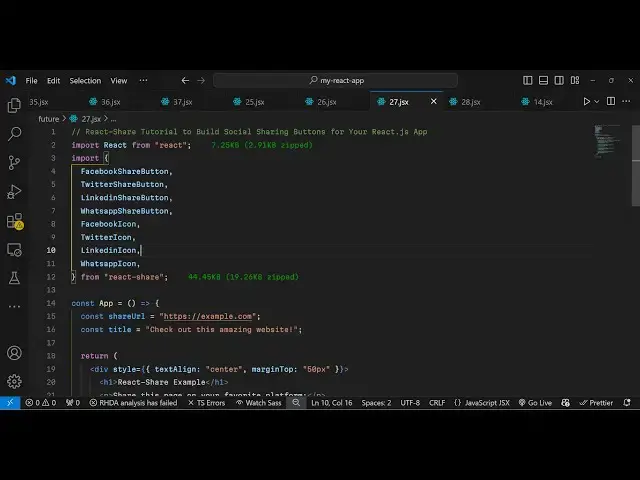
the top by vs code so react share so
2:55
this takes only two parameters first of
2:59
all the the URL that you want to share
3:01
which is located in this variable and
3:04
the second one is actual
3:07
quote so this actually is your title
3:11
that you want to
3:13
share and same we can do
3:17
this inside if you also want to show the
3:20
icon as well there is also icon also
3:23
available so we have this Facebook icon
3:27
this will also get
3:28
imported and here you can control the
3:31
sizing as well of this Icon by providing
3:33
a size parameter which is 40 and it can
3:37
be round as well so if you refresh now
3:42
you will see a round icon of Facebook
3:44
will be shown and if any user clicks on
3:47
this they will be able to share this on
3:50
your on their timeline so you can see
3:55
that so similarly we have more Networks
3:58
availables if you also want to show
4:01
Twitter you can simply say tw Twitter
4:03
share
4:05
button and we can even show the icon as
4:08
well Twitter
4:12
icon so you can specify a larger size as
4:16
well which is 80 so it will look some
4:18
little bit larger so if you refresh
4:21
now so now you can see it is now larger
4:25
here so this size property controls the
4:28
size here
4:36
so in this way you can specify any
4:39
button
4:41
here the syntax will remain the same you
4:44
need to pass these two properties the
4:46
actual site that you want to share and
4:48
the
4:51
title so we also have
4:57
LinkedIn LinkedIn share button
5:04
so what I will do I will copy this and
5:08
same thing you can do for WhatsApp as
5:10
well
5:16
so LinkedIn icon we also have WhatsApp
5:19
share button WhatsApp
5:23
icon so you can see the soci social
5:27
media buttons showing so in this way you
5:30
can easily show
5:31
them I'm just missing all I'm not able
5:34
to show all the networks it will waste
5:37
the time so you can even see it's also
5:40
Reddit also there if you want to show
5:43
the Reddit icon as well Reddit is a also
5:46
a popular social media Network so you
5:49
will see
5:52
that so here you can specify the size
6:01
and you can check the documentation
6:03
right here it supports you will see
6:05
telegram
6:07
Pinterest Tumblr you will see all these
6:10
social media networks it
6:13
supports so I just shown you a very
6:16
simple example on how to use this it's
6:18
very lightweight and the syntax is also
6:20
very simple so thank you very much for
6:23
watching this video and do check out my
6:25
website as well free mediat tools.com
6:28
which contains thousands of tools
6:30
regarding audio video and image and I
6:34
will be seeing you in the next video
#Software
#Web Services
#Online Goodies
#Social Network Apps & Add-Ons
#Photo & Video Sharing
#Photo & Image Sharing
#Video Sharing