Up next in 10

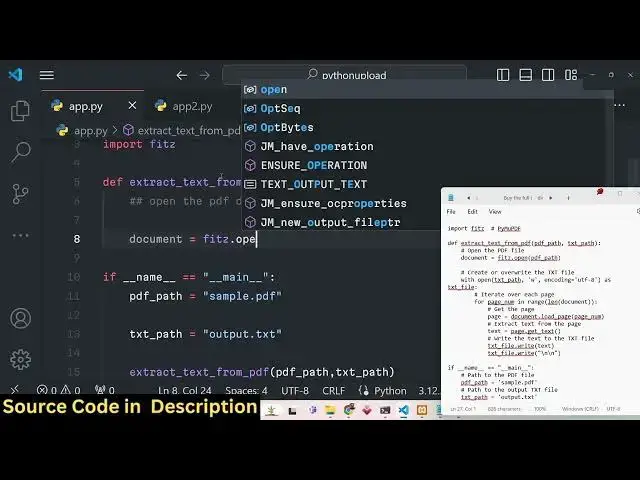
Python 3 PyMuPDF Script to Extract Text From PDF and Save it in TXT File Using Fitz Module
Jan 9, 2025

Official Website:
https://freemediatools.com
Show More Show Less View Video Transcript
0:00
uh Hello friends welcome to this video
0:02
so in this video we will actually be
0:04
talking about a very simple python
0:07
script which allows you to actually
0:10
extract all the data all the text from
0:13
the PDF document so you will basically
0:15
see this is actually the PDF document
0:17
that we are taking for example and there
0:19
are three pages available in this PDF
0:21
document this is the first page this is
0:23
the second page and this is the third
0:24
page and all the text which is written
0:26
inside this PDF document we will try to
0:29
extract it using using a very simple
0:30
python script and we will be actually be
0:33
using this module which is Fitz fits
0:38
module and the name of the library is
0:41
Pym PDF Pym PDF it's basically a python
0:46
library for working with PDF documents
0:49
and it is used for data extraction
0:51
analysis conversion and manipulation of
0:53
PDF this is their official website you
0:56
can read the more documentation more
0:58
about it so the simple command is there
1:01
you just need to go to your command line
1:03
and you should have python installed on
1:04
your machine I have this version you
1:06
will see that
1:09
uh three the latest version of python
1:11
installed on my machine so you just need
1:14
to go to V vs code and just open your
1:17
command line and pip install py pdf2 and
1:22
fi TZ so these are the two commands you
1:24
need to have pypd sorry this is not py m
1:30
U PDF and Fitz so these are the two
1:33
modules that you need to install Pym PDF
1:36
and Fitz so I have already installed
1:38
this so I will now be starting this uh
1:42
script here writing it step by step so
1:45
the very first thing we need to import
1:46
is
1:50
the we need to import the fits and the
1:53
Pym PDF library at the very top you will
1:56
simply say import fit TZ so we have
2:00
successfully imported that and after
2:03
this we will actually be writing the
2:05
main function right here so just give it
2:07
a if condition right here and we will
2:11
have this main function inside this
2:12
python
2:14
script so here you need to gives the
2:17
path of the input PDF file so here we
2:21
will simply write here PDF uncore path
2:24
so my PDF file is present in the same
2:26
directory you will see that sample.pdf
2:28
it is present in the same directory so I
2:30
will simply give the name of the file
2:33
sample.pdf and then we need to give the
2:35
output file name here which will
2:37
actually get created automatically after
2:39
executing the script so output.txt you
2:42
can give any name of your choice so
2:44
after this we will actually write a very
2:46
basic function which is extract text
2:49
from PDF so this will be a custom
2:52
function we will simply write here and
2:53
here we need to pass these two things as
2:56
arguments to this function so the very
2:58
first thing is PDF path and and the text
3:01
path so now we need to Define this
3:04
function right here at the very top so
3:06
in Python we can Define external
3:08
function using this def keyword so here
3:11
we can simply say extract text from PDF
3:15
so there will be two arguments which we
3:17
need to pass right here in this function
3:19
PDF path and txt
3:22
path so now inside this function right
3:24
here we just need to do the necessary
3:27
step in order to actually extract the
3:30
data from the PDF document
3:34
so so the very first thing we will do we
3:36
will simply open the PDF document
3:40
programmatically so we can simply use
3:42
this basic function which is available
3:44
in this Library fits and it has a open
3:47
function we will simply use the open
3:50
function right here to actually open the
3:52
input PDF path so you can see that PDF
3:56
path is actually passed as an argument
3:58
right here we are passing it so
3:59
sample.pdf so it will actually open this
4:02
file programmatically using this open
4:04
function right here so after opening
4:07
this file we now need to actually
4:10
extract all the data all the text which
4:13
is written inside the PDF
4:16
document so we we will simply again use
4:19
the open function right here and this
4:22
time we will actually open the txt file
4:26
right here we will actually create this
4:28
file in this root directory so for
4:31
actually reading the file or creating
4:33
the file we in both the cases we use the
4:36
open function so now we are actually
4:38
writing the file text path so here we
4:40
need to provide so there are a list of
4:43
flags out there so w stands for right R
4:46
stands for read so here we need to
4:49
provide the right flag because we are
4:51
actually creating the text file as an
4:54
output and the third parameter we need
4:56
to give is the encoding which is default
4:59
encoding is utf-8 for if you are doing
5:02
text file and then we need to Simply say
5:05
as text file so we have simply declaring
5:08
this variable right here as text file
5:10
this is actually the format of this open
5:13
synext right here so we are simply
5:15
opening or creating a text file in the
5:17
same directory and uh this will
5:21
output.txt will get created after you
5:23
execute the script
5:26
so now we just need to iterate
5:30
go over each page in the PDF document
5:33
and extract all the
5:35
text very basic step so we need to
5:38
iterate of all the pages first of all we
5:40
need to calculate how many pages are
5:41
there in the PDF document so you will
5:43
see in the in input PDF document there
5:45
are three pages so it will actually
5:48
first of all calculate the total number
5:49
of pages so for calculating the total
5:52
number of pages we have a function Right
5:55
Here length function and here we can
5:59
pass our document right
6:01
here so this length function guys will
6:04
return the actual number of pages which
6:06
are there in the PDF document so the
6:09
this document that we are passing it to
6:10
the length function it will actually
6:12
return the number of pages which are
6:14
present so in this case it will return
6:16
three pages so for all the three pages
6:19
it will we need to do the same step so
6:22
that's why you we are using the for Loop
6:24
here so the very first thing we will do
6:26
here we need need to load that page so
6:28
there is this method available built-in
6:31
method available in this Library so we
6:33
will simply load this page and we need
6:35
to pass the actual page number as an
6:37
argument to this function so it will
6:39
actually programmatically load that page
6:42
in this python script and after that we
6:45
just need to
6:47
extract the text right here in which is
6:50
present in the PDF so now to extract the
6:53
text again a built-in function is
6:55
available guys in this Library which is
6:59
get
7:01
text getor
7:05
text so it's a very powerful Library it
7:08
basically contains all these pre-built
7:10
methods that you can use so one such
7:12
method is the in order to get the text
7:14
in each page so after we get this text
7:17
we now need to Simply write this text in
7:20
the file we need to write the text to
7:22
the txt file so for writing it we will
7:25
simply use text Dot text file dot write
7:31
so this function is available in the
7:33
python library because we are actually
7:36
using this variable you can see text
7:38
file and it contains a write method and
7:41
here we need to write this text that we
7:43
extracted so after
7:45
we write the text we need to Simply move
7:48
to the next line so again we will write
7:51
a new line character so new line new
7:54
line so this will differentiate if you
7:57
are if you are going to the next page we
7:59
need to shift to the new line corrector
8:02
so we are simply typing the new line
8:04
corrector twice right here this
8:06
completes the script guys so now if I
8:10
try to run the
8:12
script you will basically see in the
8:15
left hand
8:16
side if I just write here python
8:21
app.py you will see in the left hand
8:23
side uh output.txt will be created
8:29
so let me open this in the um in the
8:33
wrong directory so now let me just type
8:35
here python app.py so you will see a
8:38
notification comes right here extracted
8:40
text from PDF and in the left hand side
8:43
a new file has been created if you open
8:45
this file you will see all the text has
8:47
been successfully extracted in this file
8:49
here you will see
8:51
that so in this easy way guys you can
8:54
extract any text from a PDF document and
8:57
save it as a txt file uh this is really
9:00
used in various scenarios you need to
9:03
basically save your text from PDF so in
9:07
those situations you can use this script
9:09
it's very simple I explained you step by
9:12
step how we imported that module then we
9:14
EXT Define this function we open the PDF
9:17
document first of all using the open
9:19
function and then we actually did a
9:23
simple for Loop and uh iterated all the
9:27
pages which are present in the PDF
9:29
document we loaded that page we
9:31
extracted text then we write text in the
9:33
PDF txt file and that's all so these are
9:37
all the steps which are necessary for
9:39
this application so thank you very much
9:42
for watching this video so you can try
9:44
out with the unlimited number of pages
9:46
uh I just taken an example right here
9:48
which contains three pages so if you
9:50
have a lot of pages as well it will
9:52
definitely work the script so make sure
9:55
that your PDF file is present in the
9:57
same directory while you're working
9:59
while you're running the script right
10:01
here so just make sure that you provide
10:03
the correct path so this is actually the
10:07
pyp uh fits and Pym PDF Library here we
10:12
can use the python code for extracting
10:15
the text from the PDF document so thank
10:17
you very much for watching this video
10:19
please hit that like button subscribe
10:20
the channel and I will be seeing you in
10:22
the next video
#Programming
#Computer Science
#Computer Education