Up next in 10

Python 3 Pillow Script to Export Excel Spreadseet to PNG Image Using Spire. XLS .NET Library
Jan 9, 2025

Get the full source code of application here:
https://gist.github.com/gauti123456/f39b83a7614da2116e91b37aeca35522
Show More Show Less View Video Transcript
0:00
uh hello guys welcome to this video so
0:02
in this video we'll be looking at how to
0:05
convert your Excel file into a image
0:09
file PNG or JPG file inside python using
0:13
the pillow library and we'll be using
0:15
AET Library called
0:18
as Spire
0:20
doxs SP l. exls it does offer a python
0:26
rapper as well so it's a net library for
0:29
person in Excel spreadsheets you can
0:31
read more about it but in this specific
0:35
example I will show you I have this test
0:38
file right
0:39
here so I will simply convert this
0:42
excels file to a PNG file so that you
0:45
can actually
0:47
view all your
0:50
things so you can zoom
0:55
in you can see the all the records is
0:59
converted
1:00
into an image file so if you do need to
1:03
convert your ex uh Excel file into image
1:06
file we'll be using this uh Library so
1:09
first of all you do need to install some
1:12
packages for this so pillow will be
1:15
simply p i l w pillow image processing
1:20
library in Python and the second one
1:22
will be SP XRS these are two packages
1:27
which are required for this is
1:29
processing Excel files and this is for
1:31
processing image files simply install it
1:34
by pip command I have already installed
1:36
this so it will hardly Take 5 to 10
1:40
seconds so after you do do this just
1:43
make this app. py
1:50
file so first of all what we need to do
1:53
we need to do import this package right
1:56
here sp. XLS from this there is a
1:59
function method called as
2:02
workbook secondly we do need to import
2:05
everything from this package from spls
2:09
do
2:11
common we need to import everything so
2:14
import Star and also we need to import
2:17
from the pillow Library P we need to
2:20
import the image
2:22
module and then here we need to now
2:24
actually create a workbook
2:30
object for this you need to initialize
2:33
workbook
2:35
instantiated so workbook we will
2:38
instantiate a new instance of it and
2:40
store it inside this workbook variable
2:42
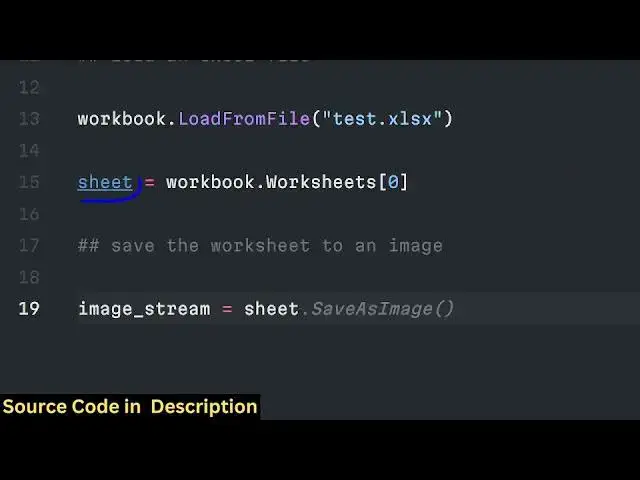
now the second task is we need to load
2:46
the Excel
2:48
file so now to load the Excel file the
2:50
path is present in the same directory so
2:53
workbook this object contains a function
2:55
called as either you can load this or
2:58
you can load from a file so we will use
3:02
this function load from file and here
3:04
you need to pass the address so this
3:06
address here test. XLS it is present in
3:10
the same directory here we are simply
3:13
passing the path and after this we need
3:16
to now get the first worksheet as you
3:20
know that in Excel file it can have
3:22
multiple worksheets as well but in this
3:24
file in this Excel file only a single
3:26
worksheet is present random generator it
3:29
contain all these records so you'll get
3:32
access to the first worksheet you will
3:34
simply say workbook dot
3:38
worksheets zero so indexing starts from
3:41
zero in programming so you'll be getting
3:43
access to the first worksheet and store
3:45
it inside this sheet variable so after
3:49
we get this first worksheet now the task
3:52
is very simple we need to save this
3:54
worksheet into a image so now what we'll
3:57
do we'll simply create a variable image
4:00
stream and here we'll be using this
4:04
sheet as we imported this uh this is
4:08
actually this object sheet object and it
4:11
contains this function which is uh two
4:17
image and here we need to Simply say
4:19
sheet. first
4:25
row and then here you need to pass the
4:27
sheet
4:30
First
4:32
Column and then sheet last row and the
4:35
last column so what this means that here
4:38
we are passing this function four
4:41
arguments this is actually giving us the
4:43
first row First Column last row last
4:46
column so it is actually telling this
4:49
line that capture the screenshot of all
4:52
the columns and all the rows of the
4:54
Excel file and save this image file in
4:57
the image stream variable after we do
4:59
this we need to Simply convert this
5:03
stream to an
5:05
actual PNG file so for doing this we
5:08
need to open use the open function in
5:11
Python and simply say sheet to
5:15
image.png this is the name of the image
5:17
which will get created WB is write mode
5:21
so you'll be writing binary F and here
5:25
you'll be using the right function in
5:26
Python to actually convert this into a
5:28
image file we'll be giving this name uh
5:31
sorry image
5:33
tream we'll be using this uh two array
5:41
function to actually convert this into
5:44
an image so now the task is very simple
5:47
we do need to open this image with
5:52
pillow
5:53
so we can open this image we can simply
5:56
say image. open
6:01
shade to image PNG and then you simply
6:05
need to show this image programmatically
6:07
so it will open this image
6:11
automatically and then we need to save
6:13
this image image to
6:18
save sheet to image
6:25
converted in PNG so after we save this
6:29
we need to
6:30
dispose our library so you can simply
6:32
say
6:34
workbook
6:36
dispose so it will close all the
6:38
connections to this Library this this
6:41
completes this so now if I run this
6:44
python script so what you will see it
6:47
will actually contains these two files
6:49
if I say python app.py on the left hand
6:52
side after sometime it will open this
6:55
image file you will see
6:57
programmatically so all this uh Excel
6:59
file that you see it has been converted
7:02
to this PNG file right here if you see
7:04
that so we have used the pillow library
7:06
and especially most we using this uh
7:10
spy. XLS package to read the content of
7:13
all this Excel file and actually
7:16
converted it to a single Exel single
7:18
image file so that you can read all this
7:20
data inside your image file so this was
7:23
a short little tutorial guys about this
7:25
library inside python how you can
7:28
basically convert your file to image
7:30
file thank you very much for watching
7:32
this video and all the source code that
7:34
I used in this video is given in the
7:36
description of this video you can check
7:37
out and please hit that like button
7:39
subscribe the channel and I will be
7:42
seeing you in the next video
#Scripting Languages