Up next in 10

Python 3 OpenCV Script to Extract Frames From MP4 Video and Save it as PNG Image Files in Terminal
Jun 3, 2025

Get the full source code of application here:
https://codingshiksha.com/python/python-3-opencv-script-to-extract-frames-from-mp4-video-and-save-it-as-png-image-files-in-terminal/
Show More Show Less View Video Transcript
0:00
uh hello guys welcome to this video so
0:02
in this video I will show you how to
0:05
convert the video into images or frames
0:10
so we have this MP4 video file uh we
0:13
will convert this video file into a
0:16
series of images each frame will be
0:19
exported as a image file
0:21
so this is a simple video so I have this
0:26
Python script so if I run this script
0:29
here you will see it will create a data
0:32
folder so all the frames of this video
0:35
will be exported as a simple image
0:38
file you can export this to a JPG or PNG
0:43
file so you can see each frame has been
0:46
extracted it's a 25 fps video so 25
0:51
frames per second so each frame is
0:53
exported to a image file so it's a
0:56
18-second video so each frame has been
0:59
exporting you'll
1:04
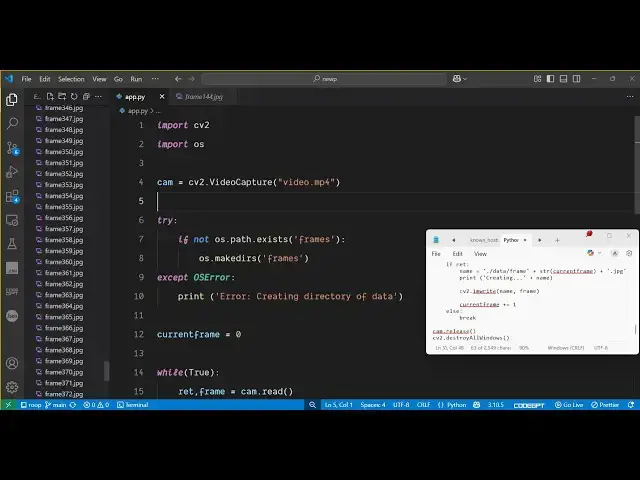
see so I will show you the script here
1:07
which is using OpenCV library so Open CV
1:11
is a very popular package of Python so
1:14
simply you need to install
1:17
it the command is very simple i've
1:20
already installed it so let me just show
1:23
you the script here so first of all just
1:25
make a simple app py
1:32
file and then you just need to import
1:35
the necessary packages right at the very
1:38
top so we will import cv2 open cv
1:42
package and the operating system package
1:45
then we will simply load the actual
1:48
video by using this function video
1:51
capture
1:53
and here we will provide the video path
1:56
which is present in the same directory
1:58
if you see it is present video.mpp4 so I
2:02
will
2:03
simply load this video and then we will
2:08
simply write the code inside the try
2:10
catch block so
2:12
if
2:16
the I will call this as frames so if
2:19
this directory doesn't exist we need to
2:21
create this directory by using this make
2:23
directory
2:28
function and
2:34
uh so after creating this directory we
2:37
will export each frame to an actual
2:40
image file so I will simply declare a
2:43
variable which is current
2:46
frame which is set to zero and after
2:49
that we'll run a simple while
2:52
loop so inside this while loop we will
2:56
read each
2:58
frame using the read function so it will
3:00
read the each
3:02
frame and then we just need to export
3:06
this
3:07
frame to inside this
3:12
frames and
3:17
here like this after that we will save
3:21
this CV2 and it contains this function
3:24
image
3:26
write and then we will increase the
3:29
current frame value by one incremented
3:32
by one that's
3:34
all else break so that's all
3:39
the code here after that we just need to
3:42
release the resources for releasing it
3:44
we will call the release function and
3:46
then we will simply destroy all the
3:49
windows so this is the overall script
3:52
here and if
3:55
I delete this again start from
4:01
scratch and if I run this script you
4:04
will see again it will create the frames
4:07
and again each frame will be exported as
4:09
a image JPG or image it's a very simple
4:13
script which uses the Open CV library
4:15
inside Python it works in the terminal
4:18
each frame inside the video is converted
4:21
to a actual image file so thank you very
4:24
much for watching this video and also
4:25
check out my website freemediatoolsh.com
4:29
uh which contains thousands of tools
#Online Media
#Online Video
#Multimedia Software
#Scripting Languages