live_tv
Livestream Starting Soon
00
Hours
:
00
Minutes
:
00
Seconds
Up next in 10

Python 3 Gooey FFMPEG Project to Build MP4 Video to MP3 GUI Desktop App (Best Tkinter Alternative)
Jan 9, 2025

Buy Premium Scripts and Apps Here:
https://procodestore.com/
Show More Show Less View Video Transcript
0:00
hello guys welcome to this live stream
0:01
so in this live stream I will basically
0:03
talk about a very good alternative to
0:06
twick enter in building desktop
0:09
applications in Python so I recently
0:12
discovered this framework guys which is
0:14
very much useful if you want to design
0:16
graphical user interface applications
0:18
with very beautiful design so it comes
0:21
with its beautiful design various
0:23
components inbuilt components you can
0:25
show progress bar and uh you can have as
0:29
many animations that you have so
0:31
powerful gu kind of applications you can
0:33
create in Python using this package and
0:36
I think it's a best alternative to TW
0:38
enter and the this name of this package
0:41
is g e y guy you may call that this is
0:46
actually their GitHub repository and it
0:50
simply says that you can basically turn
0:52
at any boring command line application
0:54
to a simple
0:56
gu application so in this application we
0:58
will be building a simple MP4 to MP3
1:01
converter where we will be using FF MPG
1:04
in the command line and it will also be
1:06
showing the command line result in the
1:08
uh with progress P let me show you
1:11
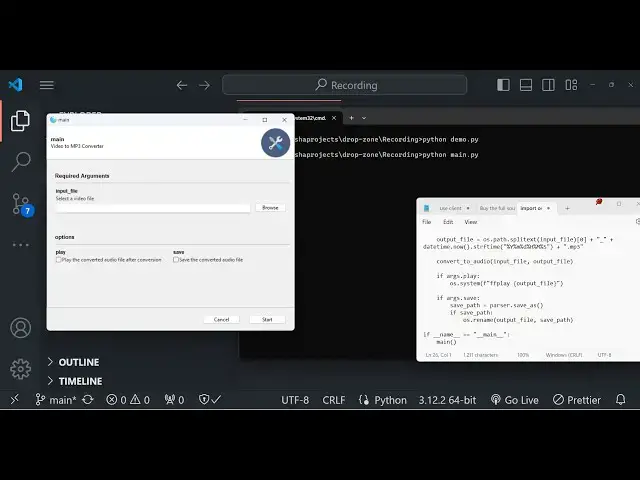
basically the application so as I load
1:13
the application it basically comes with
1:15
its own design we haven't designed this
1:18
you can see the title of the screen and
1:20
then basically we have this nice little
1:22
browse window where we can actually
1:24
select the input file then we have
1:26
various options to actually play the
1:28
file or we can save the file in inside
1:30
of a system so as I basically select my
1:33
file guys mp4 file so you can see it has
1:36
uh 16 minutes long video so I will
1:39
basically select the file and it will
1:41
take the path of my video file and then
1:44
we have the option to Simply play the
1:46
file as well after it has been converted
1:49
so I will simply tick mark this option
1:51
and by default it will save this file in
1:54
the same location so I will also take
1:56
mark this this uh um
2:00
this option as
2:04
well so then we need to Simply click the
2:06
start option so you will basically see
2:08
guys the processing will start and it
2:11
will basically show you the result right
2:14
here so after it is done it will start
2:17
playing the video
2:18
file so this is
2:22
actual uh hello you can see that let me
2:25
turn on the volume basically we can
2:27
upload a file to our Google Drive using
2:29
simple JavaScript inside
2:33
the we can close this now the tutorial I
2:36
have shown to build a very simple Google
2:40
so you can see that guys how basically
2:43
it PR it played my audio file it has
2:46
been successfully saved you can play
2:48
this audio file in the MP3 audio players
2:51
so I will not play it once again so the
2:55
I would just wanted to introduce to this
2:57
package which allows you to construct
2:59
GUI applications and you can see the
3:01
code 34 lines of code is this just 34
3:05
lines of code if you want to build this
3:07
application into guys it will take a lot
3:10
of time because you need to design all
3:12
the interfaces all the buttons yourself
3:14
and it will take a lot of time but this
3:17
package uh you can design complex kui
3:20
applications with ease so first of all
3:23
what we need to do you need to install
3:25
this package just go to your command
3:27
line and just type here p IP pip
3:32
install g e y this is the actual name of
3:36
the library pip install g e y simply
3:41
install this package I've already
3:42
installed it so once you install this I
3:45
will first of all show you a very simple
3:47
example on how to go about setting up
3:51
this
3:53
Library
3:55
so this is very simple
3:58
example where I will basically show you
4:01
how to write this so first of all from
4:05
this GUI package we need to import The
4:08
Base Library which is GUI and the GUI
4:12
parser after you do this guys you need
4:15
to put at theate symbol which defines
4:17
the starting of this uh framework just
4:21
write at theate GUI and after that here
4:23
we will Define our main function which
4:26
actually comprise whenever you launch
4:28
the window your app application it will
4:30
run the main function
4:32
automatically so we can basically call
4:35
this main function in our name is equal
4:39
to like
4:41
this here we can actually call the main
4:44
function so what it basically does it
4:46
actually calls this main function that
4:48
you see right
4:52
here so inside the main function what we
4:55
need to do we need to create actually
4:58
the parser
5:00
and here we will Define the GUI parser
5:03
and we can basically give a short little
5:10
description so this actually will be the
5:12
title of the program so I can say grein
5:17
program and then if you want to take
5:19
some input from the user guys if you
5:22
want to take some
5:23
input we can basically add input from
5:27
user such such that we are taking the
5:29
name from the user so we can simply say
5:32
parser do add argument so it will
5:35
actually takes a name for the user so we
5:39
will simply basically tell the user what
5:41
to write here help is actually the
5:43
option enter your name so here we will
5:46
actually ask the user to enter their
5:48
name so if I run this application what
5:50
you will
5:56
see so the application
6:00
is not running let me
6:06
see this is The Decorator that we added
6:10
GUI g e y definition
6:17
main uh I think this is actually
6:21
creating the
6:25
problem let me once again run
6:28
this
6:31
let me run this program first of
6:38
all you will see it launch the window so
6:41
I
6:44
just delete that
6:56
and okay we we do need to basically
7:01
uh provide this input field as well so
7:05
we can say parer Park arguments so if
7:09
you just call this
7:11
now you will basically see a window has
7:14
been created uh this is actually the
7:17
icon is given automatically you don't
7:20
need to put icon here explicitly set the
7:22
icon this is actual title of the window
7:25
and here this is the input field where
7:27
you can actually ask the user their name
7:29
so these buttons are added automatically
7:32
cancel button start button so
7:34
essentially this actually turns your
7:36
command line program that you are
7:38
writing guys into a GUI kind of
7:40
application so that you can clearly see
7:42
what is happening it's a very good
7:44
package and let's suppose after user
7:47
writes the name we will execute a
7:49
function which is GRE so what this
7:52
function will do which will actually
7:54
print out the name of the person in a
7:55
window so
7:58
greet it will take the name of the user
8:00
and simply print this on the screen so
8:03
we will simply say
8:05
hello and name of the user like
8:10
that so
8:15
it so if you just write my name goam so
8:18
as I write my name it will simply print
8:20
out the name and you can see process
8:22
completed successfully program completed
8:24
successfully so essentially it's a
8:26
command line application converted into
8:28
a GUI
8:30
wrapped in a GUI graphical user
8:32
interface so that you can see the result
8:34
in a better way you don't need to search
8:37
in the command line so essentially is a
8:39
command line converted into a GUI so I
8:43
think it's a very good package and based
8:46
upon now we will now be constructed our
8:49
main program which is actually a video
8:52
to MP3 converter which actually use the
8:55
fmpg command
8:57
live so you should have f MPG installed
9:00
in your command line so we will be
9:01
importing the buil-in modules operating
9:03
system and the sub process and then from
9:06
this GUI package we need to import The
9:09
Base Library of GUI and the GUI
9:12
parser and then from date time we need
9:16
to import the datetime
9:20
package so now once again our
9:27
main sorry
9:33
if
9:37
uh so here we need to run the main
9:40
function so we will basically Define the
9:43
main function in the this is a GUI
9:45
decorator that you need to give so we
9:48
have this main function right here so
9:50
inside this main function first of all
9:52
we will actually add
9:54
a uh simple title so we can basically
9:58
provide a description which is video to
10:01
MP3
10:03
converter after that we can simply say
10:06
parser do add argument and here we will
10:09
simply say input file so here the user
10:13
must
10:14
select the file so it will be a simple
10:17
file
10:19
Chooser widget which is a buil-in widget
10:22
inside this package which allows you to
10:24
select files from your local file system
10:28
and then we can even add a help option
10:31
which here we can simply tell the user
10:33
select only a video file so select a
10:36
video
10:37
file and there is a option called
10:41
as g e
10:45
y
10:46
GUI uncore options so here we can
10:50
basically set the user must only accept
10:54
video type so video files you can define
10:57
an
10:58
option
11:00
so in this way the user must must be
11:04
forced to only select the video files
11:07
this is actually a wild
11:12
card so we are all only accepting the
11:14
video files which are MP4 Avi mov so in
11:18
this way you can do
11:22
that so after this guys
11:28
we need to arguments we will say parsel
11:33
do pars
11:35
arguments so if you just run this you'll
11:37
basically see
11:39
a input file
11:43
is so select a video file so here the if
11:46
I click the browse button I will only be
11:48
able to select my video file so you will
11:50
see that
11:51
so now what we need to do after this we
11:54
need to add another option so that the
11:57
user
11:58
must
12:00
have an
12:02
option to either play the video so Dash
12:05
Das playay so the action here will
12:11
be
12:13
store uncore
12:17
true so here we will simply tell the
12:19
user if you select this checkbox then
12:24
play the converted audio
12:27
file after conver
12:30
version so if you select this option the
12:33
video will play using FF Play
12:36
library and then another option which is
12:39
for Save if you want to save the a video
12:41
on the location so
12:46
action store
12:56
true save the converted file after
13:00
conversion so in both the cases we are
13:02
saving the file so it doesn't make any
13:04
sense that we add this option but for
13:06
the sake of it we are just adding it so
13:09
if you just open this now you will see
13:10
these two check boxes added and uh now
13:14
we just need to
13:16
actually take this input file that the
13:19
users select we will create a variable
13:22
input file arguments. input
13:25
file so basically we have given this
13:28
name parameter right right here this
13:29
needs to be the same right here so we
13:31
are actually getting the video file that
13:33
the user has actually selected and then
13:35
we will simply call a simple command so
13:39
operating system do split text so you
13:43
will actually give the output file L to
13:46
be unique every time so for this
13:48
uniqueness we will simply add this
13:51
underscore and then we will use this
13:53
datetime module which is a built-in
13:55
module of python datetime.now and string
13:59
F
14:01
time and this is actually the thing that
14:03
you need to pass so every time it this
14:06
value will be
14:09
unique and Dot and then we just need to
14:13
concatenate our DOT MP3 which is a
14:16
extension for the audio file that's all
14:18
so after you do this guys what we need
14:20
to do we need to call a function a
14:24
custom function where we pass this input
14:26
file path and the output file path that
14:28
we constructed
14:30
so now we just need to Define this and
14:34
uh Define this function which will
14:36
actually uh run this simple
14:43
command it will take the input file and
14:45
the output file as an
14:49
argument so inside this basically guys
14:52
it is actually constructing a simple
14:54
fmpg command fmpg dasi followed by the
15:00
input
15:01
file and here we will use our uh C GPU
15:05
guys- c v h264 nvnc this is actually for
15:12
NVIDIA GPU so I've already having a
15:15
dedicated GPU install on my system so
15:18
this will be useful for increasing the
15:19
speed of the conversion and Then
15:22
followed by the output file
15:24
lay that's all and then we will call the
15:27
subprocess module to act run the command
15:31
and shell is equal to true this will run
15:34
the command and after that we also need
15:37
to play this file so what we can do we
15:40
can say if the arguments. playay was
15:43
selected in that case we need
15:46
to play that file operating system and
15:50
we will use the FF Play library which
15:53
comes within the fmpg bundle which
15:56
allows you to preview your files or play
15:58
the
15:59
converted files so here we need to pass
16:02
out output path so output file that's
16:11
all that's all that we need to do guys
16:13
this application is complete so if I run
16:16
this so if I basically select my path
16:21
here of the video file and click this
16:22
option play so it will actually play the
16:25
converted audio file after conversion so
16:27
we can start the process
16:29
so as we start guys basically you will
16:31
see the audio file will start play in
16:33
the video audio player once it is
16:36
completed and it will actually create
16:38
this file automatically in this
16:42
folder you will see that this tutorial I
16:45
will be sh you that basically we can
16:46
upload a file to our Google Drive simpas
16:51
inside the browser can close this now so
16:54
program completed successfully you will
16:56
see that it will show this message and
16:58
you can close this so this is overall
17:01
application guys and I think it's a very
17:03
good alternative to something like twick
17:05
enter and where we need to actually
17:08
design the interface from scratch but
17:11
this Library comes with all premade
17:13
components you can read more about it in
17:14
the GitHub documentation they have a
17:17
very good documentation and I think this
17:20
is a very useful Library please hit that
17:22
like button guys it will help me in
17:24
ranking in YouTube search please hit the
17:28
like button subscribe subcribe the
17:29
channel and I will be seeing you in the
17:32
next
17:35
video
#Software
#Multimedia Software
#Other