Up next in 10

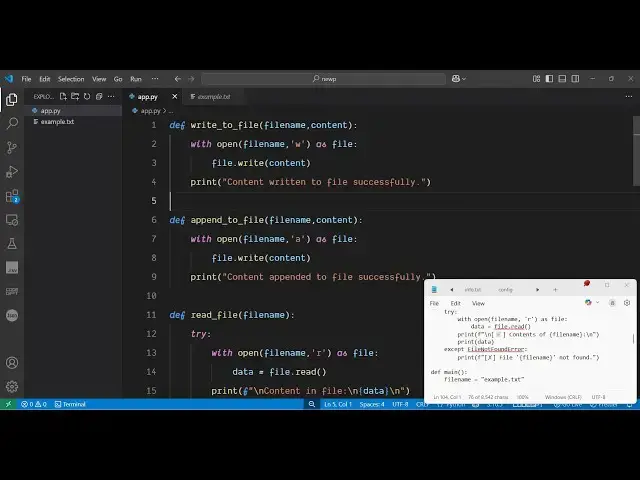
Python 3 File Handling Script to Read,Write,Append & Display Data & Content in Terminal
Jun 3, 2025

Get the full source code of application here:
https://codingshiksha.com/python/python-3-script-to-get-current-time-timezone-of-any-city-name-using-geopy-timezonefinder-library/
Show More Show Less View Video Transcript
0:00
uh hello guys welcome to this video so
0:02
in this video I will show you a Python
0:04
script which will actually handle all
0:06
the file operations file handling
0:08
operations inside Python such as
0:10
creation of a new file reading from a
0:13
file appending to a existing file and
0:17
displaying the content of a file in the
0:20
terminal so we'll be operating on all
0:22
the four operations so I have just
0:24
written this Python script right here
0:26
and let me just show you if I just run
0:29
this Python script it will actually have
0:32
four
0:33
operations file operations either you
0:36
can write to a file append read the
0:40
content of a file or exit so this is a
0:44
terminal based application so let me
0:46
just first of all create a new file by
0:48
selecting the very first option so I
0:50
will simply say one so here it will tell
0:53
me that enter the text to write to
0:56
create a new file so let me just say I
0:59
am the owner of free media tools.com
1:04
website i enter it you will see on the
1:07
left hand side a new file has been
1:09
created
1:11
example.txt as soon as you will see the
1:14
file has been created with this
1:17
content now once again we have the same
1:21
options let's suppose I want to read
1:24
this content i select the third option
1:26
so now as soon as I select this option
1:29
you will see it will read the content of
1:31
this file whatever is the data is
1:34
present it displays the content here in
1:36
the terminal so we read the content this
1:39
is the second operations now I will show
1:42
you the third operation if I want to
1:44
append the data to this existing file so
1:47
I will select the second option so it is
1:50
telling me that enter the text to append
1:52
so I will say this is the new data and
1:56
if I press the enter key you will see
1:59
the text will be appended here you will
2:02
see the new text will be appended right
2:04
at the end of the file now you can see
2:07
the file has been successfully appended
2:09
and updated and again if I third click
2:13
uh just press the three option again it
2:17
will display the new data which is
2:20
appended right here you will see the
2:21
term if I again say one you will see
2:25
this is a new file so you'll see if I
2:30
write to a file the it overwrites so
2:33
basically the data is updated fully it
2:36
created a new file with the new data so
2:38
I will show you all these four uh three
2:40
operations of file handling inside
2:42
Python how to create a new file read the
2:45
content or append the data into an
2:47
existing file so I've given this Python
2:50
script in the description of the video
2:52
so just create a simple app py
2:55
file so for this you don't require any
2:59
sort of uh third party module we will
3:02
write some basic Python code
3:05
so right here inside our we will define
3:08
a main function and inside this main
3:10
function we will be specifying a file
3:12
name which will get created
3:15
example.txt so let me just delete this
3:18
file so we are just creating this
3:21
example.txt file here this is it's
3:23
actually you can see the file name and
3:25
then we are simply running the while
3:27
loop to just show the options to the
3:30
user so we have four options
3:34
it's a menu to the this application so
3:37
either the user can select 1 2 3 4
3:41
depending upon which choice and then we
3:44
can take this input the user input by
3:46
using the input
3:48
function to receive the input from the
3:51
user so here we will ask the user the
3:54
question that enter your
3:57
choice from 1 to four and the user will
4:01
enter their choice and here we will
4:02
compare it in if condition that if the
4:05
choice is equal to one in that case we
4:08
just need to create a new
4:10
file and uh here we'll be accepting the
4:14
input from the user and enter the
4:17
text to
4:20
write to the file and here the user will
4:24
actually write the
4:28
text and the user will write the text
4:31
here and we will just put a new line
4:39
character so after
4:42
that we will take this option the
4:45
content here whatever content the user
4:47
has written and then we'll just write a
4:50
simple function write to file and we'll
4:52
pass two arguments first of all the file
4:54
name and the actual content so write
4:57
this function will be responsible for
4:59
creation of a new
5:01
file so write it will declare this uh
5:06
function write to file and it will be
5:10
having the file name plus the content
5:13
and right inside this we will open we
5:16
will use the open function we will open
5:18
this file name so there are different
5:21
kinds of modes inside Python so one such
5:25
mode is your w which is called as write
5:28
mode it will basically open a new file
5:31
create a new file in write mode and here
5:34
we'll be appending this data by using
5:36
this function
5:37
file.right this will create a new
5:40
file with that content and then we can
5:44
simply say notification content return
5:46
to file successfully so this is a very
5:49
first operation right here if I just
6:00
uh execute this
6:03
application and
6:06
just so we just need to call this
6:08
function first of all the main function
6:11
right
6:14
here
6:17
so so now you'll be having the four
6:20
choices so if I select the first choice
6:22
you just need to enter the text I will
6:28
say you will see the file will be
6:30
created content return to file
6:32
successfully you'll see this is the
6:35
first operation now I will be handling
6:37
the second operation which will be
6:39
responsible for reading the data here
6:41
we'll be adding another choice here that
6:45
uh if the choice we will add else if
6:48
condition that else
6:51
if if the choice is equal
6:54
to two in that case we just need
7:01
to so the second choice is for the
7:05
append operation so if the file is
7:07
already existing then we just take the
7:09
input whatever text that you want to
7:12
append at the end of the file so we'll
7:15
be taking this input
7:23
again and storing it inside this content
7:26
and then we will be creating a new
7:28
function which is append to file and
7:33
again we'll be passing this file name
7:35
plus the content so this function once
7:38
again will be the responsible for this
7:41
time appending it not creating a new
7:44
file but rather than we already have the
7:47
file but we just need to append the
7:51
content so we again have these two
7:54
arguments file name content and this
7:56
time we open the file once again by
7:58
using the open function but here the
8:02
this mode will be different you will see
8:04
previously we used the write mode to
8:06
create a new file but here we will be
8:08
using the append mode which is there
8:11
inside file handling operation to append
8:14
the file and rest of the thing remain
8:17
constant we again use the write function
8:19
to write the content and this time
8:22
content appended to file successfully
8:26
now we will be handling the third
8:28
operation which will be
8:36
reading so again we'll be having this
8:43
condition if the choice is equal
8:48
to then this time we'll be having this
8:51
read file function we'll just be passing
8:53
the file name so this function will be
8:57
responsible for reading the data so we
9:00
again be defining one other function
9:03
read
9:05
file passing the file name and here
9:08
inside the try block we will be opening
9:12
this file name in now this time will be
9:14
read mode so
9:16
R as file and here we'll be reading the
9:20
data by using the read function and
9:22
then all the data will be read
9:30
so like this we will
9:34
be content and file and we will be
9:37
displaying the
9:39
data like this
9:45
that's all
9:49
so now if the choice is four then we
9:52
will simply break this
9:54
application because the choice four is
9:57
for quitting the application we'll be
9:58
just be breaking
10:02
it else invalid choice this completes
10:06
your application very simple command
10:08
line application file writing
10:10
application
10:14
so so if I once again launch this
10:17
application you will see it is saying
10:20
that on line number
10:22
17 sorry
10:24
we haven't closed this we do need to add
10:28
this
10:30
except file not found so just add
10:34
this so this time we select the third
10:38
option you will see it will display all
10:41
the data which is present here like
10:44
this you can select the second option we
10:47
can append sub data you would see the
10:49
data will be appended once
10:52
again you can write this update this you
10:56
will see so all the file handling
10:58
operations you can perform i showed you
11:01
step by step inside how to do this
11:03
inside Python all the right modes read
11:06
modes append modes I showed you in this
11:08
video thank you very much for watching
11:10
this video and please hit that like
11:12
button subscribe the channel and also
11:14
check out my website free media
11:16
tools.com
11:18
uh which contains thousands of tools