live_tv
Livestream Starting Soon
00
Hours
:
00
Minutes
:
00
Seconds
Up next in 10


Get the full source code of application here:
https://gist.github.com/gauti123456/bbb442cd906e3de725d7b01d28d450e9
Show More Show Less View Video Transcript
0:00
uh Hello friends welcome to this video
0:02
so in this video we will look at a
0:04
another open source library of python or
0:06
in order to generate a PDF document with
0:08
form Fields filled with the sample data
0:12
so we are actually using this py mu PDF
0:16
Library let me just show you the demo of
0:19
this application so if I run the script
0:21
python app to py you will see that this
0:25
PDF file will be generated simple
0:27
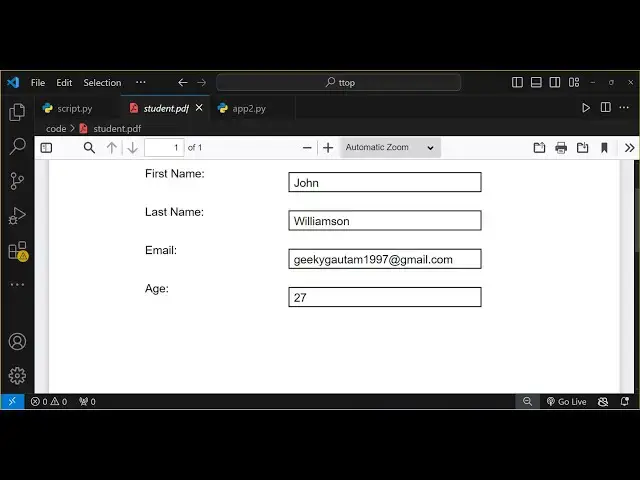
registration form so a student
0:29
registration form will will be generated
0:30
in a PDF document with the data
0:32
pre-filled first name last name email
0:35
address and age so we have four Fields
0:38
out there this is a student registration
0:40
form and if I show you it in the browser
0:43
it will look something like this so four
0:45
fields are there so I will show you
0:47
simply how to create form Fields inside
0:49
PDF document using this library and uh
0:53
if you just search for this Library by
0:56
new
0:57
PDF it's a very famous library of python
1:01
a open source Library related to PDF it
1:04
used to extract text all sort of
1:07
operations you can perform so this is
1:09
their documentation you can read more
1:11
about it so I will show you this example
1:14
in this video so all the source code
1:17
that I will use in this video is given
1:18
in the description so what you need to
1:20
do you first of all need to install this
1:23
so there is a package we need to install
1:26
Fitz this is the same package Fitz and
1:30
also you need to install P new
1:33
PDF so these two packages you need to
1:35
install fits and P I've already
1:38
installed these two packages so now to
1:41
get
1:42
started you need to create a file right
1:45
here which is
1:47
script.py so right here first of all
1:50
what I will do I will import this module
1:52
import fits
1:54
Fitz and after that we will actually
1:57
create a function which will be respon
1:59
responsible for creating a simple form
2:02
so create simple form and we'll pass two
2:05
arguments to this function output PDF
2:07
path and
2:09
the we will only pass the output PDF
2:12
path
2:14
so now inside this function we need to
2:17
create a new PDF
2:20
document for creating that PDF document
2:22
you'll be
2:24
using fits class so this module contains
2:28
a function of open so it will open a new
2:31
PDF document by using this open method
2:34
and we will be adding this a new page by
2:39
we have this method new underscore page
2:42
so this method new underscore page will
2:44
add a new page in the PDF document so
2:46
here you need to specify the width of
2:48
the page which is
2:49
595 and the second part of property is
2:52
the height of the page which is
2:54
842 so this will be roughly this will be
2:58
a A4 size page so A4 size of PDF so
3:03
after that we need to give it a title so
3:06
we'll simply say simple registration
3:10
form then we need to set the phone size
3:12
so you'll be declaring some variables
3:14
right here so phone size will be 16 and
3:17
then we need to calculate the width of
3:19
the title so we will create a function
3:22
variable title width so we'll be using
3:24
this mathematical formula we'll be
3:27
calculating the number of characters
3:28
using this length function in Python so
3:31
how many characters are there it will
3:33
calculate this using this function and
3:36
then we'll multiply this by the
3:39
title phone size and we'll multiply it
3:43
by 0.6 so I just calculated the simple
3:46
formula you can just copy this and then
3:49
you need to calculate the X position and
3:51
the Y position of the where to show the
3:53
title in the PDF document so the X
3:56
Position will be
3:58
595 minus the width of the title so and
4:03
then we need to divide this by two and
4:05
then that's all this is the X position
4:08
and now we need to insert this title in
4:10
the page so we can use this insert text
4:13
method this is actual method in this P
4:18
Library so this object that you have
4:21
this page it contains this method insert
4:23
text so right here you need to first of
4:26
all pass the EXP position which we
4:28
calculated in the previous step title X
4:31
position and then the Y Position will be
4:33
50 constant and the second one will be
4:36
the actual title that we need to insert
4:38
and the font size will be the actual
4:42
font size that we configured and the
4:44
font name so we will be passing Hela so
4:48
the short hand for Hela is H LV this
4:53
after doing this if I check in the PDF
4:55
document we need to call this
4:58
function but before that we also need to
5:00
save this PDF document for saving
5:03
it we have a function inside this
5:05
Library which is
5:08
PDF save function so you will call this
5:12
and here you need to specify the output
5:14
location that we passed in this function
5:16
and then we need to close the PDF
5:18
document so we will use the close
5:19
function and we will simply say the
5:21
print statement that PDF
5:24
saved as output path
5:30
that's all so now we just need to call
5:32
this uh function so we need to specify
5:35
the output PDF path so we will simply
5:39
say student PDF and we need to Now call
5:44
this function so we'll simply call this
5:46
function that we created create simple
5:48
form and we'll simply pass this location
5:51
as the argument so now we are simply
5:53
calling this function guys which we
5:55
Define right here passing the output PDF
5:58
path so if I just run this the script
6:00
right here you will see that in the left
6:02
hand side a student. PDF file will be
6:04
generated so python app sorry Python
6:08
script.py and you can see that PDF saved
6:12
as student PDF you can see that so if I
6:16
open this you will actually see this
6:17
heading appearing simple registration
6:19
form so now we need to add the form
6:22
Fields after we add the title what we
6:25
need to
6:26
do after we do this we need to now add
6:30
the form
6:32
Fields with sample
6:35
data so for adding this first of all we
6:37
do need to create a array of data and
6:41
this will be set of fields that we need
6:44
to insert right here which will be first
6:46
name you can take any fields of your
6:49
choice depending upon which data you
6:51
want to insert so 100 x coordinate is
6:54
100 Y is 100 and the actual value will
6:57
be C
7:01
and the next field will be for the last
7:06
name x coordinate 100 y coordinate is
7:10
140 so just below it and the value then
7:14
similarly we have uh the email and the
7:17
age as
7:19
well so 100 x coordinate and 180 is the
7:23
y
7:24
coordinate and the email address
7:30
and lastly the age so age is a numeric
7:32
value but still you need to surround
7:34
that into double quotes So 100 to 220
7:38
and 27 that's all this is actually the
7:42
data that these four fields we need to
7:44
insert this so for that we'll be using a
7:46
for Loop for label position and the
7:49
sample data we will declare these
7:52
three variables and then inside this
7:55
form labels so in this way you can Loop
7:58
through each record in Python so you'll
8:01
be for each record you'll be using this
8:03
method once again insert text so this
8:05
will be used for inserting values one by
8:08
one this first name last name email age
8:11
so inside this we need to
8:14
pass first of all the
8:17
position and the label and the phone
8:20
size which we need to set at 12 and the
8:23
font name is actually be
8:27
Hela and then we need to add add the
8:29
form Fields so for doing that we need to
8:32
insert the rectangle and this Library
8:34
contains a function which is rectangle
8:37
rect this function is responsible for
8:40
drawing that rectangle that you
8:42
see inside this so This is actually
8:45
first of all we need to draw this
8:47
rectangle this is kind of a rectangle
8:50
this form field so now for drawing that
8:53
rectangle we use this function and here
8:55
you need to pass the X position so
8:57
position is zero
8:59
we need to add 150 to it and the y
9:03
coordinate is position
9:06
one Min - 5 so in this array indexing as
9:10
you all know it starts from zero so we
9:12
basically reading the first instance of
9:15
it which is 100 and then this is y
9:18
coordinate 100 so in the x coordinate we
9:20
are incrementing 150 and in the y
9:22
coordinate we are subtracting five this
9:25
is x coordinate and the y
9:27
coordinate and similarly for the width
9:30
we will simply say position zero this is
9:33
the mathematical guys I simply
9:36
calculated so you can simply copy this
9:39
position this is really important for
9:41
aligning perfectly the form fields and
9:45
the values so after
9:49
that now for drawing this rectangle we
9:52
use the draw rectangle function so draw
9:55
rectangle function
9:59
so here we need to pass the coordinates
10:01
field rectangle and the color so color
10:05
will be black so normally we use black
10:10
color so 0 0 0 for
10:13
black so if you run this now you will
10:15
actually
10:18
see in sty student PDF you will see four
10:21
Fields as added you can see so form
10:24
Fields you can see one by one it has
10:25
been added now we need to insert the
10:27
values that we defined right here one by
10:30
one which is the first name last name
10:32
email address and the age these values
10:34
now we adding these values
10:36
programmatically we will actually
10:39
be inside this Loop so for each record
10:43
we will now fill
10:45
the rectangle with the data or
10:50
form with data so for filling it we will
10:53
use again the insert text
10:57
function and this time need to provide
11:00
the x coordinate which is position zero
11:02
once again we will increment this
11:06
155 and the y coordinate is uh from the
11:09
y coordinate we need to subtract
11:13
five and then the width and the
11:19
height so what I will do I will simply
11:22
copy
11:25
this so This actually takes the x
11:27
coordinate y coordinate then the actual
11:30
data that you want to fill out the font
11:32
size the font name and the color of the
11:34
text so in this way it actually does
11:37
this so now as soon as you do this just
11:42
make sure that the indentation is
11:45
correct so if you do this now you will
11:47
actually see the data will be inserted
11:49
perfectly in those form fields that we
11:52
created in this rectangle you got this
11:58
data so all the details have been
12:01
successfully pre-filled in these
12:03
rectangles that we created so this is
12:06
the overall result that you will get
12:08
after you run the script you will see
12:10
that this is the simple registration
12:12
form you can definitely change the
12:14
values accordingly so you you can change
12:17
this let's suppose from Gotham to John
12:19
so again run the
12:22
script you will actually see now the
12:25
data has been
12:33
so this is actually the thing so let me
12:35
change
12:36
it from
12:46
John so you can now see the data has
12:49
been changed so in this way you can
12:51
create PDF documents with form fields in
12:54
Python using this awesome open- Source
12:57
Library which is
13:00
by new PDF also known as fits so thank
13:04
you very much for watching this video
13:06
and uh do check out my website free
13:08
mediat tools.com which is a free website
13:12
which contains a lot of Open Source
13:14
related tools to audio image and video
13:18
and I will be seeing you in the next
13:20
video
#Development Tools
#Computer Education