Up next in 10

Node..js Tesseract.js OCR Example to Extract Text From Image & Save it as TXT File in Terminal
Jan 9, 2025

Buy Premium Scripts and Apps Here:
https://procodestore.com/
Show More Show Less View Video Transcript
0:02
uh hello guys welcome to this video so
0:04
in this video we will be basically be
0:06
looking at uh how to extract text from a
0:10
image so you can see that we have these
0:13
images right here
0:15
so if you see there is text written
0:19
inside this image right here so what I
0:21
will do is that I will use a technology
0:24
called as OCR and
0:27
Optical text recognition and uh
0:30
we will be using a module in nodejs so
0:34
from this images we will be extracting
0:37
text and saving it inside a text file
0:40
so I will simply tell you the module
0:42
what I will be using inside this
0:44
tutorial so just go to npmjs.com so this
0:47
is not package manager official website
0:50
just here search for a module called as
0:53
t s e r a
0:57
CJs this is actually the name of of the
1:00
module so if you just type here the very
1:02
first module which comes right here
1:04
simply click that so we will actually be
1:07
using this module right here you will
1:09
see that it has 93,000 weekly download
1:12
so it's pretty popular module right here
1:15
so it does it just does a very simple
1:17
job it just extract text from a image
1:20
file so whatever if you have a image
1:22
file which contains some text so it will
1:25
basically extract that text and you can
1:28
save that text in a TX TT file or PDF
1:31
file whatever thing that you want to do
1:33
so this is their official documentation
1:35
you can check out that official
1:36
documentation just check lot more
1:39
examples are also given so in this
1:41
specific video I will look at a very
1:43
simple example and tell you about this
1:46
package so this is actually the command
1:49
which is given right here
1:51
npmi test.js so simply you need to build
1:56
your nodejs project and simply copy and
1:59
paste this
2:02
command so this will hardly Take 5 10
2:05
seconds to install this so you can see
2:08
that the
2:09
module is installed successfully
2:13
so the example is very
2:18
simple I will just show you step by step
2:22
how it is
2:24
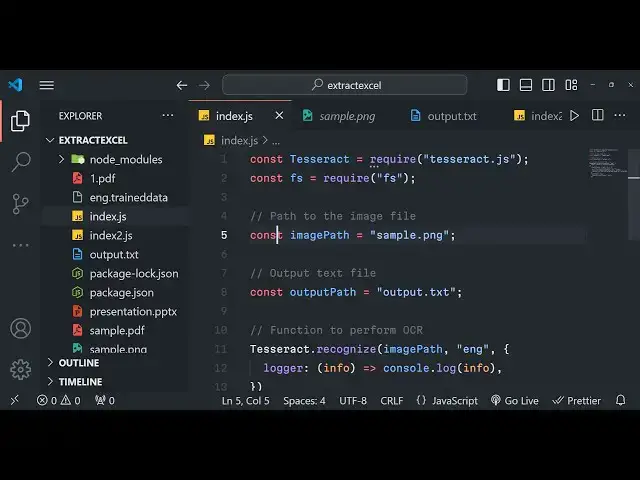
done so first of all you need to require
2:26
this module at the very top so this is
2:29
my index.js file let me delete all the
2:32
source code so start this the very first
2:35
thing you need to do you need to require
2:36
this module so test and we need to
2:39
require this module so we'll use the
2:41
required statement right here so just
2:44
require and we need to require this
2:47
package at the very top
2:50
test.js after that we also need the file
2:52
system module which is actually a
2:54
buil-in module of nodejs you need not
2:57
have to install it so it is all already
3:00
present inside the core nodejs module so
3:03
after that you just here you need to
3:05
provide the image path so whereever your
3:08
image is available so I will just
3:11
provide here
3:12
sample.png so it is present inside the
3:14
same directory where I'm developing this
3:16
project so you can see it's a simple
3:19
image right here A bunch of text is
3:21
written inside this image if you see if
3:24
I zoom in so all this text that you see
3:27
right here it can extract it
3:30
so I provided the path of the image now
3:33
we need to provide the output path so
3:36
what it needs to do we need to create a
3:39
txt file so I will simply say that
3:41
output.txt so this file will get created
3:44
automatically whenever you do this
3:47
process and now the very important thing
3:50
how to extract text
3:53
from image and it is also called as
3:57
OCR Optical corrector recognition
4:00
technology it is called and for this we
4:03
will be using
4:04
tess. JS so here this module right here
4:08
TCT it basically contains this method
4:11
called as recognize if you just see
4:13
right here in the drop down vs code is
4:16
simply telling you this is actually the
4:18
method recognize so here you need to
4:21
provide the image part as the first
4:23
argument to this function so we are
4:24
providing the image path here to this
4:27
recognize function the second path is
4:30
the language so in which language you
4:33
want to extract your text so for English
4:36
language default language is English so
4:39
for English language the three letter
4:42
three digit uh e NG this is the threel
4:46
digit code of English language so in
4:49
single codes you provide the uh your
4:51
respective language so here I you can
4:54
even provide your native language as
4:56
well so you can provide
4:58
Spanish so so just replace the language
5:01
code here in the second argument and
5:04
then we have the third argument which is
5:06
actually an object right here this is
5:09
not mandatory but you can Blog the
5:11
statements right here in this info
5:13
function and here we can console log Ino
5:17
that solve so this function will
5:19
actually extract the data the text which
5:23
is there in the image
5:26
file this recognize function it simp
5:30
does it simply takes the path of the
5:33
image file as the first argument then it
5:36
takes the second argument which is the
5:38
actual language of the text which is
5:41
present inside the image let's suppose
5:43
you have a image file which contains
5:45
Arabic text or Spanish text or Hindi
5:47
text so depending upon that language you
5:50
need to replace that language code in
5:52
the second argument so by default
5:55
English language is used so we have
5:57
provided English language digit code and
6:00
third function is a call back function
6:03
where we will displaying this console
6:05
log statement so this returns a promise
6:08
so we can handle the Promise by dot then
6:10
statement so this function returns a
6:13
promise so right here we will actually
6:16
be having the data right here and we
6:19
will be showing this data right here
6:22
like
6:24
this so
6:31
we can console log
6:36
the data right here so if I just run
6:40
this application just type here node
6:43
index.js so you will basically see it
6:45
will actually print out the text and
6:48
extract
6:50
it so it is saying that data is not
6:53
defined so let me just replace it here
6:56
text
7:01
so you will basically see guys all the
7:03
text has been successfully extracted
7:06
from the image file and it is showing it
7:08
in the terminal file you will see that
7:11
so all the text that is that was present
7:13
inside this image you will see that my
7:15
profile game key IBC Tor terminant so
7:19
all
7:20
this text has been successfully
7:22
extracted now we need to save this text
7:26
in a instead in a txt file so that
7:28
inside of local machine so we will use
7:31
the file system module right here and uh
7:34
it contains a method which is right file
7:37
synon here we need to provide the output
7:39
path where you need to save the text
7:41
file so we need to save it in the same
7:43
location where we are developing the
7:45
project and the third second argument is
7:47
the actual text that we need to save
7:49
which is present inside the text
7:51
variable and third variable third option
7:54
is the encoding type which is
7:57
utf8 like this this will save this line
8:01
will actually save the all the text in a
8:04
txt file and it will create this file
8:07
output.txt so let me just delete this
8:10
and rerun this so if you see in the left
8:12
hand side it Des script will execute and
8:15
it will create the output.txt file which
8:18
will actually contain all the data all
8:20
the text which was present inside
8:23
the image file so let me take another
8:27
example right here this F this
8:30
I take this image for example so it it
8:33
contains a lot of text right here if you
8:35
see right here so if I replace the path
8:38
here change it to sample 2.png again
8:41
rerun the script so depending upon the
8:44
text it will take longer time you will
8:46
see that it has extracted all the text
8:49
right here and save it if I open
8:51
output.txt so it has saved all the text
8:54
you will see that so accuracy is pretty
8:58
much 90% accuracy is there so if you
9:01
have a lot of text in the image file so
9:03
this OCR technology which is actually
9:06
using the test.js library it's quite
9:10
efficient Library when it comes to
9:12
accuracy so I think it's a pretty good
9:14
library that you can use inside nodejs
9:17
to actually extract the text from a
9:19
image file and do Optical corre
9:22
recognition so thank you very much for
9:24
watching this video please hit that like
9:26
button and subscribe the channel as well
9:28
and I will be see see you guys in the
9:30
next video Until then thank you very
9:32
much
#Scripting Languages