Up next in 10


Markdown All in One Your Ultimate Markdown Editor with Live Preview in VS Code
Show More Show Less View Video Transcript
0:00
uh hello guys welcome to this video so
0:02
in this video I will show you how to
0:04
preview your markdown files with an
0:07
all-in-one markdown editor in vs code so
0:11
you no longer need to leave vs code
0:14
while you're working with markdown files
0:16
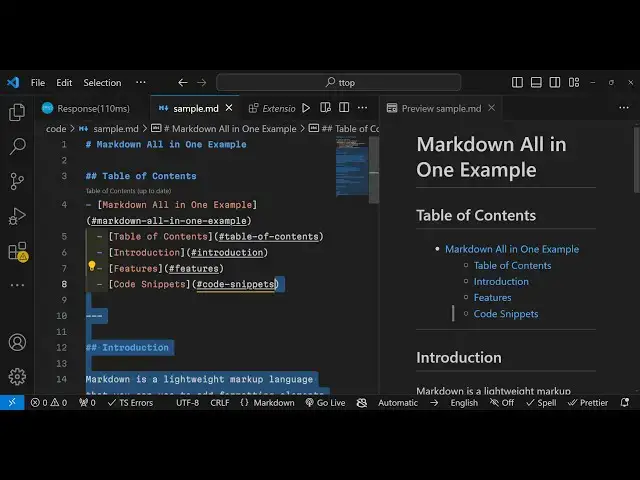
you will see a live to viw using this
0:18
extension that I will show you in this
0:20
video on the right hand side as you
0:22
write your markdown files you will see
0:24
on the right hand side a short little
0:26
preview and here if you make any sort of
0:29
changes it will reflect right here as
0:32
you just type you will see on the right
0:34
hand side the preview will change
0:35
instantly with live
0:39
preview you can see as I'm just changing
0:42
the markdown file it is reflecting in
0:45
the right so it is highlighted
0:47
everything you can just
0:51
see so the extension name is marked down
0:55
Allin one extension so if you go to the
0:57
extensions tab this is actually the
0:59
extension
1:00
markdown Allin one so if you just type
1:03
here
1:04
markdown in the search
1:08
bar so mark down all in one you just
1:11
need to
1:14
write so this is actually the extension
1:16
mark down Allin one let me uninstall it
1:19
and install it once
1:21
again so it will look something like
1:24
this so it has got almost uh 10 million
1:26
downloads 9.6 to be precise 9.6 million
1:29
milon downloads and the rating is also
1:32
very nice so click on the install button
1:34
to actually install this extension so
1:37
now this extension is globally installed
1:39
activated so now to work with it just
1:42
create a sample markdown file paste your
1:45
markdown
1:46
code so I have this markdown code
1:49
available so now to see the live preview
1:52
you will see this option appearing which
1:54
is this second option open preview to
1:57
the site either you can click this
1:59
option but for some reason if this
2:02
option is not appearing there is a
2:04
shortcut that you can
2:06
write just right click and select this
2:09
option which
2:12
is you will see this option in the in
2:16
this menu which
2:22
is if this menu is not
2:26
appearing then you can what you can do
2:31
you can actually hit a shortcut key on
2:34
the keyboard control shift p and just
2:37
type
2:39
markdown and you will see this open
2:42
preview to the
2:47
site the shortcut you can see control +
2:51
k v this is a shortcut key if you want
2:53
to see the live
2:55
preview so if I press control k v
3:14
can
3:15
just search your markdown open preview
3:18
to the
3:21
site you will see the preview you will
3:25
see you will see this uh menu the second
3:29
option you want to select open preview
3:31
to the side you will see this option
3:33
just click it and now if you see this is
3:36
actually the
3:40
preview which is there and here if you
3:43
make any sort of changes you will
3:46
actually see
3:48
the changing changes will take place
3:51
with live preview as you're just making
3:53
the changes everything is reflected
3:56
right here so you can work with markdown
3:58
files
4:00
very easily inside vs code with an
4:02
all-in-one editor of
4:15
markdown so you can see that
4:23
so let me repeat this
4:31
if you want to close this you can put
4:33
this so if I want to highlight the PHP
4:37
code right here so I will write PHP
4:45
so you can see that now we are
4:47
highlighting the PHP
4:52
code so in this way you can work with
4:55
markdown files in vs code with the live
4:59
preview this is on all-in-one editor so
5:02
it's widely used extension that is that
5:05
is why I wanted to make this video so
5:07
that you can use this extension if you
5:09
are not using it to preview your
5:12
markdown files right in the vs
5:15
code to edit the markdown
5:18
files so thank you very much for
5:20
watching this video please hit that like
5:22
button subscribe the channel as well and
5:24
do check out my free media tools website
5:31
which contains free thousands of free
5:34
tools related to audio video and image
5:36
and I will be seeing you in the next
5:38
video
#Software
#Development Tools