Up next in 10


Get the full source code of application here:
https://gist.github.com/gauti123456/63480c0b9d98f7f12312206239f8424f
Show More Show Less View Video Transcript
0:00
uh hi guys welcome to this video so in
0:02
this video we will talk about that how
0:04
to add the page numbers to your PDF
0:06
document at fotter
0:08
position it can be either left position
0:11
center position or right position so
0:14
page numbers are really important in PDF
0:16
document it actually serves the purpose
0:18
of actually showing which page number
0:20
the user on so we will be using JS PDF
0:24
Library I will show you very simple
0:26
application we have a button right here
0:28
if I click this button the PDF file will
0:30
get downloaded and you will actually see
0:32
at the bottom of the page we will add
0:34
this page numbering page one of how many
0:38
total number of pages so there are two
0:40
pages total pages are two pages that's
0:43
why page one of two and this is the last
0:46
page page two of two so I will show you
0:48
how to add these page numbers to in the
0:51
PDF document uh in JS PDF Library if you
0:54
don't know about jspdf it's a client
0:56
side JavaScript PDF generation Library
1:00
it also are available on nodejs as well
1:04
but we will be looking at an uh browser
1:07
example so now to get started all the
1:09
source code is given in the description
1:11
so you can get the source code so now to
1:14
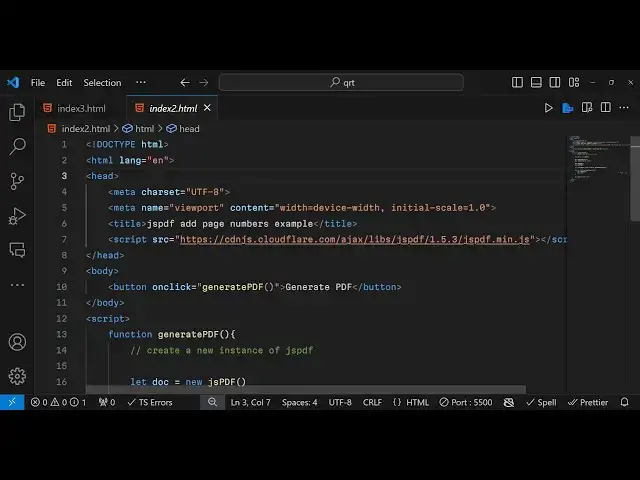
get started we will simply say jspdf add
1:17
page
1:18
numbers
1:20
example so first of all we do need to
1:22
include the CDN for jspdf so script tag
1:26
we will be getting this CDN
1:28
from cloudfare so cloudfare
1:35
docomo and then the version number that
1:37
we using is
1:39
1.5.3 this is the version number we are
1:43
including the jspdf main.js so that we
1:47
can use JS PDF inside our application so
1:50
after doing this we will simply have a
1:53
button we will simply say generate PDF
1:56
so we will bind a onclick listener to
1:58
this button so when we click this button
2:00
this function will execute which will be
2:02
generate PDF now in the script section
2:05
we do need to Define this function which
2:07
will be generate
2:11
PDF so inside this function guys we need
2:13
to get create a new instance of uh new
2:18
object of JS PDF class so you'll simply
2:21
say let. new Js PDF so we can access JS
2:26
PDF using this uh Constructor we
2:29
instantiate a new instance and storing
2:31
it inside doc so this object contains
2:33
various methods we can set the phone
2:36
size to be let's suppose 20 you can set
2:41
the font style as
2:44
well let's suppose I set it to
2:47
italic and then in order to add a page
2:50
we have this method of add page so this
2:52
will actually by default if if I don't
2:55
add this by default one page is
2:58
automatically added so I'm just adding
3:00
this second page as soon if I again
3:04
invoke this this will add another page
3:06
so now it will contain three pages so if
3:09
I want to save this file you will
3:10
actually say output.pdf
3:15
so so now if I open this application the
3:18
pagination will not be there but if you
3:21
see if I click this button it should do
3:24
the job it is saying jspdf is not
3:28
defined uh I think I made a mistake
3:31
right here lips jspdf
3:37
1.5.3 let me paste the CDN once again
3:40
all the source code is given in the
3:43
description let me try this once
3:46
again so now you can see the PDF file is
3:49
downloading so the pagination is not
3:51
there the page numbering is not there
3:53
but it contains three pages three blank
3:57
pages like this so now to add that page
4:01
numbering it's really simple we can
4:04
actually use a simple for Loop but we
4:08
need to get calculate the total Pages
4:10
first of all to get the total Pages we
4:12
have a function in jspdf which is dog.
4:16
internal get number of pages this
4:21
function will actually return the total
4:23
number of pages in this case it will be
4:25
three and they'll be using a simple for
4:28
Loop where I is equal
4:31
to 1 and it will run until it reaches
4:35
the total number of pages for now it
4:37
will run three times for each time you
4:39
will be incrementing the value of i++
4:42
and for each page we need to set the
4:45
page number to be set page
4:48
I and then the actual text so here for
4:53
the page numbering we give some space
4:56
here to get in the center position
5:02
and then it basically we need to set
5:06
that we need to
5:07
concatenate the actual page so you'll
5:10
simply say
5:13
page and then some spacing and uh then
5:17
concatenating the current page which is
5:21
available in the I
5:25
variable and then you'll simply say off
5:32
the total Pages which is there in the
5:34
variable and then the x coordinate which
5:37
is 10 and the height here this is
5:39
actually width and for calculating the
5:41
height we'll simply use this formula
5:43
dog. internal page size do height minus
5:48
10 so you can change the this formula
5:51
change these values to actually adjust
5:53
to your liking that's all that we need
5:56
to do it will actually use this text
5:58
method to actually add those page
6:00
numbers to all the pages so if I now
6:02
refresh
6:04
here again click this button so now if
6:08
you see
6:11
uh you will actually see it will add
6:14
these page numbers page
6:16
one this is page two this is the last
6:22
page which is page three of three so in
6:24
this way you can add your page numbers
6:26
you can adjust the spacing right here if
6:28
you want to have
6:30
and right in the center you can adjust
6:33
the spacing by editing the
6:36
code now it is appearing right in the
6:38
center you can see that so you can make
6:41
some slight modifications let's suppose
6:43
if you want to adjust the phone size let
6:45
me make it little bit smaller
6:51
so and then you need to adjust the
6:54
sizing of it just give more space
6:56
because the text is small
7:06
so in this way guys you can add these
7:08
page numbers and the footer position
7:10
right in the center or you can even
7:12
place it right here as well so this
7:14
depends upon how much space that you
7:16
will give so you can discode you can
7:18
modify it accordingly wherever you want
7:20
to just show the page numbers so in this
7:23
way you can add page numbers to your PDF
7:26
document in JS PDF this was the a short
7:29
little tutorial that I wanted to tell
7:31
you all the source code is given in the
7:33
description please hit that like button
7:35
subscribe the channel and I will be
7:37
seeing you in the next video