Up next in 10

jsPDF Tutorial to Add Image From Webcam and Encode to Base64 in PDF Using Javascript in Browser
Jan 9, 2025

Get the full source code of application here:
https://gist.github.com/gauti123456/d831527724bf49345b242b0bdf087457
Show More Show Less View Video Transcript
0:00
uh hello guys welcome to this video so
0:02
in this video I will actually show you
0:04
how to take picture from your web camera
0:07
and uh actually convert this into a PDF
0:10
document add it to a PDF document using
0:13
jspdf Library so you can just see here
0:16
we have I just got access to my web
0:18
camera so this is actually the
0:20
application we have a button right here
0:22
of capture image if I click this button
0:24
right here it will take a snapshot of my
0:26
web camera it will take this Photograph
0:29
and there is a button out there which
0:31
will generate the PDF document so it
0:33
will actually add this image to this PDF
0:35
document so the PDF document will be
0:37
generated and it will actually have this
0:40
image added to the PDF document using
0:42
base 64 code so we will actually convert
0:45
this image which is taken by the web
0:47
camera and we will add this to this
0:49
canvas you will see that as we are
0:51
clicking this button it is taking the
0:52
picture from the camera and it is
0:55
displaying it in this canvas and then we
0:56
are actually converting this canvas to a
0:58
PDF document using Bas 64 code using
1:01
jspdf Library so we will try to actually
1:04
show you guys in this tutorial how to
1:05
take how to insert image taken from web
1:09
camera in the PDF document using jspdf
1:12
Library this will be a complete tutorial
1:14
the link will be given in the
1:16
description if you want the full source
1:18
code so now let's get started by
1:19
building this application so as I
1:22
already told you guys we are actually
1:24
using the jspdf uh Library which will be
1:28
a client side Java JavaScript PDF
1:30
generation Library it has a nodejs
1:32
module but we will be using it in the
1:34
browser using CDN so now let's get
1:38
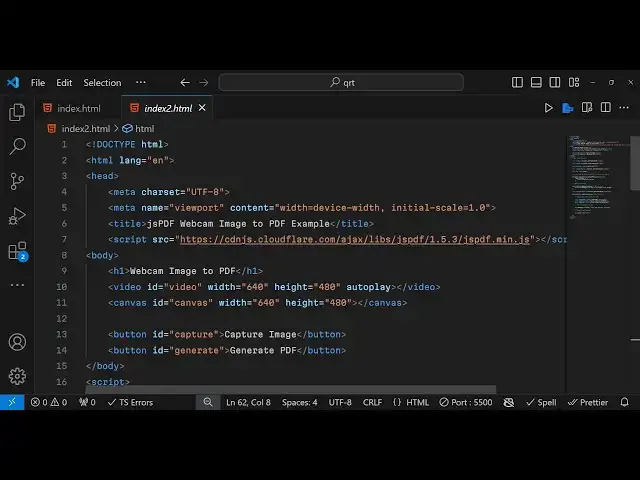
started so just make a index.html file
1:43
uh this will be
1:46
for just make this uh you can simply say
1:50
jspdf uh webcam image to PDF
1:56
example and for doing this guys we do
1:58
need to include this CDN for
2:01
jspdf which is uh
2:04
actually a script T just after the title
2:07
just include the source
2:10
https cdnjs do cloudfare we'll be using
2:14
the CDM from cloudfare Ax
2:17
lips which is actually a
2:24
library
2:26
jspdf 1.5.3
2:30
this is the version number that we are
2:31
using jspdf
2:33
min.js just see guys we actually getting
2:36
the CDN from cloudfare tocom and this is
2:40
a version number that we using 1.5.3
2:43
jspdf min.js after this we will actually
2:46
have a simple heading we will simply say
2:50
webcam image to
2:53
PDF and then we will have a video tag
2:56
where you'll be actually be showing the
2:59
webcam video of the user we'll be giving
3:01
an ID to it of video we'll be giving a
3:04
width of
3:06
640 and a height of
3:09
480 so here the video will autop playay
3:14
the so video tag and then we will be
3:16
having a canvas where we will be showing
3:18
the output when we take the photograph
3:21
we will be showing it in this canvas the
3:23
width will be the similar which will be
3:25
640 and the height will be again
3:27
480 and uh we have given this canvas
3:31
element an ID here so just at if we
3:33
click the button of capture image it
3:36
will the photograph will be displayed in
3:38
this canvas tag then we have two buttons
3:40
for first for capturing the image we
3:43
have given an ID to it of capture image
3:46
and the label of this button will be
3:47
capture image and the second button will
3:50
be to actually generate the PDF so you
3:52
will simply say generate PDF you'll be
3:55
giving an ID to it of generate so if you
4:00
see in the browser what it looks like it
4:02
actually have a simple two buttons in
4:05
the capture image and generate PDF and
4:08
then we have the canvas tag and the
4:10
video tag it is not working now we just
4:13
need to write the JavaScript code for
4:16
this so now to access the web camera of
4:19
the user we first of all need to get
4:21
access to the video
4:24
element so you'll simply say you will
4:26
Target the video element by its ID that
4:29
we have given document. getet element by
4:31
ID so we have given the video element if
4:34
you see an ID here we are targeting
4:36
right here using get element by ID after
4:39
we get this we need to get the canvas
4:41
element as well so const canvas
4:44
document. get element by ID canvas so we
4:48
are simply targeting the ID that we have
4:50
given to the canvas element if you see
4:51
we have given an ID here we are simply
4:54
targeting it after that we need to get
4:56
the context here of the canvas you can
5:00
simply use the function canvas. get
5:03
context 2D context we need to get and
5:06
then we need to Simply bind a onclick
5:09
listener to the when we click the
5:11
capture image button so we need to first
5:13
of all get access to that button we have
5:16
given an ID here if you see to the
5:18
button we have given an ID so we are
5:20
simply targeting it by get element by ID
5:23
so you need to Simply bind a onclick
5:27
listener so right here first of all as
5:29
we load the
5:31
page we need to get
5:34
access to user web
5:37
camera so for doing this we will be
5:39
using the Navigator API which is built
5:41
in in every browser Navigator do mediad
5:44
devices. get user media get user media
5:48
sorry this will get access to the user
5:51
web camera video we will set it to true
5:54
we don't need the audio of the user
5:56
simply we need the video to get the
5:58
photograph this this returns a promise
6:01
we will be handling it by dot Den it
6:04
will get access to the user stream in
6:06
this stream variable and then we will be
6:09
assigning this to the video element
6:12
video. Source object is equal to stream
6:16
so if you just write this line of code
6:18
and if you refresh your browser you will
6:20
actually get the user stream if you see
6:23
the camera if I show you we are getting
6:27
access to my web camera so I can see
6:30
myself in the web camera so now after
6:33
getting access to my web camera I need
6:35
to
6:37
capture the image so for capturing the
6:41
image it's very simple we find a onclick
6:44
listener to it add event listener when
6:47
we click this button it will actually
6:49
execute this call back function and
6:51
inside this call back function we will
6:53
actually draw a image on the context
6:56
draw
6:57
image from the webcam video x coordinate
7:01
white coordinate will be 0 0 and then
7:03
the canvas width canvas height that's
7:07
all so if you just now click that button
7:10
of generate if you
7:14
see if you click that button of capture
7:16
image the image will be taken the
7:18
photograph will be taken you will see
7:22
that now to get uh basically add this
7:25
image in the PDF document we will get
7:28
access to the
7:30
generate button
7:32
element so we have given an ID to it of
7:36
uh generate if you see in the HTML we
7:39
have given this ID generate we are
7:41
targeting it by get element by ID and
7:44
then you bind a onclick listener to this
7:47
button as
7:48
well so right here we basically say we
7:52
need to first of all encode this
7:56
image to base 64 code
8:00
so we simply say base
8:02
64 URL so we simply get the base 64 URL
8:07
by using this function canvas to data
8:11
URL this is a function which is built in
8:14
in every browser here we need to provide
8:17
the image extension either it can be PNG
8:20
or jpg because it's a JPG image we will
8:23
simply say like this then we basically
8:26
set the image width so we can get this
8:30
using uh doc. internal for this we do
8:34
need to uh instantiate a new instance
8:37
globally we need to create a
8:40
variable for this we need to initialize
8:44
uh
8:44
jspdf jspdf so we actually instantiate a
8:48
new instance of this class jspdf and
8:51
storing it inside this doc object you
8:54
can see we have included the CDN at the
8:56
very top so that we can create a new
8:58
object of this class of J jspdf
9:00
Constructor and now using this object it
9:03
contains a function right here to get
9:06
the internal width of the page doc.
9:08
internal page
9:10
size. get
9:12
width this will this line of code will
9:15
get the width of the page of the PDF
9:18
document similarly to get the height of
9:21
the PDF document we will declare a
9:24
variable image height document
9:28
internal Dot
9:29
uh page size. get
9:36
height then we will basically add the
9:39
image in the PDF document using JS PDF
9:42
for doing this we have a function which
9:44
is ADD image and we'll be using this
9:48
approach we'll be using this base 64
9:50
code that we got base 64 URL we'll
9:53
simply pass it to this function base 64
9:56
URL and then it's a JPG image
10:00
and then the x coordinate y coordinate
10:02
and then the image width that we
10:05
calculated and the image
10:07
height that's all so after this we need
10:10
to save our PDF document so for saving
10:14
it we'll use the save function and we'll
10:16
be giving a name to it of output.pdf
10:18
that's all this is the overall
10:21
application guys if I refresh this
10:23
application and repeat this process
10:32
uh if I inspect element let me see what
10:34
is there it is saying jspdf is not
10:38
defined uh let me see guys what is the
10:43
problem uh JS PDF is not
10:46
defined I think I made a mistake in
10:49
getting the CDN let me paste the correct
10:55
CDN all the source code is given in the
10:58
description guys so just make sure that
11:00
you do
11:02
this now you can see we are getting the
11:05
camera stream right
11:10
here so if I click this button of
11:13
capture image it will take the
11:14
photograph and then if I click the
11:16
generate PDF it will add this image in
11:18
the PDF document with full full width
11:21
and full height you can see that so in
11:24
this way you can
11:26
actually take the photograph and
11:30
and encode that image using base 64 code
11:34
and add this into your PDF document
11:36
using jspdf Library this is a complete
11:39
example and the full source code is
11:41
given in the description of this video
11:43
so thank you very much for watching this
11:45
please hit that like button subscribe
11:47
the channel as well uh for more videos
11:49
like this and I will be seeing you in
11:51
the next one
#Flash-Based Entertainment
#Multimedia Software
#Other
#Computer Education