Up next in 10

Javascript Youtube Data API V3 Search Videos Based on Date & Time With Pagination in Browser
Jan 9, 2025

Buy the full source code of the application here:
https://procodestore.com/index.php/product/build-a-youtube-search-engine-to-search-videos-based-on-date-time-using-data-api-v3-in-javascript/
Hi Join the official discord server to resolve doubts here:
https://discord.gg/cRnjhk6nzW
Visit my Online Free Media Tool Website
https://freemediatools.com/
Buy Premium Scripts and Apps Here:
https://procodestore.com/
Show More Show Less View Video Transcript
0:00
uh hello guys welcome to this video so in this video I will actually build out a YouTube data API version 3 project
0:07
which will allow us to search videos based upon a specific date and time and we will also be rendering out a special
0:14
feature which is a pagination feature you will see that on your screen so I built this interface using Tailwind CSS
0:20
and you can see we have if I reload the page right here we have a search term where we can actually enter a search
0:27
specific search term where based upon that we can search the YouTube videos
0:32
and then we have this from date and to date and let's suppose I search for a
0:39
JavaScript project this is my search ter and then I provide the from date you can
0:44
simply check the date and time from this date picker so let's suppose I select the date 6th March you can select the
0:52
time right here 6th March 2024 I selected the from date and then to date
0:58
let me select here 30 March so in between these two dates the
1:05
6th March and 13th March might search term is Javascript project so only these
1:10
specific videos will come as I click the search button you will see the videos will be displaying right here we will be
1:16
fetching the title of the video thumbnail of the video the channel who actually owns this video number of views
1:23
likes and comments are also displaying it inside this table and as you scroll down per page we we are displaying 10
1:30
videos and as you click any of the individual video the video will play in the you can see that
1:39
so if I basically go to the second page the next set of videos will
1:44
fetch you can see that so the we are currently on the second page if I want
1:50
to go to the previous page I can go to the click the previous button and now I will land on the first page so if I want
1:56
to go to the third page I will simply click the third page and now now the next set of videos will come right here
2:02
and now you can see that so very Advanced project guys and uh you
2:08
will get to know much more about it as I develop this and if I click the next button this will also do the same thing
2:14
we are currently on the third page if I click the next page it will go to the fourth page in the pagination and now
2:20
you can see that the next set of videos will be displaying right here so we are
2:26
actually using the YouTube data API so it doesn't require authentication it does require API key for fetching the
2:34
videos and we are having pagination so it will automatically calculate the number of pages so quite a lot of
2:42
results are return so I will show you the logic that I used I doesn't use any
2:47
third party library for integrating pagination it's all happening inside vanilla JavaScript HTML and CSS so we
2:55
haven't used we just use a Tailwind CSS to actually build out the UI of this application just the simple form and the
3:03
pagination and the table that you see right here apart from that we haven't used any JavaScript third party Library
3:09
it's all van JavaScript so if you need the full source code guys you can definitely purchase it the link is given
3:15
in the description of the video and uh now I will start building this project
3:22
so first of all you do need to enable this YouTube data API version 3 just go to Google Cloud console and first of all
3:28
you need to enable this API so just search for this API called and search for this API YouTube data API version 3
3:36
and simply click on the enable button I've already enabled this and now you need to click on credentials and you
3:44
need to create a API key so as you click the API key you will be generating that
3:51
and so this is my JavaScript code right here and this is the actual HTML code so
3:57
I will now stri this code step by step so I will simply delete
4:05
that and let me first of all make
4:12
a new file here let me say YT search
4:22
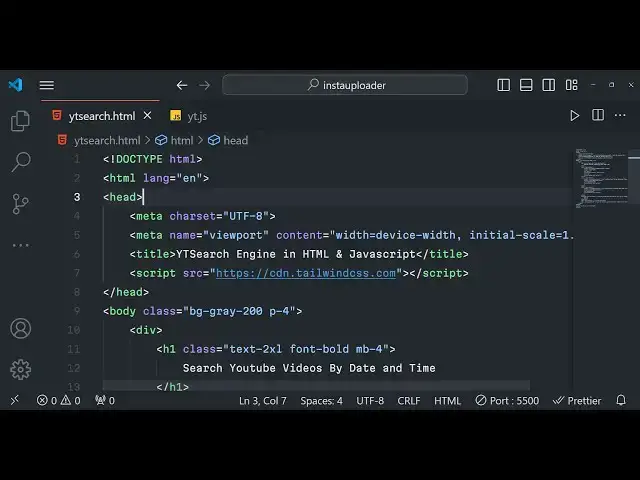
HTML so the very first thing we will do we will simply make a title here which is YT search
4:32
engine in HTML and
4:42
JavaScript so we are using Tailwind CSS guys so you do need to make make sure that you include the CDN for Tailwind
4:49
CSS so you can simply write Tailwind CSS it's a
4:54
framework just write Tailwind CSS CDN and uh just go to their official website
5:01
and uh they do provide installation if you go to it you can
5:10
uh just click on CDN and you will get your CDN right here simply include the
5:17
script tag right here just after the title paste it so
5:23
now you can use TB CSS inside you so the very first thing I will do right here I will change the background color of the
5:30
body so BG gray 200 so this will change the background color and then I will
5:36
simply get padding as well so p-4 so inside the div tag we will
5:41
actually have a heading so this will have text to excel the sizing and the
5:47
font will be bold and margin bottom four these are all the classes that I have assigned so the heading will be searched
5:55
YouTube videos by date and time
6:00
so if you open this now there will be this uh background will be changed to Gray and there will be simple heading
6:06
right here and after that we just need to have a again a div tag margin bottom
6:13
four and this time we will actually have a label where we will actually be
6:20
assigning the user there we can enter search ter so there will be this input field
6:26
input type text and we will be giving this uh ID to it so that we can Target
6:32
in JavaScript search and placeholder enter search term so the
6:39
user will enter here the search term and it should be required the user
6:47
must enter this and we will attach some classes Tailwind CSS classes border P2
6:52
and width will be full so if you refresh now the width would be full right here
6:57
and you can see that it is taking the full width of the screen this class is doing it so
7:04
Tailwind CSS makes it very much easy to actually write CSS and again we will have another div
7:11
margin bottom four and this time here we will actually have the date input Fields
7:18
where we will allow the user to actually select which date and time we will say
7:25
from date and time so we will actually attach a class to it of block MB margin
7:33
bottom two so after this here we will actually allow the
7:39
user to select the date and time so type parameter here will be date time
7:47
local and ID will be from date input and class here again border P2 it
7:55
will take the full width W full and initial value I will not give it if you
8:03
just see initial the format will be month month day day and year if you
8:08
click the calendar will open so the user can select their date so similarly I
8:14
will simply copy this one more time and this will paste it and this
8:20
time it will be two date input so I will simply
8:26
change this form to two
8:31
this will be changing from from to
8:39
two so if you see there will be two input Fields the from one and the 21 so
8:46
we have these uh input Fields lastly we will actually have a simple button to
8:51
actually submit the form this will be search to actually search the videos in
8:57
that time period so search button we will will'll give it an ID and we'll have a class here which is BG blue 500
9:05
and the color of the text will be white PX4
9:11
py2 and the button will be rounded and when we H onto the button the background
9:16
color will change so BG blue 600 so you can see how easy it is to
9:23
actually construct interface in Tailwind so as you hover it will change the background color so that's all that we
9:29
have inside our user interface the user interface is complete now we will actually write the code to actually make
9:37
the JavaScript so just have a script tag and YT JS I will include create a file
9:45
in the same directory yjs so here guys first of all
9:53
uh what we will do is that just make sure in the HTML
9:59
after you embed this button we also have a div which will have an ID which is
10:04
results so here we will basically show all the videos in a t tabular like structure just give it a div right here
10:12
and for the pagination we will also be having a div tag here we will show the pagination buttons so just give it a
10:18
class here which is mt4 margin top four Flex justify Center item Center so it
10:25
will be showing it in the center of the screen that's all so so now our HTML code is complete so right here in the YT
10:32
JS file so we will declare some variables first will be the API key so
10:38
this you need to paste it inside your Google Cloud console account so next
10:43
page token this will be very useful whenever you are building pagination previous page token so these two things
10:50
will be returned in the API response these next page token and the previous page token so this is useful if you want
10:56
to retrieve more results from the AP so we will use these tokens in order to
11:03
make subsequent request to actually uh handle more data to fetch more data from
11:08
the API uh so now this API key you can retrieve it using your Cloud console I
11:15
have already created this API key so don't copy my API key I will delete this
11:21
key after this video after this the total
11:27
results will be zero by default So based upon these total
11:33
results we will calculate the number of pages that needs to be rendered in the pag Nation so maximum results that needs
11:39
to be feted on a single page will be 10 so only 10 videos will be shown on the single page and then the current page so
11:47
current page will be one as you load the application we will be we will be on the first page in the
11:54
pagination so these are all the variables that we have declared now we will ALS Al be declaring
12:03
the references to our HTML elements that we have declared so get element by ID so
12:10
we have given that element an ID of search again from date
12:15
input document. getet element by ID from datee
12:21
input and lastly we have the two date input as well
12:32
so you can cross check guys basically in the HTML file we have given all these IDs if you see to date input and uh from
12:41
date input and this uh ID search so we are
12:47
basically G getting the references and storing it inside their individual variables and that's all and after that
12:54
we just need to make sure we bind a on click list to the search button as we
13:00
click the add event l so when we click this button what should happen so we
13:05
will be executing a function which will be handle search so whenever we click this button that you see right here we
13:12
have given this ID of search button so we are attaching a on click listener to it so need to Define this function
13:25
now so we can simply say button clicked just to see if it is working or
13:35
not so now you can see button clicked so it is currently working so instead of
13:41
alert statement we will now be uh making a fetch request to the back end sorry to
13:47
the API YouTube data API so we first of all set the current page to number one
13:53
and then the search term whatever search term the user has selected so it will be
13:59
coming from search term input. value so whatever value that the user has written
14:06
so we are not using jQuery here guys we are actually using the vanilla JavaScript Dom document object model
14:13
syntax so in this way you can retrieve the value that the user return and again
14:19
the from date which will be from date input.
14:25
value and two date which will be two date input.
14:37
value so basically we have retrieved all these things in the UI in the JavaScript
14:44
now we need to Simply convert these dates to formatted
14:51
dates so that we can use it in the API so for doing this we will declare two
14:57
more variables which will be formatted from date new date Constructor we will use
15:04
pass it from date value and use this function which is to ISO string so you
15:10
do need to basically convert your dates into this format guys just to make sure that you can use it inside the YouTube
15:16
data API version CL call if you don't do this you will get a error and same thing
15:22
we need to do this for the formatted two date as well this is date and also call this
15:30
function to ISO string so after you do this we will actually call a function
15:37
which will fetch the data and we will basically pass the search term as a first argument formatted from data as a
15:44
second and formatted to date as the third argument now we just need to Define this function which will be a
15:51
simple Asing function fetch
15:57
data we will have these three things search
16:02
term formatted from date and formatted to
16:10
date so it's Asing function so we can use await inside this and also the
16:15
fourth parameter here guys will be page token by default its value will be nothing but it will take this default
16:23
value if uh the parameter is not passed in this case we are not passing the page token so it will take the default value
16:30
which is nothing but if you do if you do pass the page token value but it will
16:35
take that value so essentially there are four parameters in this function but we
16:41
are not passing page token that's why it is taking its this value this default value now inside this now we will use
16:49
the TR catch block to actually make the fetch call if any sort of error take
16:54
place you can actually console log the error so inside the TR cach block we
17:00
will actually make a fetch call await fetch so fetch is
17:06
available in in every browser so we are actually making this HTTP client using
17:12
it to actually make a simple call so in backtick
17:17
HTTPS this is endpoint googleapis.com
17:24
YouTube SL verion 3/ search
17:30
question mark Q is equal to and this is actual query parameter so whatever
17:35
searching you are doing we are basically doing search
17:41
term and we can basically do it in the next line and after this we can put M
17:49
this and sign and then we will provide actually the actual key this is actually API key that you need to perform so API
17:56
key will Define it we have B basically made a variable in the right at the top we have
18:04
made this variable API key so we are it's a global variable so we can use it after this we just need to also pass the
18:12
part parameter and this part parameter will be snippit so we can essentially hard
18:19
code this so snippit it can have either uh three values snippet content type content
18:26
details you can read the documentation but for now we are using snippit and then type what we are searching we are
18:35
searching video so we will provide Here video and then published at there is
18:41
this property published after so published after here we will
18:46
put this uh formatted to
18:53
date and also we will also be having this
19:00
So Max results property as well so how many maximum results you need to put so
19:06
we will use this variable that we Define Max results and actually the page token so
19:15
page token is nothing because we haven't passed it so we will simply pass the
19:22
default value which is nothing so page token and one more thing that I missed which is uh published before so right
19:29
here after this typee is equal to video right
19:35
here we have one more property which is
19:40
published before is equal to and this is actual
19:45
from date formatted from
19:52
date so we basically passing the published after this is published after
19:57
this is from and published before so these are two parameters inside YouTube data search
20:03
API whenever you do it this is actual endpoint we need to make a fetch call
20:09
after you do this just come to the next line and then we will make this fetch
20:16
call use await and convert this response to Json and
20:24
then if I just want to console log it
20:32
just to see if it is working or not and if I try to open with live server and
20:38
try to PHP project and I'm searching from 6 March up
20:44
till 7th March click on search go to inspect element and it is saying to us
20:55
that uh let me see what is the problem fail to fetch it is
21:05
saying uh requested URL YouTube version 3 search was not found on This
21:10
Server oh I think we made a mistake guys we cannot write like this we do need to
21:15
write it on a single line so I will simply shift everything on a single line
21:21
so don't we don't have to have spaces right here so just make sure that you put it in the single
21:26
line so now it is looking perfect so if I want to run this now
21:33
and PHP project and I'm searching here from 7th March up till uh 10th March and
21:40
click on search here and if I go to console
21:46
here kindly just refresh
21:52
the now again test it
22:05
so again this no access control allow origin error is taking
22:11
place fail to fetch let me see what
22:21
is uh let me see I think I just made a typo mistake right here let me cross
22:28
check Che the URL that I typed here which is https ww I missed the WW part
22:36
ww. googleapis.com youout version 3 search question mark Q is equal to
22:45
search ter key is equal to API key part is
22:51
snippet type is equal to video and published
23:00
and published after and
23:06
published okay as you see guys basically we have double d right here you can see the problem right here this need to be 1
23:14
D published before you can see the typo mistake right here and this one
23:21
is so this was I think hopefully will be the error and if I try to refresh once
23:26
again
23:36
and if I check the console you will see the object is returned to us guys and
23:41
basically we have passed 10 videos and we are getting the 10 videos right here there the array which we are getting
23:47
right here each object basically have some properties associated with this so
23:52
we are actually getting the video ID this is actual video ID that we are getting as a Json response and this is
23:59
true for everything you can see that so in the subsequent request using this
24:05
YouTube video ID that we got right here we will actually make another request to actually get more information about this
24:11
video such as YouTube likes or comments number of views the thumbnail of the video
24:17
so you can see total results it's about around 1 lakh results per Pages 11 so we
24:24
will use this information for the pagination and this is the actual next page P token that we got so we will use
24:31
this next page token to actually construct the pag nation and uh now this is exactly that we want and
24:39
now after we got this information what we need to do is that we need to store
24:44
this next page token so next page token is essentially
24:49
data. next page token if it is not found in that case we will set it to
24:55
nothing and then previous page token is also data do previous page
25:01
token if nothing is found then nothing so we are storing next page token and the previous page token which is
25:08
essential for pagination purpose and the total results so how many total results are returned to us so data. page info do
25:17
total results so we are actually saving all this information from the Json response
25:22
that we got from the API and then we are actually making another call to a function display results we will
25:30
make this function and pass the actual array of videos that we are getting from
25:36
the API so data this is actual data that we got and this contains this items
25:41
array which will be the length of this will be 10 and we will be displaying 10
25:47
videos on a single page and now we just need to actually make this function
25:53
which will Loop through this array and display the videos on the screen so
25:58
now to display this function sorry display the videos we will actually make this asyn function display results so
26:07
this will have the videos as an argument right here so now to display these uh videos on the screen we will actually
26:14
make a results container and right here we will say
26:21
document. get element by ID results so you can see we are targeting it the
26:27
result ID that we have given this is a div section where we will show all the videos we have given the ID so we are
26:34
targeting it by its after this we will say results container do inner HTML we
26:41
will basically clear out the previous one like this this line is very important because if
26:48
you click it click the display result for the second time then it will clear out the previous entries this line is
26:55
important you should write it after this in the if condition we will
27:00
check if the length of the array videos. length is equal to zero in that case we
27:06
will simply say to the user that result container. inner
27:13
HTML so inside a paragraph We will simply say to the user
27:19
you'll give it a class Tailwind class which is uh text red 500
27:28
no videos found for the search
27:35
term so and then we can simply return from the program so we can simply write
27:42
return so if the length of the videos are there we will basically display
27:48
it we will create a table dynamically by using document do create table sorry
27:55
create element and we'll create this table element
28:01
and then we can simply add some classes to it table. class list do add basically
28:09
you'll add this class of table w- full it will take the entire space and then
28:15
the Border it will have some border as well these are all Tailwind classes and then we need to Simply say table
28:23
head and then document. create element we'll create the element table table
28:28
head right here and then table head and uh we'll manipulate the inner
28:34
HTML of this so backtick symbol so we can write multiple lines of HTML code right here
28:41
so this will contain basically our uh table headings first we will
28:48
store the title of the video this will be the
28:53
thumbnail video thumbnail and uh and this will be the channel who owns
29:00
the video and then we actually get the number of views that this video got and
29:06
the number of likes and number of comments we will fetch all this
29:12
information and display it inside the table so you can
29:17
basically uh like this so we can basically now add this table to the body
29:23
so we can say table. append child table head
29:28
we will basically have add this head in the in the table and then we will actually
29:34
construct our table body table body document. create
29:40
element uh table body and then we will basically Loop through all
29:46
the uh this length of the array so let video or
29:52
videos so for each video we will actually create a brand new row so we can say document. create element
30:00
TR and then we will basically say the video we will fetch the video ID video.
30:07
id. video ID for each video ID we can basically
30:12
get the statistics of the video by making a brand new call as this is a
30:19
async function we can basically use the await keyword for each video using its
30:24
video ID we will make another function which will fetching the video video stat statistics and we will pass this video
30:31
ID as an argument so we need to Simply make this function which will
30:37
actually uh make this function just here it will also be a async
30:42
function so outside this so asyn function fetch video Statics text so it
30:50
will actually have this video ID as an argument so we will actually make a
30:56
simple fetch call so this endpoint will
31:02
be so https www googleapis.com
31:08
youube SLV 3 SLV videos and then ID here we'll paste the
31:15
ID right here the video ID that we are getting and then our part parameter so
31:21
this will be equal to snippet sorry this time it will not be
31:26
snippet this time it will be statis itics because we need to fetch the videos meta information which is the
31:33
number of likes comments the thumbnail of the video URL of the video so here
31:39
most important the part parameter will be statistics and here we need to provide the key parameter API
31:45
key API key that's all so this is actually our URL I will shift this into
31:52
a single line and uh
31:58
after I make this call we will return this await response. Json that's
32:05
all this is all that we will have right here guys and after that we
32:11
will we got get this information we will actually get this
32:16
basically console log it just to check if it we are getting this information or not if I refresh the application and
32:23
write here fmpg tutorial if I write this I want to
32:31
search videos from this 200 10 February I basically pick a
32:39
very old date and uh let's suppose 2012 January like this click on
32:47
search inspect element and you will basically get the statistics for each video you
32:55
will see that this is a stats that we are getting right here the number of comment 656 like count view count and
33:03
also we are also getting uh this is this is the actual
33:09
information that we want and
33:18
uh you can see that so for each video we are actually getting this information and
33:25
uh so now using this information we need to display this information in a tabular
33:30
structure so how we can do
33:36
that so after we do this we can
33:42
basically create a variable statistics and we can say video statistics dot
33:49
items0 statistics pick the first one and inside
33:55
this we will say rad inner HTML and uh
34:01
here we will actually be displaying all these details so first
34:06
of all we need to get the title thumbnail Channel views likes and comments we will display all this
34:13
information so TD tag and inside this video. snippet do title
34:28
so we just need to give it a Tailwind class here for the spacing which is uh
34:34
PX4 py2 and we will simply copy this six
34:42
more times so here we will simply change this
34:50
uh this ones to statistics only because
34:58
in this property we are getting the comment number of comments comment
35:03
[Music] count and then we are getting our
35:10
statistics like like
35:17
count view count number of views likes comments and uh then video snippy do
35:25
Channel title in order to get the name of of the channel so Channel
35:31
title so now to basically display the URL of the video as well as the
35:37
thumbnail of the video this will be slightly complicated in the TD
35:42
tag we will actually have the anchor
35:52
tag so anchor tag will be we will give it a hre parameter right here which will
35:57
be https Google
36:03
youtube.com/watch V is equal
36:10
to video ID and this target will
36:18
be blank so it will open in a new window and
36:25
uh it will also contain the ual U uh thumbnail URL so image source will be
36:32
equal to so this will be video
36:39
snippet thumbnails high.
36:48
URL so we also need to give basically the class here which is a Tailwind class
36:54
which is height will be 60 and we do need to make sure a fixed
37:01
width is given so style width will be 200 100 pixel and the height will also be 200
37:12
pixel so after you do this guys we just need to add the table body in
37:20
the we will simply say table body do appendchild row that's all it will add
37:27
this Row in the table body and lastly we do need to add the table to the actual
37:32
body because uh add the table so now to add the table you say
37:39
table. appendchild first of all add the body to the table and then we can add the table
37:46
which is result container. appendchild table that's also so if you refresh the
37:54
application now your videos will be displaying right here if I type the fmpg project and if I
38:01
select date
38:07
here if you see basically all your videos are displaying right here and uh
38:13
we do don't see the pagination buttons but we will allow we will soon be working on it you are basically seeing
38:20
the first time videos are displaying it and uh this is a channel views likes and
38:26
comments and uh you can basically change this uh if I
38:33
want to see older videos let's suppose in 2010 January
38:41
and just to click verify that it
38:46
works so I basically selected 10 years back uh I think it's 14 years back click
38:52
on search it will now be displaying U basically you will see
39:01
so you can see that so it has making a new request and then it is doing it so it
39:08
is so now we just need to work on the pagination purpose how to
39:13
actually show the pagination
39:21
so right here after you do this
39:29
uh after we display it we will basically call a function to actually render the
39:34
pagination so this function will be called as render
39:40
pagination that's all so we need now need to make this function which is uh render pagination so this function
39:47
render pagination so inside this method guys first of all we will say pagination
39:54
container we will get access to the element that we declared in the HTML by document. get element by ID pagination
40:02
we have given this ID and then pagination container inner HTML to
40:08
nothing just reset this and the total
40:13
Pages we will basically get this value by using a formula which is math. Seal
40:20
total results divided by the maximum results sorry this is not total results
40:27
the total pages that we are calculating for the pagination so we are dividing total results by the maximum results so
40:34
in this case total results is the actual value which the user which the API has returned to us and then we divide the
40:41
maximum results that we are displaying on a single page this we have hardcoded at the very top so we are displaying
40:47
only 10 results on a single page so that value will actually calculate the total
40:53
number of pages which will be shown for the pagination and then we will simply compare that if
40:59
the total Pages value comes out to be smaller than or equal to one in that case we will simply return because we
41:06
don't need to render out the pages if the total Pages value are greater than one in that case we will say previous
41:15
button we will basically call a function which is create pagination button this
41:20
function which will be responsible for creating a button for us and the value will be previous
41:27
and then the second value will be the function which will be executing whenever we click this button so fetch
41:33
previous page so similarly we will actually be creating another button
41:41
which will be next button and this also will be calling
41:46
this function and this time the text will be next and the function will be fetch next
41:53
page so now we need to create this uh actual meth method for actually creating
42:01
these two buttons of the previous and the next buttons to actually navigate in the pagination first of all I will
42:07
Define this function which is uh create pagination button so this expects two
42:13
arguments which will be passed here first is the actual text and the actual click
42:20
Handler so right here we will basically create a button right here create
42:26
element and this will be a simple button we will create and the text of the button will
42:32
be equal to the actual text that is passed and then we will add some classes
42:38
to the button Tailwind classes and this we will add
42:46
basically uh we will choose the background to be blue so BG blue
42:52
500 and uh text will be in the white
43:01
color just make sure that you do like this so text white and
43:08
PX4 py2 and it will also be
43:16
rounded so when we hover onto this button so hover BG blue
43:22
600 and margin from the right position will be MR2
43:28
these are the buttons classes that we assigned Tailwind classes and we will assign a event listener as well so
43:34
whenever you click this button you will assign a click Handler so whatever click Handler value is
43:40
passed so this spelling is right click Handler just make sure click
43:51
Handler so whatever function that you assign right here this will be the actual value and it will get assigned
43:57
automatically so after you do this we just need to click return button it will
44:03
return the button to us so now we do do need to assign these two buttons sorry these two methods
44:10
fetch previous page and next page but before that we do need to create these buttons on the
44:16
screen so after we do this we will have a condition that the
44:23
previous button will be disabled if the current page is equal to
44:31
1 so this logic is very simple if you are on the very first page then we don't
44:36
need the previous page previous button so that button will be disabled you can't click
44:42
it so if you do navigate to the next Pages then we we will enable the
44:48
previous button so same goes with the next button condition as well
44:57
so if next button will be disabled if the current page
45:04
value is equal to the total Pages if we are on the last page then we
45:11
will disable the next button because no more pages are there after that guys we
45:17
will actually add these two buttons in the pagination container append
45:23
child previous button
45:31
and also pagination container append child next
45:36
button so if you now see you will do see as you select your
45:46
uh right here I think at last you will not see the
45:52
buttons appearing because we haven't added them in the body up we do need to add them as well so
46:00
pagination container we do need to add the add the body as well so pagination
46:06
container append child next
46:13
button okay we do need to have some values as well in right here that's why I think we are currently on the very
46:21
first page that's why it is not showing so what we need to do is that
46:27
[Music] uh uh right here after that we do
46:34
this we do need to uh create a variable which is maximum page numbers so this
46:41
will be five so this value this variable corresponds to how many pages you want
46:47
to display so we need to only display five pages on the screen so to the user so 1
46:54
2 3 4 5 so only five pages would be displayed and then we will simply say
47:00
the start page value start
47:06
page will be equal to this formula math. Max 1. comma current page minus math.
47:17
floor and then we will divide this maximum page numbers value by
47:24
two this will be your start page p and similarly the end page here will be
47:31
math.min total Pages comma start Page Plus maximum numbers maximum page
47:38
numbers minus one so this is actual uh mathematical formula by which we are
47:43
calculating the start page and the end page so after we do
47:53
this we now need to compare this if if condition if end page minus start page +
48:01
one is is smaller than the maximum page numbers in that case we need to Simply
48:09
have the start page equal to math. Max 1
48:15
comma end page minus maximum page
48:21
numbers + one I'm very weak in math guys you can
48:26
just Cal calculate the logic here whichever Math logic that we are applying right here to calculate the
48:32
start page and the end page so this will be the start
48:40
page and then we will simply have the simple for Loop to let I is equal to it
48:47
will start from the start page and then it will run up till the end
48:55
page i++ this for Loop will be doing so after
49:01
this we will have our page button which is create pagination
49:07
button I we will convert this to a string and this second parameter will be
49:14
a call back function and uh so inside this we will actually be
49:21
calling a function which we will later on write which will go to page and we
49:27
will pass the I as a par parameter so we will here compare that
49:33
if in the next line we will compare that if the current I value is equal to the
49:39
current page then we will simply page
49:45
button disable
49:54
true so this simply means that if we are on the second
50:00
page and then if the page number is second then we can't click on the same
50:06
page that we are on so if you are on the second page we can't click the second page once again this we are disabling it
50:13
this is actual logic and then page button. classlist do
50:19
remove just we will remove the Stalin class which is hover background blue 6
50:28
and Page button dot class list add bgbl 600 these are all Tailwind
50:36
classes and cursor will be
50:43
default so we are dynamically adding or removing classes and after this we just
50:48
need to say pagination container. append child page button
51:09
uh I think this is uh we need to write this
51:20
outside paging Nation class list add so
51:36
we are here in the for
51:44
Loop uh just wait guys I'm just looking at the error which is uh guys just make
51:49
sure that you uh do this go to page like this uh this line is on the same line
51:56
this so if condition is separate
52:02
so so I will uncomment this line right here so this line basically we will
52:07
write this function later on which is uh we are creating these pagination buttons right here 1 2 3 4 5 6
52:15
so basically in life condition we are comparing if we are on the same page we will basically disable that button so we
52:22
can't click on for the second time and then after this we will simply also
52:28
pagination container. upend child we will add this button on the screen so
52:33
page button and just outside this we will also add the next Button as well
52:44
so so if you basically refresh the browser and uh if I type anything
52:53
here let me now test if the pagination buttons are shown is
53:00
not uh I think it is not showing but it is saying that fetch previous
53:07
page is not defined oh sorry we do need to Define these two methods that we yeah
53:14
we do need to Define these two methods fetch page fetch previous page so you
53:19
can just Define him fetch previous page next page
53:30
because JavaScript you do need to Define all your methods because it will create
53:36
problems if you don't Define them so we have defined these two methods now if I try if
53:47
I pick a date and time here right here
53:59
so you will see basically your previous button is right here the previous button is showing
54:06
right here but your next buttons are not showing page button is not
54:17
defined uh let me see where is Page button just search page
54:24
button okay just uncomment this line I just made a mistake and also we need to
54:29
Define this method also go to page if you want to go to a specific page in the paging na this method will be used go to
54:36
page and this I parameter will be the actual page number so just Define that and now you
54:43
will actually see your page numbers showing
55:04
so now you can see that guys it automatically constructed our page numbers this is we are currently on the
55:09
first page and we can go to the second page third page so five pages are showing right here in the pagination we
55:15
have already configured that and uh if I go to the second page these previous
55:21
next buttons will not work because we haven't written the code for that but if I go to the second page this also will
55:27
not work because we need to Define all these three uh methods that we defined
55:32
which is fetch a x page previous page and the go to the page specific page
55:37
so now what we need to do right here after we do
55:45
this this function will be async so it will basically write Logic for both
55:52
these functions for our next and previous button so we will first of all write the logic for going to the next
56:00
page if I press the next button so first of all we'll incre increase the current
56:06
page value by one so current page Plus+ and then we will again make the same
56:12
call search term search term value search term input
56:22
value from date
56:27
from date input
56:37
value so after getting these two things we will basically convert these dates
56:44
that I already showed you basically we do need to convert these dates to a ISO
56:52
string so we are converting this and then we will simply make a simple
56:59
call to the function fet data pass these thing three things formatted from date
57:05
formatted to date and next page
57:19
token so this next page token guys if you are confused about it because we are
57:25
already storing it as I as we are getting the data for the very first time we are already basically setting these
57:33
variables if you see earlier on we basically store all these variables next
57:38
page token is data dot so you you just need to store it for the very first time
57:44
and then automatically it will call the same function again and again we are calling the same function right here and
57:50
this time the page token value will have some value so again it will make the same call to the API again the page
57:56
token will be generated and again it will call this function display results and it will now be displaying the next
58:02
set of results so this is a simple logic of pagination and now I will same use
58:10
the same logic for the previous button function so right
58:17
here this is very simple uh I will simply copy this
58:24
now the logic for going to the previous page in the pagination is very simple we
58:30
paste this and we will this time we will go to the next pre previous page so we will decrease the current page value
58:37
minus minus this code will remain the same and uh that's all yeah this and this time
58:46
instead of next page token we will use the previous page token value like
58:52
this so rest of the code will remain constant and and that's all and now we
58:58
go to the this part which is slightly complicated because if I go want to go
59:05
to a specific page in the pagination then this page this function will get called so you'll basically get page
59:11
number right here in the parenthesis we'll compare it if the current page value past is equal to current
59:20
page or you will have a condition if page value is smaller than one
59:28
or in either of these cases if page is greater than the total Pages total
59:35
results divided by the Max results in either of these cases we will basically
59:42
return because if the page is the current page if you are on the second
59:49
page then the last page is reached then we
59:55
don't need to do anything if the page is smaller than one then also we don't need to do anything if the page is
1:00:02
also greater than the total number of pages if we are on the same last page
1:00:08
then also we don't need to go to any page so if the page number is different then
1:00:16
in this case we will say current page is equal to the page number and then again we will use this
1:00:23
uh we will convert the form ated date the same logic used this
1:00:30
method ioso string again we'll call the same function fetch
1:00:37
data search input. value formatted from date formatted to
1:00:46
date and now to calculate the page token value this is slightly complicated we
1:00:52
need to first of all calculate the offset value based upon the current page
1:00:57
value so current page minus one multiplied by 10 this will be our
1:01:04
offset so now in the try catch
1:01:10
block we will actually make a fetch
1:01:17
call this will be the endpoint googleapis.com YouVersion 3/ search
1:01:26
question mark Q is equal to this is search term
1:01:34
and search term input do
1:01:41
value and uh then we will need to provide the key here API key which is stored in the key parameter key sorry
1:01:48
API key variable and then we need to provide our
1:01:55
part parameter which is will be snippet this will be the same URL that
1:02:02
we used for the first first time published so I will simply copy this we
1:02:10
are just adding one more parameter which is offset at the very last you can see
1:02:16
we are adding one more parameter which is
1:02:21
offset so just move it in the same line
1:02:29
close the parenthesis and after this we just need to
1:02:36
basically convert this this returns a promise
1:02:42
so we need to convert
1:02:47
this if the response is not okay in that case we can throw
1:02:54
error that that Network response is not okay if the
1:03:02
thing is there we can simply return response. Json this again returns again promise do
1:03:09
then their data will be returned to us and this page token will be there
1:03:20
so so data. next page token and
1:03:29
we'll call this fetch data and this time we'll provide search term input do value
1:03:36
and uh formatted from date
1:03:42
formatted to date and lastly the page token that we
1:03:47
received calling this now and
1:03:53
uh that's all that's all that you need to do guys
1:03:59
and I think we do need
1:04:05
to use the try cat so we do need to say catch as well
1:04:13
sorry catch so now no error is there and I think the application is complete now so
1:04:21
if I want to now try it in the browser and
1:04:27
if I just type here PHP project and I need to search videos from a lower dat 13
1:04:49
and just make sure it is larger so I will pick here
1:04:54
28 2 25 January 2013 to 28 January 2013
1:05:00
and click on search and now you can see these videos will come right
1:05:09
here if I go to the second page you will see
1:05:15
that so if I go to the next we are there on the second page if I go to the third
1:05:20
page this will be there the views you can see that that it
1:05:26
is coming right here
1:05:37
and if I go to the next page it will be there so this is
1:05:44
actual tutorial guys if you need the full source code the link is given you can directly purchase
1:05:50
it from my website and uh thank you very much for watching this please hit that
1:05:55
like button subscribe the channel and share this video with your friends and I will be seeing you in the next video
1:06:02
Until then thank you very much
#Programming
#Scripting Languages