Up next in 10

Javascript Prism.js Syntax Highlighter Example to Highlight Source Code in Browser Full Example
Jan 9, 2025

Get the full source code of application here:
https://gist.github.com/gauti123456/40c9853db0ac1e0654dab3e3211aa4b6
Show More Show Less View Video Transcript
0:00
uh hello guys welcome to this video so
0:02
in this video we will look at how to
0:04
integrate uh prism do JS which is
0:08
actually a syntax highlighting library
0:10
for JavaScript if you want to highlight
0:13
your source code in different languages
0:15
in different themes you use this let me
0:18
show you an example so if you have a
0:22
source code that you want to highlight
0:24
we have this application right here we
0:26
have a text area we'll simply copy paste
0:29
the source code that we want to
0:31
highlight then we will select the
0:33
language here you can have more
0:35
languages here prism supports unlimited
0:37
number of languages so this is HTML code
0:40
so we will select the HTML language from
0:42
dropdown and click on the format code
0:45
button and you will actually see the
0:47
code will be formatted with syntax
0:50
highlighting and you can just see it's a
0:53
HTML code and also it contains CSS code
0:56
as well alongside with JavaScript code
0:58
as well so we have different themes out
1:01
there so you can from the drop down you
1:04
can select various themes that prism
1:06
supports so as you change the theme you
1:10
will see the highlighting will also
1:12
change dynamically so I will show you
1:15
this complete example how to integrate
1:17
prism dogs inside your application if
1:20
you want to highlight or syntax
1:22
highlight any sort of code inside your
1:24
application then prism is a great
1:26
application great library and all the
1:30
source code that I will use in this
1:31
video is given in the description so if
1:34
you don't know about prism prism JS is a
1:37
syntax highlighting Library this is
1:39
their GitHub uh official website it's
1:43
used by millions of websites which are
1:45
used for synx highlighting if if you
1:47
have a coding blog if you do any sort of
1:50
coding then it's a great Library so
1:53
we'll show you how to use it right in
1:56
the browser itself using a CDN so let's
1:59
start so first of all you need to make a
2:01
index.js file sorry index.html
2:06
file and we will first of
2:15
all so this is actually the thing
2:18
so let me first of all make a simple
2:21
template prism JS
2:25
example in
2:27
browser so as I already told you we uh
2:31
we will be using the CDM so for
2:33
including the
2:35
CDM we will actually be getting this
2:38
from the
2:39
internet so stack path boots so first of
2:43
all in order to build this we are also
2:45
using bootstrap as well so I will simply
2:47
copy paste the CDN or bootstrap as
2:50
well and then we are also using the
2:53
prism JS library and it contains the
2:57
stylesheet so we are simply copy pting
2:59
in the main. CSS
3:03
file and similarly we do need to include
3:06
the JavaScript CDN as well
3:10
so after the body you need to paste the
3:13
JavaScript CDN which prism do
3:16
min.js so this will actually allow us to
3:19
use the this syntax highlighting inside
3:22
the browser and now we will construct
3:25
the interface we will use the container
3:27
class of bootstrap inside this we will
3:29
have an heading which will simply say
3:31
that source code form
3:36
matter we will give it an class
3:43
here margin from the Y Direction
3:47
4 and then we will have uh the form
3:50
group
3:55
class we will have a label right here
3:58
where we will allow the user to actually
4:01
enter the their source code that needs
4:03
to be
4:06
highlighted and then we will have a
4:09
simple text area where the user will
4:11
enter their source code so we will
4:14
basically give it an ID here to it so
4:16
that we can Target in JavaScript which
4:18
is code input we will be giving a class
4:21
here bootstrap class of form
4:26
control and rows I will give it as
4:30
10 and a placeholder simply telling the
4:34
user enter your code
4:37
here like this that's all so if you just
4:41
open this now it will have this text
4:43
area where the user will enter their
4:45
source code and then we need a simple
4:50
button and also you will have a
4:53
dropdown where the user will select
4:56
their language so here we'll simply be
4:59
telling the user you need to select your
5:01
language which code that you are
5:03
submitting so you will have a simple
5:05
select list and we will basically give
5:08
it an ID here to this
5:11
of language
5:14
select and we'll be giving a class here
5:16
of bootstrap form control we have
5:19
different options right here uh First
5:22
Option will be for JavaScript you can
5:24
include all the
5:26
languages so if you are doing it so I'm
5:28
just showing you the basic
5:32
options which it supports a JavaScript
5:37
HTML it supports all the languages you
5:40
can check the
5:45
docs in this way you can include the
5:53
options all the majors languages are
5:56
supported such as PHP Java everything so
6:00
now you can have these options so it
6:02
will have this drop down here you can
6:04
select your
6:08
language and in the similar way we will
6:11
have another select list where we will
6:14
allow the user to Simply select their
6:17
theme so here the user will simply
6:19
select which theme that they want to
6:21
select select
6:24
theme give it an ID Here theme
6:28
select so here prism supports various
6:31
themes the default theme is prism so
6:35
default theme will be
6:39
selected then we have the second them
6:41
prism Co so you can check out the prism
6:46
documentation to find out all the themes
6:48
that prism supports so I will show you
6:50
the basic ones prism Dark
6:54
theme and prism funky team
7:02
and
7:04
prism
7:18
Twilight so these are different themes
7:21
out there theme select drop drop down
7:25
and after that we will have a simple
7:28
button which will simply say that
7:31
uh format code so once you click this
7:35
button you'll have BTM BTM primary
7:38
bootstrap class you give it an ID here
7:41
of format button and
7:44
now after this button we will also
7:48
be showing the formatted code below it
7:51
so you will have h2
7:55
tag you will simply say that this is
7:58
your formatted code
8:00
we will be showing that output in the
8:02
text area soorry pre- tag we will give
8:05
it an ID here of formatted
8:09
code I give it a class here of language
8:16
JavaScript so it contains prism contains
8:19
various classes one such class if you
8:21
want to highlight JavaScript code then
8:24
you write language followed by the
8:25
language name so here we are
8:27
highlighting JavaScript code so you need
8:29
to give this uh class here this is
8:31
important if you want to highlight it
8:33
using prism JS so after you do this
8:37
inside your pre- tag you need to have
8:39
the code
8:40
tag this is a code tag just initialize
8:44
this code tag right here in order to
8:47
highlight the
8:49
code so after this we will now be
8:54
writing the custom JavaScript code in a
8:58
different file so we have will
8:59
initialize
9:00
script.js so here you'll be writing the
9:03
code so first of all we will Target the
9:06
button so when we click that format
9:09
button format code button this event
9:12
handler will trigger and this call back
9:14
function will
9:16
execute and you will basically get all
9:18
the text which the user has submitted in
9:21
the code input field like this we'll get
9:25
the
9:26
value and also we will get the language
9:29
that the user has
9:30
selected again using get element by
9:36
ID we're given an ID here language
9:39
select do value so after getting the
9:42
language as
9:44
well now we can simply highlight the
9:47
code using
9:49
prism so we need to get the reference of
9:52
that element in which we need to
9:55
highlight so formatted
9:58
code after getting the reference you can
10:01
simply use that element and give a class
10:06
name dynamically to it so the same class
10:11
that I showed you the language followed
10:14
by the language which is selected by the
10:18
user it can be any language JavaScript
10:21
PHP any language so prism has predefined
10:24
classes language Dash followed by the
10:27
actual language so here we are
10:29
dynamically attaching this class and
10:32
then we have formatted code
10:36
element query selector and we will look
10:39
for this element code that we
10:41
initialized inside this preag and we
10:45
will manipulate the text content which
10:47
is to be code input so if you make this
10:49
change right
10:51
here by default language JavaScript is
10:54
selected if you write some JavaScript
10:55
code let's suppose I declare two
10:57
variables
10:59
let Y is equal to 1 this is Javascript
11:01
code click on that you will actually see
11:05
the code will not be
11:07
highlighted because it is just showing
11:09
this code as it is it is not
11:11
highlighting it now for highlighting
11:13
this code we do need to write a single
11:15
line of
11:17
code for
11:21
highlighting the code using
11:24
prism this line is important which is we
11:27
will initialize the prism libr
11:30
and it contains a function which is
11:33
highlight
11:35
element and here you need to pass your
11:37
element formatted code element do query
11:41
selector code so what does it will do it
11:44
will highlight this
11:47
code by using
11:50
prism so now if you declare your code
11:53
write any JavaScript
11:56
code click on format code
12:00
you will see now it is being
12:04
highlighted let's suppose now if I
12:07
submit JavaScript code instead of or
12:11
HTML
12:17
code so let me submit
12:21
this change this to
12:24
HTML so now you can see my code is
12:27
highlighting
12:29
I can change the theme but it will not
12:32
be working for now for the themes to
12:35
work we need to bind a onchange event
12:39
handler so when the user basically
12:41
changes the theme from the drop down you
12:44
will find
12:46
a event handler to it so theme select we
12:51
have given that that ID to it so we'll
12:54
add a event listener so when the theme
12:57
changes this event will
13:00
fire and we will get the value of the
13:03
theme selected by e. target. value and
13:07
then we will need to get the stylesheet
13:10
every theme has a particular stylesheet
13:13
attached to it and now we need to get
13:15
that stylesheet theme so we have given
13:19
that
13:20
uh theme an ID in the HTML if you see
13:35
everything we have given this ID which
13:38
is theme select so we are just targeting
13:41
this select Here theme select
14:01
okay
14:02
for this theme Styles sheet if you see
14:07
when whenever we
14:10
pasted here you can see we have given
14:12
this ID Here theme stylesheet so
14:15
whenever we pasted the CDN of the CSS
14:18
part of that prism JS Library you can
14:21
see we have pasted the CSS and we are
14:23
given this element and ID Here theme
14:25
stylesheet so we are just targeting this
14:29
in the
14:34
JavaScript so inside
14:37
this we will
14:39
manipulate the theme stylesheet Source
14:43
parameter HF we will load that theme
14:50
automatically using this CDN link cdnjs
14:54
Cloud
14:56
fair.com Ajax lips SL prism and every
15:02
theme has a stylesheet file attached to
15:04
it so it has themes slash and here you
15:09
will provide dynamically the theme name
15:12
followed by main. CSS that's all so now
15:16
as the user selects a particular theme
15:19
that stylesheet will be fetched
15:21
automatically using that JavaScript code
15:24
so let's suppose if I want to highlight
15:25
the HTML
15:27
code I paste this code in the text area
15:30
then I select HTML click on format so
15:34
now you can see the highlighting starts
15:36
if I change the
15:41
theme uh let me see what is
15:52
there I think some typo mistake has
15:55
happened let me copy paste this
16:18
so if I want to highlight the ja
16:20
JavaScript code I will paste it click on
16:23
format code the highlighting starts if I
16:26
change the theme you will see the themes
16:29
will change right here we have different
16:31
themes so you can see that so if you see
16:35
the alignment is not proper this is due
16:37
to the fact that we need to add a simple
16:39
stylesheet code
16:42
here just to make sure that the code is
16:44
aligning properly you need to just write
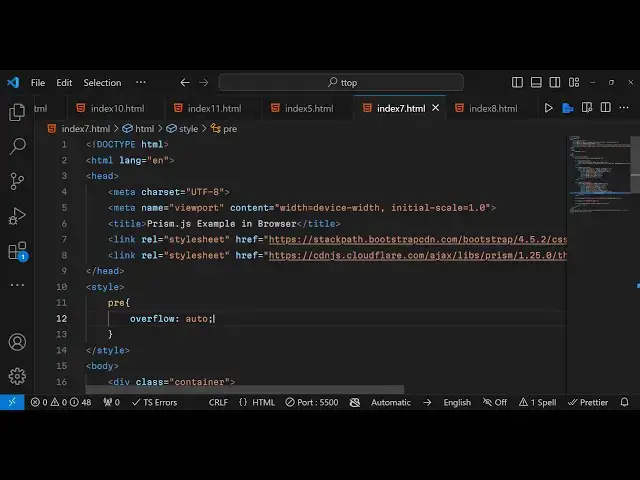
16:48
this a custom stylesheet true you need
16:51
to Target the pre tag and just change
16:55
one property right here which is
16:57
Overflow and just make it Auto so it
17:00
will make sure that the code that you
17:03
submit is formatted properly and now you
17:07
can see
17:13
that you can select
17:21
any so you can go to the official
17:24
website here of prism and you can check
17:27
out the full full documentation full
17:30
example full list of themes which it
17:32
supports it also has plugins as well
17:34
third party plugins that you can
17:36
integrate such as the line numbers you
17:39
can also show uh line highlight specific
17:43
lines that you want to highlight so it's
17:45
a pretty big Library it can't be covered
17:48
in a single video so I just want to show
17:50
you uh the basic concepts related to
17:53
prism in this video so you can check out
17:57
their official
17:59
documentation and do check out the free
18:02
mediat tools.com website which contains
18:05
thousands of free tools related to audio
18:07
video and
18:09
image and please hit that like button
18:11
subscribe the channel and I will be
18:13
seeing you in the next one
#Programming
#Scripting Languages