Up next in 10

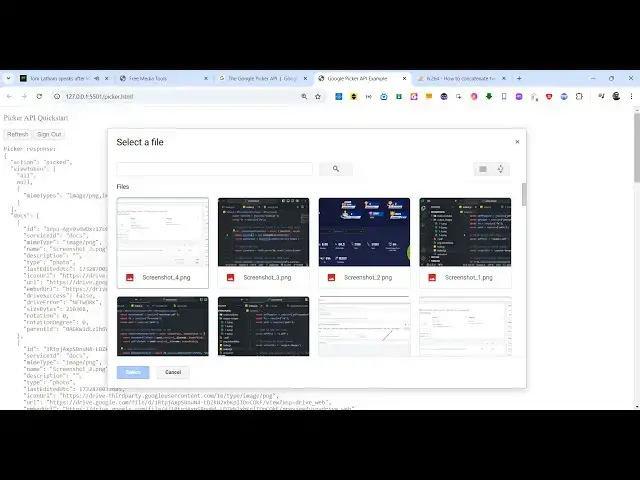
Javascript Google Drive File Picker API Example to Upload, Download & Display Files in Browser
Jan 9, 2025

Get the full source code of application here:
https://gist.github.com/gauti123456/e7282cd1292fecaf4f9dd9520d00400d
Show More Show Less View Video Transcript
0:00
uh hello guys welcome to this video so
0:03
in this video we will look at the Google
0:06
file picker
0:07
API inside uh JavaScript how to
0:10
integrate it in the browser and simply
0:13
use it so this is a very simple example
0:16
we will be using plain vanilla
0:18
JavaScript and HTML 5 and it will be
0:21
integrating with authentication Google o
0:23
and we'll be integrating this file
0:25
picker API of Google so this is actually
0:28
the button right here if you see I'm
0:30
running this on Local Host in the
0:32
browser we have the authorized button so
0:34
first of all we need to click this
0:36
button so as you click the button you
0:37
will see this series of accounts from
0:40
which you can select your Google account
0:42
so once you select the Google account
0:43
you need to Grant
0:45
permission to actually integrate this
0:47
Google file picker API so you need to
0:50
click on continue so once you click
0:52
continue
1:03
you need to verify click on continue and
1:06
then you need to Grant the
1:08
access and after you ground the access
1:10
you will see the Google file picker and
1:13
it will basically fetch all your
1:15
photographs which are stored from your
1:17
Google drive or Google photos so you can
1:21
select any files right here multiple
1:26
files so once you select we have the
1:29
select button as well
1:30
you will see this Json response
1:32
returning to you and it will actually
1:34
hold all the files that you selected
1:36
from the Google file picker so this may
1:39
be very much helpful in those situations
1:41
when you want to fetch your photographs
1:43
from Google Drive using this file picker
1:46
it's a very handy file picker you will
1:48
see if you click it a model window will
1:50
open and all the pictures which are
1:53
stored in Google Drive will fetch
1:54
automatically and here you can select
1:57
any multiple by pressing the shift
2:00
button you can select
2:04
multiple so once you select all the
2:07
pictures you selected which will be
2:09
there in this
2:11
Json so there is also the sign out
2:14
button which is also showing because you
2:16
have currently logged in so if you click
2:17
sign out you will be logged out so again
2:21
if you click authorize once again you
2:23
need to Grant access so we will be
2:25
integrating this inside this video I
2:27
will show you step by step how to
2:29
integrate this Google file picker API to
2:32
how to show this model window to select
2:35
to allow the users to select their
2:37
pictures this can be any files it can be
2:40
pictures videos
2:42
so so once you select this you will get
2:45
this Json response so you if you go to
2:48
the documentation you will file this
2:49
Google picker API it is commonly known
2:52
as H it's a JavaScript
2:54
API that can be used in web apps to let
2:58
users select or upload Google drive
3:01
files so we will be looking at a
3:03
complete example all the source code
3:05
will be given in the description of this
3:07
video so I will be seeing you in the
3:10
next
3:10
section so now to get started uh we just
3:14
need to create a simple index.html file
3:17
so just
3:18
create just call this anything I'm just
3:21
calling it picker. HTML so as I already
3:25
told you it works in the browser so it
3:28
is it will be built using using HTML and
3:30
JavaScript so no third party Library I'm
3:33
using so first of all just make a very
3:36
simple HTML template and we will simply
3:38
say
3:39
Google picker
3:42
API
3:49
example so the very first thing we need
3:52
to do we need to include the actual API
3:54
so we need to include two script tags
3:58
which will be responsible so just after
4:00
the body you can include these script
4:06
TS so https api. google.com sljs api.js
4:15
so this is a standard way of including
4:19
any Google API that you want to use in
4:21
this case we are using Google picker API
4:23
so we need to include this script tag so
4:26
it's just loading the SDK of Google and
4:29
just we need to add async here we'll be
4:32
loading it asynchronously and defer the
4:35
next script tag you need to
4:39
add will
4:42
be again we'll be loading a
4:46
script accounts.google.com
4:51
GSI SL
4:55
client so this is actually the URL
5:13
so again we need to add async and defer
5:18
so this async differ simply means that
5:20
we are loading it when the page is
5:23
loaded then we are loading these two
5:25
scripts so this is we are loading it
5:27
asynchronously
5:30
and there is also an attribute that you
5:32
can attach to it so when the script is
5:35
loaded the script is loaded loaded
5:37
successfully there is this attribute on
5:39
load we will need to execute a function
5:42
after the script is loaded on the web
5:44
page so we can here write a very custom
5:47
function so I will Define this
5:50
function Google API
5:53
loaded and similarly to this script tag
5:56
as well we can just give it a onload
5:58
attribute so so once the script is
6:00
loaded we will
6:03
say so both these functions will execute
6:06
whenever these scripts are successfully
6:08
loaded on the web
6:10
page and after you do
6:13
this now in the custom script I will
6:17
write custom JavaScript code so I will
6:20
just
6:22
Define the file in the
6:26
same so this will be the custom
6:28
JavaScript code so here inside this we
6:30
need to Define some variables first of
6:32
all we need to define a Scopes variable
6:36
Scopes is nothing but what information
6:38
that you are accessing from the API so
6:41
we need to explicitly write the scope
6:44
right here so we need to read the files
6:48
from the Google Drive using the file
6:49
picker so this is actually the
6:51
appropriate scope for that HTTP
6:54
googleapis.com
6:56
drive. metadata readon so this means
6:59
that we are reading the files from
7:01
Google Drive using that file picker and
7:04
then we need to Define two variables
7:06
which will be coming from Google Cloud
7:08
console so first will be client ID and
7:12
the second will be the API key so to
7:15
call any API or any API of Google you
7:19
need these two information so just
7:21
create a Google Cloud console
7:24
account I have already created one so
7:27
first of all we need to enable this API
7:29
by going to this section enable apis and
7:32
services and here you just need to
7:34
search for this API which is Google
7:37
picker API so just search for it here in
7:41
the search bar Google picker
7:44
API the very first result which comes
7:47
right here you just need to enable it
7:49
and then you need to create the
7:51
credentials by going to this
7:56
section and then click your o client
8:01
ID and here is you need to select here
8:04
web application so in the authorized
8:07
JavaScript Origins you need to provide
8:09
the homepage of the URL so if you open
8:13
this
8:15
uh in my case whatever is your url of
8:19
the so mine in my case it is running on
8:22
port number 5501 so you just need to
8:25
copy the same address and simply paste
8:28
it
8:31
so in the authorized JavaScript Origins
8:34
you only need to write until the port
8:38
number so whatever is your main website
8:40
name so in the authorized redirect URI
8:43
you need to paste the full URL like this
8:46
and here also we need to also
8:49
write HTTP Local
8:52
Host because we are building our
8:56
application on Local Host so that's why
8:58
also add this also both these versions
9:02
and then click on Create and this will
9:04
give you your client ID that we need so
9:07
simply copy this client ID and paste it
9:12
right here and for the API key you will
9:15
see this section so
9:17
just copy to clipboard so this is the
9:21
API key so both the things we got client
9:24
ID API key now we just need to write
9:28
those functions that we find which is uh
9:31
these two
9:36
functions so
9:41
here we will execute this uh Google
9:47
API GPI do load so this is a standard
9:52
Way by which you can load the Google
9:54
SDK and here you need to
9:57
specify client
10:00
underscore
10:02
picker and then it takes a call back
10:05
function and we can
10:09
initialize this custom function which is
10:11
initialize
10:15
picker so we can just write a console
10:18
log
10:25
statement so we just need to Define this
10:28
function initialize because so th this
10:30
again will be a Asing
10:35
function so here we just need
10:38
to again type GPI which stands for
10:42
Google API client.
10:45
load and we will be loading this URL
10:49
which is HTTP
10:51
googleapis.com
10:55
slis Discovery SL verion one
11:02
so here we are writing the full address
11:04
of which API that we need to
11:07
load API SL Drive SL verion 3 SL
11:15
rest this is a complete URL and then we
11:18
just need to initialize some variables
11:20
as well at the very top so these
11:23
variables will be responsible for first
11:25
of all the token client
11:29
the second variable will be the access
11:31
token that we will get after
11:34
we done with the authentication so for
11:36
now this variable will be null and then
11:41
two Boolean parameters which will be
11:43
picker
11:44
initiated this will be false for now and
11:48
the second Boolean variable is Google
11:50
API loaded or
11:53
not this will also be
11:57
false so right right here after we load
12:01
this URL you can simply change the
12:05
Boolean
12:06
parameter picker initiated to
12:09
true and now we need
12:11
[Music]
12:14
to enable the
12:18
buttons we will write this function
12:20
which will enable and show the buttons
12:22
to us so we just need to Define this
12:25
function which is enable buttons
12:31
we are en enabling buttons because when
12:33
we load the application we will hide the
12:37
buttons If you just if you just refresh
12:40
the we have no buttons out there but we
12:43
do need two buttons in the HTML so right
12:46
we haven't written the HTML so just
12:49
inside the
12:51
body we will have
12:54
uh this HTML which will contains two
12:58
buttons
13:03
so this buttons will be first button for
13:05
authorizing and then the sign out button
13:09
so you will basically binding these
13:11
functions handle o click and handle sign
13:13
out click so and then there is a pre-
13:17
tag which will where we will be showing
13:18
the Json response when we select images
13:21
this is the actual HTML so when we load
13:24
the page you can see these two buttons
13:26
appearing but we need to hide these
13:27
buttons because
13:29
we only want to show it whenever the API
13:32
is loaded so what I will do is that I
13:34
will hide these buttons by click just
13:37
writing simple line of code which will
13:41
change the visibility property to Hidden
13:44
so now if you load this the buttons are
13:46
not showing we only want to show buttons
13:49
when the API is loaded so if you see it
13:52
is saying that this function is not
13:55
defined so we do need to Define this
13:57
function as well
14:10
we are defining this function which is
14:12
this one G is loaded let me
14:22
defined
14:23
so this function which will be we need
14:27
to initialize the token client variable
14:29
that we declare inside this the step
14:31
bystep process is there you can just see
14:34
we need to systematically load the apis
14:37
so O2 do init initiate token
14:44
client so these are all SDK
14:47
methods this is here we need to pass the
14:50
client ID that we
14:52
have we Define client ID in the client
14:55
ID variable then the scope variable so
14:58
we haveed Define this fun variable as
15:00
well and then the call
15:03
back which we will Define later on after
15:07
this we can change this Boolean
15:09
parameter which is Google API loaded to
15:12
true and then again we will call the
15:15
same function which will enable the
15:18
buttons so in both these functions if
15:21
you see at the last we are calling this
15:24
function
15:30
so from here initialize picker we are
15:35
loading the same
15:36
function at both these locations
15:41
so if you just console log you will see
15:44
this console log message printed out
15:46
that Google API loaded now we need to
15:48
show the uh buttons so for showing the
15:53
buttons what we will do we will have a
15:55
if condition that if the Picker
15:58
initiated and and the Google if both
16:02
these variables are true in that case we
16:04
need to show the
16:06
buttons so we will only be showing the
16:09
authorized button because you will see
16:11
we are changing the visibility property
16:13
from hidden to visible so now the
16:15
authorized button will be available to
16:18
you and as you load after the Google API
16:21
is loaded now we see this authorized
16:23
button so once you click this button
16:25
nothing happens we need to Define that
16:27
function
16:30
which we Define to the button which is
16:32
handle o
16:34
click so inside this
16:38
function handle Au
16:43
click so inside this function we need to
16:46
show the actual account screen where the
16:49
user can do the authentication so inside
16:52
the token client variable we have the
16:54
call back function we need to
16:57
Define async
17:03
response and then from this window we
17:06
can get the access
17:09
token very easily by using response.
17:12
access token there is a
17:14
property if I just console log the
17:18
response just to see if it is working or
17:21
not let me console log
17:23
it so if you try to execute your
17:26
application in the browser just click
17:27
the authorize button
17:42
so the window is not showing here
17:45
because we do first of all need to get
17:47
the access token we need to request
17:51
it so here we will actually have a
17:56
condition that if the access token is
17:58
null in that case we have a condition
18:01
right here which will be if the access
18:04
token is not present is null in that
18:08
case we need to request ta token so
18:11
there is a function in this SDK which we
18:13
can call request access token so here it
18:18
actually takes a property in this object
18:20
which is
18:21
prompt and here you need to provide
18:24
consent this is a value of this property
18:30
and there will also be a else condition
18:32
if the access token is already present
18:34
in that case we also need to request
18:37
access token but here the prompt will
18:40
be nothing so if you just write this
18:43
line and again click the button you will
18:46
see this sign in screen will show to you
18:48
and here you can select your Google
18:50
account so once you
18:52
select the Google account Grant the
18:55
permission click on continue
19:00
so you need to Grant the permission to
19:01
use the API so once you do this process
19:04
you will see the response coming which
19:06
we have this object and we get this
19:09
access token that we want so we have
19:11
this access token available to us all
19:14
these profile information is also there
19:17
we only need the access tokens and after
19:20
we get this access token we can call the
19:22
API so after storing this access token
19:26
we can simply show the sign up out
19:29
button so what we can do
19:36
uh so we are actually doing two things
19:38
at this moment of time we are showing
19:40
the sign out button from hidden to
19:42
visible and then we are changing the
19:44
text of the authorized button from
19:47
authorized to refresh so if you just
19:50
refresh your again do this process click
19:53
on
19:56
that so select the account
20:08
so now you can see the sign out button
20:09
is showing and it has changed from
20:11
authorized to refresh
20:14
so now to actually show this picker
20:17
dialogue
20:31
after we get this uh access token right
20:34
here we just need to Define another
20:36
function which will be responsible for
20:39
showing the Picker
20:43
dialogue so just after you do this two
20:47
things we show the buttons you'll Define
20:49
another function custom function you'll
20:51
say
20:52
await we will call this as create
20:56
picker so this function will be
20:59
responsible for showing the Google
21:02
picker dialogue
21:04
box so I will Define this function right
21:07
here so function and create
21:11
picker so inside this we can
21:15
actually create the Picker dialogue by
21:18
invoking New google. picker. View and
21:22
here you can pass google. Pier
21:26
do do View
21:29
ID so you just need to write the same
21:32
thing that I'm doing right here check
21:34
the spelling here dot
21:38
dogs here you need to set some
21:41
properties about the Picker dialogue
21:43
which is the MIM type so this means that
21:45
which images which file types that you
21:48
want so we need to have images so we
21:51
will s WR
21:53
image.png image. /jp
21:58
G and image/ jpg if you also want to
22:03
display videos you just need to define
22:05
the extension so MP4 MKV mov so so I'm
22:10
just providing images so that's why I'm
22:13
providing PNG
22:15
jpg so only the images will show from
22:18
the Google Drive and then we
22:21
can initialize the Picker dialogue by
22:24
using defining the Picker variable and
22:28
we you can simply initiate new google.
22:32
picker. picker Builder there is a
22:36
function which will build the Picker
22:38
window and then we have a series of
22:40
functions that we can Define to
22:45
act to actually enable
22:49
features on this pier dialogue so we
22:52
have various functions that we can
22:56
Define so what I can do I can simply
22:58
paste
23:00
it so you can chain all these methods
23:02
together so like like this so we have
23:06
using the enable feature function so
23:10
navigation will be hidden multi- select
23:12
enabled so that you can M select
23:14
multiple files here you're providing
23:17
your API key app ID access token View
23:21
and Doc upload View and this is the
23:24
actual callback function which this
23:26
Google picker allows you so when you
23:27
select f this function will get executed
23:30
holding the files that you selected and
23:32
the lastly we are building it by using
23:34
the build
23:35
function as you can see we are declaring
23:38
a app ID variable so we do need to
23:40
provide app ID as well so we just need
23:43
to Define this variable app ID app ID is
23:47
nothing but your Google Cloud's console
23:50
project
23:51
ID so you can just find this if you go
23:54
to Google Cloud console so whatever is
23:56
your project so mine is this so this is
24:00
your project ID that you see so I I can
24:04
simply copy this
24:06
and paste it so after you do this
24:15
uh click on this hopefully this picker
24:18
dialog will show
24:34
okay it is saying picker call back is
24:36
not defined so we just need to Define
24:38
that function as well which we Define
24:40
which is picker call back
24:46
so so this will be a async
24:57
function e
25:29
uh I think ins side picker call B we do
25:32
need to
25:44
Define okay the problem is we haven't
25:49
called
25:51
this you can just see the Picker
25:54
variable that we declared we haven't
25:56
called this so we just need to declare a
25:59
property right here so this variable
26:01
picker we need to set the visible set
26:05
visible function is there we need to set
26:07
it to true so that the window will show
26:11
that's why the window was not showing so
26:13
once again you repeat the
26:23
process so now the Google drive file
26:26
picker window will show and it will
26:27
fetch all the photographs which are
26:31
stored in my Google Drives and here you
26:33
can select multiple files by holding
26:36
shift you can see so once you select all
26:40
this that call back function
26:43
will so there inside this call back
26:46
function we will get the data here as an
26:48
pass as an
26:51
argument so here we can console log the
26:55
data just to cross check once we select
27:20
so you can see three files is selected
27:22
and action is picked and we are getting
27:25
all these pictur selected the ID of the
27:28
all this information extension the name
27:31
of the file so we can display this or we
27:34
can use this inside whatever application
27:37
that you are building so inside this we
27:40
can show it as a Json response so we are
27:43
fetching this information if you see the
27:45
file ID the
27:47
fields so just converting it to Json
27:50
that's not important important thing is
27:52
that you understand how we integrated
27:54
this Google file picker API for fetching
27:59
the files from Google
28:07
Drive so you'll see all the you're
28:10
showing the Json response coming so in
28:13
this way guys you can use this Google
28:15
picker API to fetch files from your
28:18
Google drive automatically in the Picker
28:20
window thank you very much for watching
28:22
this video and do check out my website
28:25
as well freem mediat tools.com which
28:26
contains thousands of free tools
28:28
regarding audio video and image and I
28:31
will be seeing you in the next video
#Web Services
#File Sharing & Hosting
#Scripting Languages