Up next in 10

Javascript Ace Editor Syntax Highlighter Example to Highlight Source Code in Browser Full Example
Jan 9, 2025

Get the full source code of application here:
https://gist.github.com/gauti123456/1f3436381fa396a81304aa334a35ed99
Show More Show Less View Video Transcript
0:00
uh hello guys welcome to this video so
0:02
in this video we'll be looking at uh
0:04
another syntax highlighting open source
0:07
JavaScript library which is called as
0:10
Ace editor Ace editor is again
0:14
a code editor that you can Implement
0:17
right in the browser itself if you want
0:19
to highlight certain sections of your
0:21
source code so it comes with syntax
0:25
highlighting in different languages and
0:28
it also supports various themes as well
0:30
so this is their official website a
0:33
editor high performance code editor
0:36
component for the web so I will show you
0:38
a very simple example in the browser so
0:41
here you can paste any source
0:44
code so I pasted HTML source code mixed
0:49
with CSS and JavaScript you can see it
0:51
is showing line numbers with sting
0:53
highlighting you can select your
0:55
language so this is HTML code so I will
0:58
select HTML
1:00
and then we have different themes out
1:02
there you can see Dracula theme we have
1:05
Mona you can see different themes
1:07
supports so it's a code editor in the
1:11
browser itself and it supports multiple
1:14
languages you can now even write python
1:17
code as
1:25
well so in this way you can
1:32
Define python code here in
1:37
different languages with different
1:39
themes so now to get started uh as I
1:42
already told you we are using this as
1:45
editor this is their official
1:48
website I will show you a very basic
1:51
example which runs in the browser and
1:53
we'll be using the CDM for a
1:56
editor and for doing this I will start
1:59
from from
2:01
scratch for building the user interface
2:04
we are also using bootstrap as well so I
2:09
just included the bootstrap CDN at the
2:11
very
2:12
top alongside with the ace editor CDN as
2:17
well so all the source code that I will
2:18
use in this video is given in the
2:20
description of this video so you can get
2:23
that so now to get
2:26
started we will write the editor
2:31
the UI for that we will have the div
2:35
which will have the container class and
2:38
margin top
2:40
four we will have the heading which will
2:43
have
2:46
uh this a editor Dynamic syntax
3:04
so inside this we will have a label
3:06
where the user can select uh different
3:10
languages and this supports all the
3:14
languages all the major
3:17
languages so for this we will have a
3:19
simple select list where the user
3:27
will we'll give it an ID uh a form
3:30
select bootstrap class and here you'll
3:33
be defining different
3:36
options so one such option will be
3:47
JavaScript so here we'll be replacing uh
3:54
HTML then we have
3:58
CSS then we have have PHP all the major
4:03
languages so once you have this the
4:06
second thing you need to do is for
4:08
the theme select so similarly I will
4:12
simply copy this and paste
4:17
it and this time this for selecting the
4:22
theme so change the ID Here theme select
4:26
and so we we will have various themes so
4:30
you can go to the documentation of Ace
4:32
editor and check out more themes as well
4:36
so I will
4:38
paste these
4:40
options so Chrome which is a default
4:43
theme Dracula monoi Eclipse triplet all
4:46
these themes are
4:50
there and lastly after doing this we
4:54
will have the actual editor which will
4:56
be we will give it an ID here of editor
4:59
so here you will paste your
5:02
code or type your
5:07
code
5:09
here so if you refresh your application
5:12
it will look uh something like this the
5:15
editor has not been mounted yet you
5:17
can't type any sort of code now for that
5:20
you do need to write uh JavaScript code
5:23
and we need to
5:25
include the script JS file so I just
5:29
created Creed this file here so here you
5:32
will Mount Your editor you need to
5:35
initialize the ace editor so for
5:38
initializing it you need to Simply call
5:41
a. edit and here you need to pass the
5:45
reference in which so
5:48
editor we will simply pass it so this
5:53
actually is the ID that we have given
5:55
right here so we are simply passing the
5:57
ID right here so
6:00
after doing this we can set some options
6:02
right here set the theme and we will be
6:05
setting this theme which is the Chrome
6:08
theme and then we will be setting the
6:11
second option which is for the
6:14
mode by using the set mode function so
6:17
here we will be setting this mode a mode
6:20
slash followed by which language you
6:22
want to highlight so in this case we
6:24
want to highlight the JavaScript
6:26
language so here we'll be setting this
6:27
language so if you refresh
6:38
now if you go to console here
7:07
it should now the editor should pop in
7:11
now a. edit followed by the ID that you
7:15
have given right
7:27
here all the s code that I will use is
7:31
given in the description
7:37
so so you can see this needs to be there
7:41
outside this select list they have given
7:44
this ID so you will now see the editor
7:47
will be there so here you can paste any
7:54
code so you can see we have pasted this
7:57
code we will also see errors
8:00
if any sort of error take place you will
8:01
see this cross signs which will signify
8:04
that you have some error because it's a
8:06
JavaScript language we need to change
8:08
this here to
8:09
HTML but uh if we change this we do need
8:12
to write code for this so if I change
8:15
language right here we need to bind a
8:19
event handler for that so when we
8:24
change the language here which is we
8:27
given a ID to it of language
8:30
select we will bind a event handler to
8:35
it so this change event handler will
8:38
take place this call back function will
8:41
execute and
8:48
whatever selected
8:50
language we will get and then we just
8:54
need to editor and session and set mode
8:59
and here we need to change the mode
9:02
here to the selected language and same
9:06
goes with
9:08
the drop down for the theme as well so
9:11
here be targeting it by the
9:13
ID we will take the
9:18
selected theme
9:22
and use this function set
9:26
them editor do set them
9:35
so like this so if you now copy this
9:44
code so change this to
9:58
HTML for
10:48
uh I think this needs to be selected
10:57
here so now you can see as we are
11:00
changing this drop down the theme has
11:03
been changing similarly you can change
11:05
the language as
11:07
well so in this way you can easily
11:10
integrate the a editor inside the
11:13
browser if you want to highlight any
11:15
source code you can use this open source
11:18
Library it supports multiple languages
11:21
multiple themes if you want to highlight
11:24
code so
11:30
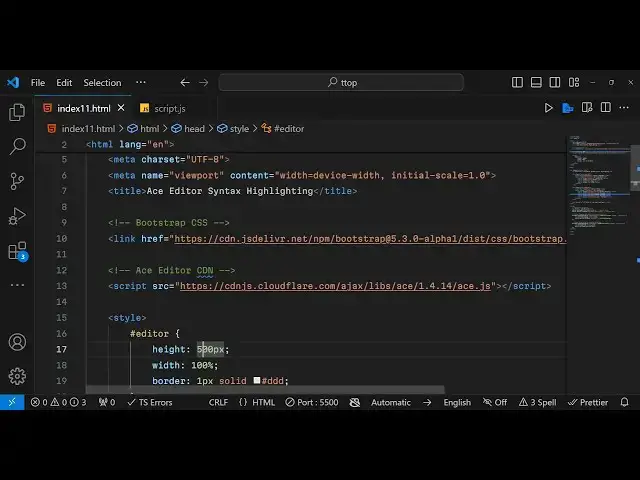
you can highlight
11:33
this and make sure that you we have
11:37
targeting this ID here editor and make
11:39
sure you give a fixed width you can give
11:44
width of 100% height you can change this
11:47
height to
11:49
500 so that this editor will
11:52
have high
11:55
width High height you can see that
12:02
so do check out free mediat tools.com as
12:05
well which contains free thousands of
12:08
free tools related to audio video and
12:11
image please hit that like button
12:13
subscribe the channel and I will be
12:15
seeing you in the next one
#Programming
#Open Source
#Computer Education