Up next in 10

How to Use Google Translate in VS Code to Translate Text in Coding Using Extension For Totally FREE
Jan 9, 2025

Hi Join the official discord server to resolve doubts here:
https://discord.gg/cRnjhk6nzW
Visit my Online Free Media Tool Website
https://freemediatools.com/
Buy Premium Scripts and Apps Here:
https://procodestore.com/
Show More Show Less View Video Transcript
0:00
uh hello guys welcome to this video so
0:02
in this video I will actually show you
0:04
an extension which you can integrate
0:07
Google translate inside your Visual
0:09
Studio
0:11
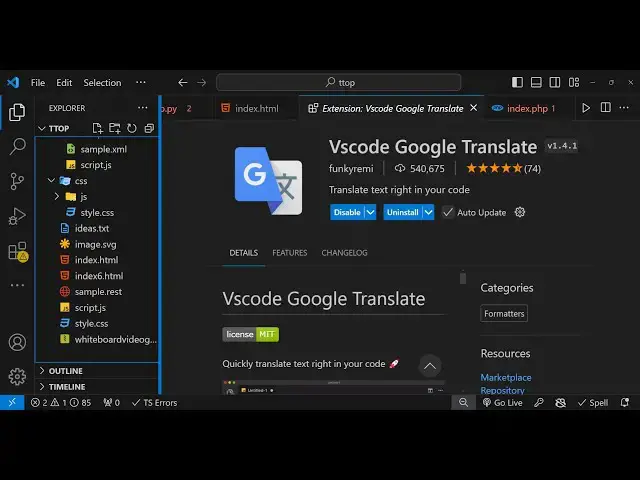
code so the name of the extension is if
0:14
you just type Google Translate in
0:17
this extension tab you will actually get
0:19
this extension which is vs code Google
0:22
translate it is developed by this person
0:24
funky Remy
0:27
so I've already installed it let me
0:30
install it once again you will see
0:32
540,000 weekly downloads it has a rating
0:35
of
0:36
4.5 very good module simply click
0:39
install so it will actually translate
0:42
everything inside your code in different
0:44
languages so once you install this
0:46
plugin you can have any code right here
0:48
I have just made a simple index.html
0:51
file which have different languages
0:53
right here so in order to translate from
0:55
one language to another what you need to
0:57
do you need to select the text right
0:59
here from your Mouse whatever text that
1:01
you want to translate and then hit the
1:04
keyboard shortcut control shift p and
1:07
then just type
1:10
uh
1:13
Google
1:15
translate
1:18
section so basically you will see this
1:22
option appearing if you type translate
1:24
in this window translate selections and
1:27
then you can select the language that
1:29
you want to trans translate this English
1:30
text all the languages are supported you
1:32
will see in the
1:34
dropdown all the country's languages are
1:36
supported if you want to translate
1:38
English to Portuguese you will select
1:41
this it will take some time 2 3 seconds
1:44
and then it will translate the English
1:45
text to Portuguese track you will see
1:48
how easy it is there is no restriction
1:51
on how amount of words no API Keys key
1:54
is required you can integrate this
1:56
extension freely again repeat the same
1:59
process say control shift V and then
2:02
translate selections and then you can
2:04
select your language let's suppose I
2:07
this time I want to convert this this
2:09
text
2:10
to uh French I will enter and now it
2:15
will see it will convert this to the
2:17
French text you can also convert this
2:21
into a ntic language as well
2:24
so this time let me convert this into a
2:31
Hindi language which is prevalent in
2:34
India so you will see
2:37
that you can see it has converted
2:41
everything in Hindi you will see
2:43
that it's a really good extension
2:47
guys so it is see it is a French text
2:52
you can even convert the French into
2:53
English so now if I want to convert you
2:56
can search for The Language by typing it
2:58
directly now how this French text will
3:01
be converted to English you will see
3:02
that how easy it is so if you have a
3:05
website appeared in different language
3:07
so this is in Chinese so once again if
3:10
you want to convert this into English
3:13
this Chinese text will be converted back
3:14
to the English language so this is a
3:17
very handy extension guys once again uh
3:19
it is if you just type Google translate
3:21
the second extension which this is the
3:23
second one not the first one the second
3:25
one it's completely free you don't need
3:28
any API key you can use use this
3:30
extension for totally free unlimited
3:31
number of time so in this way you can
3:34
integrate Google translate directly in
3:36
vs code if you want to translate into
3:39
different
3:41
languages so this I I use this extension
3:44
a lot because I need to do Google
3:47
translate a lot inside coding so you can
3:50
directly integrate this so you can see
3:53
it is in
3:57
japanes control shift p and then you you
3:59
can select your language to convert it's
4:02
really fast and effective so thank you
4:04
very much for watching this video guys
4:06
please hit that like button subscribe
4:07
the channel as well and I will be seeing
4:10
you guys in the next video
#Other
#Other