Up next in 10

How to Take Screenshots of Source Code in VS Code Using Codesnap Extension Full Tutorial
Jan 9, 2025

How to Take Screenshots of Source Code in VS Code Using Codesnap Extension Full Tutorial
Show More Show Less View Video Transcript
0:00
uh hello guys in this video I will show
0:02
you how to take screenshot inside your
0:05
code in Visual Studio code and we'll be
0:08
using the code snap extension which is
0:11
the number one extension in vs code to
0:13
take a snapshot or screenshot of your
0:16
code so the extension is cod snap if you
0:21
just go to the extensions
0:23
Tab and just search here code snap this
0:26
is the actual extension take beautiful
0:29
screenshots of your code here and uh let
0:31
me uninstall it
0:34
and it will look something like
0:36
this 2.3 million downloads are there so
0:40
simply need to install this extension so
0:43
once you install it globally this
0:45
extension will be enabled globally so
0:47
now it has uh features it can support
0:51
any language let's suppose if you are
0:54
writing this
0:55
code if you want to take a screenshot of
0:58
this so what you will do
1:01
uh right click with the mouse and you
1:04
will actually see this option appearing
1:06
in the menu C snap just you need to
1:09
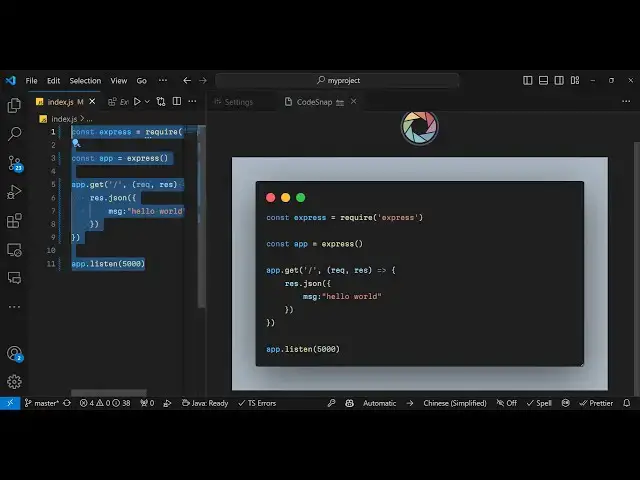
select this option and on the right hand
1:11
side you will see this uh live preview
1:13
which will be there and now you just
1:16
need to select whichever code that you
1:18
want to as you will see with the mouse
1:21
you simply select the
1:23
code and as you select the code you will
1:26
see the code will
1:27
be it will take the screenshot
1:30
and now you can adjust the width of the
1:33
window like this by using the mouse you
1:36
can control the width like
1:39
this and then we have this button if you
1:42
click this button it will take the
1:44
screenshot now you can save this as a
1:47
image
1:48
file and once the image is saved you can
1:51
open this image you will see now the
1:55
screenshot have been successfully taken
1:57
you can share this screenshot now with
1:59
your friend or you can use it inside the
2:01
blog post so in this way you can take
2:03
screenshot in vs code using this code
2:06
snap extension it does supports various
2:09
options that you can control it such as
2:11
the background color if you don't want
2:13
the line numbers you
2:16
can so all these settings you can
2:18
control it by clicking the settings icon
2:21
going to extension
2:24
settings and here you can control the
2:27
background color so if I want to have a
2:29
red background color I will simply put
2:31
the hexadecimal code
2:35
f00 so this is the background color of
2:38
the Snippets
2:40
container so if you just reload
2:45
now you will now see a red background
2:47
color will be
2:51
there so I will stick to the default
2:55
setting so I will reset the setting to
2:57
the default background color and here
3:00
you can control the Box Shadow you can
3:02
provide any color RGB and this is for
3:06
the
3:07
opacity and this is for the container
3:10
padding 3 em if you don't want to show
3:13
the line numbers you can toggle this
3:15
setting off so now if
3:18
you see the line
3:27
numbers display nine numbers you will
3:29
actually see you need to toggle off this
3:33
setting and then close
3:54
it you will see that the screenshot have
3:56
been taken
4:02
so after if you don't want if you want
4:05
to show line number simply take take
4:07
this
4:10
option and the window should have
4:12
rounded
4:14
Corners show window
4:25
controls so you should have a window
4:27
title here so what does mean that
4:31
it should have a title right here you
4:33
see my project which is the actual file
4:35
name so this is all the default options
4:39
and you don't need to really change
4:40
these options if you really want to so
4:44
the default options are more than enough
4:47
and
4:50
uh if you want to have a transparent
4:53
background you will select this option
4:54
so what does this mean that after you
4:58
take the screenshot it will have a
5:00
background color it will not be having
5:02
any sort of background color it will
5:05
have a transparent
5:11
background so in this way you can take a
5:14
screenshot of your source code and save
5:16
it as a PNG or JPG file using this
5:19
extension in vs vs
5:23
code so you can take any language this
5:25
is the JavaScript here you can take this
5:28
uh any language of your choice this is
5:32
the HTML file here you can see
5:36
that it works with all the languages
5:39
uh while you're coding so this
5:45
is
5:54
C++ this is you can see it's a python
5:57
application so it works
6:02
with all the languages you will see
6:07
that so this far a tutorial guys on how
6:10
to take screenshots of your code in vs
6:12
code using this code snap
6:15
extension so thank you very much for
6:17
watching this video please hit that like
6:19
button and the subscribe to channel for
6:21
more videos like this and I will be
6:23
seeing you in the next one
#Development Tools
#Other