Up next in 10

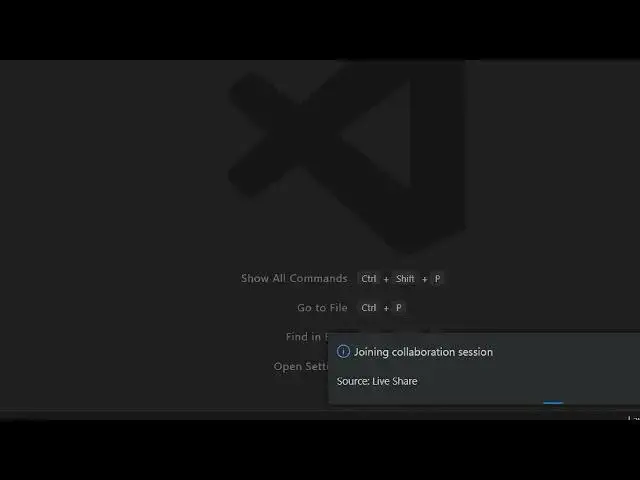
How to Start a LIVE Remote Share Session to Code Online With Multiple People in VSCode IDE
Jul 4, 2025

Get the full source code of application here:
Show More Show Less View Video Transcript
0:00
Uh hello guys, welcome to this video. So
0:02
in this video, I'll show you how to code
0:04
online with multiple people and friends
0:06
directly inside your VS code. You can
0:08
share online session. It's very easy.
0:10
For this, you just need to install the
0:12
extension which is very simple. Just
0:15
type here live share.
0:18
And uh once you do this, you will see
0:20
this extension comes live share. This
0:23
extensions allow you to actually
0:25
collaborate with other developers online
0:27
in VS code to work online on a project
0:31
and you just need to first of all
0:35
enable this extension install it. So
0:37
once you install it you will see this uh
0:42
option appearing at the terminal of the
0:45
status bar of your VS code live share.
0:47
So simply click this option and once you
0:50
click this it will start a session
0:52
collaboration of session. So in
0:54
invitation link copy to clipboard send
0:57
to anyone you trust. So
1:02
so now you just need to paste or send
1:05
this invitation link to your friends. So
1:08
once they open the browser they will
1:10
enter into this VS code environment
1:14
through their web browser or they can
1:16
even use VS code as well. So they can
1:19
say continue as anonymous or they can
1:21
sign in with your GitHub account as
1:23
well. So so you can provide any name.
1:27
Let's suppose I say here
1:30
enter the name and now they are joining
1:32
their collaboration session. So
1:37
in this easy way multiple people can
1:39
join inside the session in VS code with
1:43
live coding live sharing session. So
1:48
you can set this to make read only or
1:51
they can also make changes as well. So
1:53
you can set all these options.
1:58
So you will see this notification
2:00
coming.
2:02
He requested you to join the
2:03
collaboration session. Either you can
2:05
reject or accept. You can say accept. So
2:08
once you click accept the collaboration
2:11
is hosted, shared a live share terminal.
2:14
Enter to type.
2:20
So now if you see the collaboration has
2:24
been successfully started.
2:27
So this is your chat window. So now two
2:30
users are there. You will see that has
2:32
started the live sessions. You can enter
2:35
a message. That message will be received
2:37
right here. You can see this will be the
2:40
username which will be coming right
2:42
here.
2:49
So this is you can chat with each other
2:51
while developing some kind of coding.
2:54
Here you can see that this is your
2:55
chatting functionality. You can exchange
2:58
messages.
3:00
So in this easy way with this help of
3:01
this extension you can actually start a
3:04
remote sharing session which involves
3:06
multiple people and basically coding it
3:09
on a special special project. So, thank
3:12
you very much for watching this video
3:14
and also check out my website
3:16
freemediattools.com
3:19
uh which contains uh thousands of tools.
#Programming
#Online Communities
#Development Tools