Up next in 10


Get the full source code of application here:
Hi Join the official discord server to resolve doubts here:
https://discord.gg/cRnjhk6nzW
Visit my Online Free Media Tool Website
https://freemediatools.com/
Buy Premium Scripts and Apps Here:
https://procodestore.com/
Show More Show Less View Video Transcript
0:00
uh hello guys welcome to this video so
0:02
in this video I will show you the
0:04
Tailwind CLI version it will be a simple
0:07
crash course on the how to use the
0:09
Tailwind CLI I'm there on the official
0:12
website of tailwind css.com and we'll be
0:14
using the latest version which is 4.0 at
0:18
the time of recording this video so 3.4
0:21
was released but tail Tailwind 4 is
0:24
already released so we'll be
0:27
concentrating on the CLI version and how
0:29
to inte create this inside your HTML and
0:32
CSS project so I'm there in my command
0:34
line and first of all I will in initiate
0:38
the package.json file so let me just
0:41
create a very simple Tailwind project
0:44
and just CD into this directory and just
0:47
opening it inside vs code so you will
0:50
see currently it is empty let me
0:53
initialize a package.json file so npm
0:56
init Dy and after that we just need to
1:00
install the Tailwind CSS CLI using this
1:04
Command right here so just copy this
1:06
command and
1:08
simply paste this command to install
1:11
tailin CSS locally inside your
1:13
package.json file so you will see that
1:16
the command will be successful it has
1:18
added 25 packages and if you try to open
1:21
your package.json file you will see we
1:23
are using the latest version of Tailwind
1:25
CSS which is
1:27
4.0 you can see that so now what we need
1:30
to do we need to follow or create a
1:36
simple file right here let me create
1:38
this in the source directory and inside
1:42
this we create this input. CSS file and
1:46
this is actually the setup how we
1:48
configure and here you need to SP simply
1:51
type at theate Import in double codes we
1:54
just need to write Tailwind CSS and then
1:57
semicolon so that's all that we need to
2:00
at theate import
2:02
Tailwind CSS and semicolon double codes
2:06
so after you do this now we need to
2:09
Define our index.html file so I'm just
2:12
taking a very simple
2:15
vanilla JavaScript and HTML web
2:17
application which will run in the
2:19
browser and just we
2:22
will inside this we will include the so
2:27
this is actually the example code is
2:29
already given right here so what you can
2:31
do you can copy this HTML code so in
2:35
this we are simply including the output
2:38
CSS which will be
2:41
compiled this input. CSS will be
2:44
converted to the compiled CSS so we will
2:47
create this disc folder automatically
2:49
and inside the disc folder we are we
2:52
will be creating this output. CSS but if
2:55
you try to open this directly in the
2:57
browser you will now see the Tailwind
3:00
CSS is not applied because we haven't
3:02
included that so now
3:05
for do the
3:07
compilation you will see this Command
3:09
right here you need to go to the command
3:12
line and simply copy this
3:15
command and go to the command line and
3:17
paste it let me just explain you what is
3:19
happening right here so we are actually
3:22
running the Tailwind CSS CLI npx
3:25
Tailwind CSS
3:27
CLI using the Tailwind like directly and
3:31
then here we are providing the input
3:32
file which is located in the source
3:34
directory input. CSS so you just created
3:38
this Source input. CSS and just we are
3:42
providing an output file here to compile
3:45
this input. CSS to compile this to
3:48
output.
3:50
CSS which will also be located in the
3:53
let me change this to dist so let me
3:57
just change this location to dist
4:00
and then this we are providing this dash
4:02
dash watch flag which will watch for the
4:05
changes as you make changes inside your
4:07
index. HTML file it will automatically
4:10
compile the changes so now if you see it
4:13
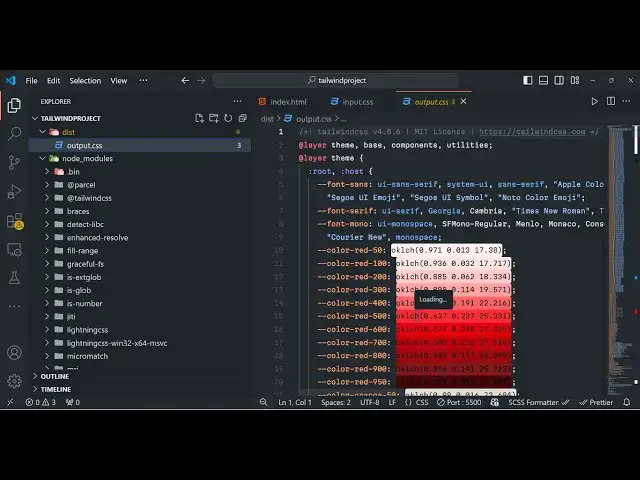
has done the process and if you see the
4:16
dis folder is automatically created and
4:19
we see this output. CSS file has
4:21
automatically been created and now if
4:23
you open this in the browser with open
4:26
with live server you will see the hello
4:28
world
4:30
and it is wi style using the Tailwind
4:33
classes here underline phone bolt I can
4:35
change it let's suppose increase the
4:38
size to 5 XEL and let me provide a
4:41
background color BG red 500 so we have
4:44
provided some Tailwind classes so you'll
4:46
see automatically it will refresh as
4:49
soon let me change this to from red to
4:51
Green so you will see that so in this
4:54
way guys you can actually start using
4:57
Tailwind CSS with a very simple HTML CSS
5:00
vanilla uh JavaScript
5:03
application and we are using Tailwind
5:05
CSS 4.0 CLI version for this I showed
5:08
you step-by-step instruction how to get
5:10
started just follow this video and just
5:13
start using the latest version of tailin
5:16
CSS CLI version 4.0 inside
5:19
your web applications so if you like
5:23
this video then please hit that like
5:24
button subscribe the channel as well and
5:27
also check out my website as well free
5:29
media to .c uh which contains thousands
5:32
of tools regarding audio video and image
5:35
and I will be seeing you in the next
5:37
video
#Photo & Video Sharing
#Video Sharing