Up next in 10

How to Save Files to Google Drive with JavaScript and HTML5 | Dynamic Button with Google Drive API
Jan 9, 2025

Buy the full source code of application here:
Show More Show Less View Video Transcript
0:00
uh hello guys welcome to this video so
0:02
in this video I will actually show you
0:04
how to render or embed a save to Google
0:08
Drive button inside your website so if
0:10
you have a website if you want to share
0:12
your website share your files with any
0:15
users visiting your website you can
0:18
embed this Google to drive save button
0:20
it will look something like this you
0:23
will see and user coming to your website
0:26
will automatically able to save files by
0:30
clicking the button without doing any
0:33
sort of authentication they must be
0:36
logged in as a Google account and when
0:38
they click the save button they will see
0:41
this dialog box that this website will
0:44
like to save an item to your Google
0:46
drive it will save this file to their
0:49
Google drive automatically it will show
0:51
the file name everything and then the
0:54
user must allow the permission so they
0:56
just need to click the save button so as
0:58
they click the save button this file it
1:02
is say you can see progress bar with
1:04
progress bar the file will get uploaded
1:06
to their Google Drive so now you can see
1:08
free mediat tools.png was saved to their
1:11
Google Drive now you can even visit your
1:13
go drive and see this file has been
1:17
successfully
1:18
uploaded so if I show you the file if
1:22
you see this is the image
1:24
file it is successfully uploaded you can
1:28
see I can also preview the file as well
1:32
this is actual image that we uploaded
1:36
you can see in this easy way you can
1:38
directly allow the user to upload files
1:41
to their Google Drive by simply clicking
1:43
a button so we haven't done any sort of
1:46
authentication we have the save button
1:47
as they click the save button
1:49
automatically a popup window will open
1:51
where the user can save that this file
1:54
to their Google drive this is only
1:56
applicable for public files which you
1:58
basically let's suppose if you have a
2:00
application you make any sort of output
2:04
you have any static files that you want
2:06
inside your website to allow users so
2:09
that they can directly save to their
2:11
Google drive without authentication so I
2:13
will show you in this video how you can
2:15
do this inside HTML CSS and JavaScript
2:18
but the condition is they must be logged
2:21
in so let me show you if they are not
2:23
logged in they will actually save this
2:26
they first of all need to log in so if
2:28
they are not logged in they need to
2:30
enter the email address password and
2:32
then they can save this file to their
2:34
Google drive automatically so now to
2:36
integrate this we will be using the
2:38
Google platform API so I will show you
2:41
the complete example so just create a
2:43
simple index.html file and inside this
2:47
we will actually be integrating
2:52
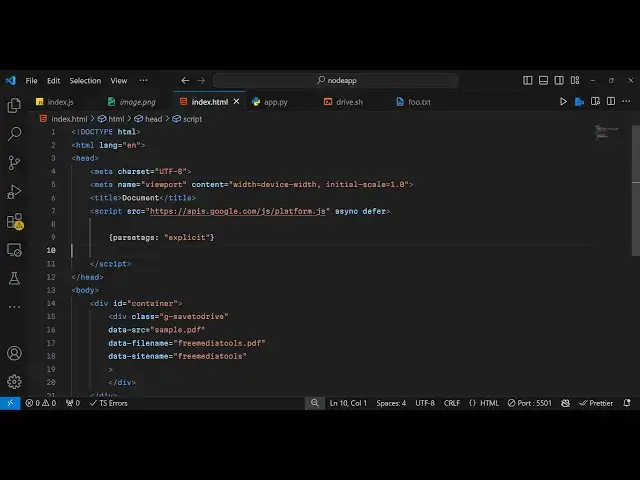
the save to drive Google button so first
2:56
of all for this you need to include the
2:58
CDM which is the script tag and we will
3:02
be loading the script this is actually
3:05
the Google platform API and here https
3:10
apis. google.com
3:12
sljs platform JS this is actually the
3:16
CDN link that we are including so we
3:19
need this Library apis. google.com/jobs
3:29
and also we need to load this
3:32
asynchronously so we will simply write
3:34
async and defer so when the page is
3:38
loaded only then load this JavaScript so
3:41
just add these two keywords as well so
3:43
now after this we will actually
3:47
we inside these script tags just inside
3:50
the scripts tag we need to explicitly
3:52
load this so we will simply say
3:55
pars
3:57
TX and here we will provide the value as
4:03
explicit so inside Co brackets you need
4:06
to write par tax and then the value will
4:08
be explicit just copy everything that
4:12
I'm just typing right here and after
4:15
this we need to embed the wiget the
4:18
button here so we will be having a div
4:21
and we will be having the container ID
4:24
attached to it and inside this we will
4:27
have the class here here which will
4:31
be g- save to drive so just make sure
4:35
that you give the class name exactly
4:37
like this which is this is a class name
4:40
which is available in the SDK API so
4:43
this is g- save to drive and inside this
4:47
you will
4:48
provide some more attributes to this div
4:51
tag such that which file that you want
4:54
to upload to their Google Drive so here
4:58
you will provide the image path so my
5:00
image is present in the same folder so
5:02
image.png I want to upload this file so
5:05
I will just provide the path here in the
5:09
image.png in the source parameter and
5:12
the second parameter it lets you control
5:14
the file name so when the user uploads
5:16
the files to the Google Drive by
5:18
clicking the button so what file name
5:20
that it should have so I will simply say
5:24
free media tools.png
5:30
or I can say freem mediat tools.com 19
5:34
1997 and then what is the site name you
5:37
can provide any value depending upon
5:39
your site name so this site name will
5:42
appear when they click the button it
5:44
will say this site is accessing the
5:47
Google Drive so that's all that we need
5:49
to do guys only 23 lines of code that's
5:53
all and if you try to open this
5:55
application now so here we haven't
5:58
provided any API key no client ID so you
6:02
can just paste this code and just open
6:05
it in the browser you will see it save
6:08
to Google Drive button will show and as
6:11
soon as you click the button you will
6:13
see it is telling that this site is
6:16
accessing would like to save an item to
6:18
their Google Drive would like to save an
6:20
item to your Google Drive
6:23
so then you need to Simply click the
6:26
save button and as soon as you click the
6:28
save button it it will show the progress
6:31
bar and you can see the file is saved to
6:34
your Google
6:35
Drive and if I just
6:38
refresh my Google Drive you will
6:40
actually see this file will get uploaded
6:43
free media tools 1997 you will see this
6:46
is the image file that we uploaded so in
6:48
this easy way guys you can share your
6:53
files to Google Drive by embedding this
6:56
button this file can be anything it can
6:58
also be an PDF file here so I can change
7:01
the path here to which will be
7:05
sample free media
7:08
tools.pdf
7:10
and I want
7:12
to allow the user to upload this file
7:15
which is
7:16
sample.pdf so now what will happen as
7:20
soon as the user click the save button
7:23
they will be accessing
7:26
that PDF file which will be up
7:31
uploaded so free mediat tools.pdf is
7:34
save to and if you try to refresh now
7:37
the PDF file will get uploaded so in
7:40
this way you can share any file any
7:42
extension PDF images videos any file you
7:46
can save you can see the file has been
7:48
successfully uploaded to my Google Drive
7:50
so in this easy way guys this is a
7:52
widget you can simply embed which allows
7:56
users to save files to their Google
7:57
Drive so thank you much for watching
8:00
this video please hit that like button
8:02
subscribe the channel and do check out
8:03
my website as well free mediat tools.com
8:05
which contains thousands of free tools
8:07
regarding audio video and image and I
8:10
will be seeing you in the next video
#Web Design & Development
#File Sharing & Hosting
#Photo & Image Sharing
#Scripting Languages
#Cloud Storage
#Video Sharing