Up next in 10


Get the full source code of application here:
Show More Show Less View Video Transcript
0:00
Uh hello guys, welcome to this video. So
0:02
in this video, I'll show you how to open
0:03
the file explorer to this PC rather than
0:07
if you open file explorer, it will open
0:09
the quick access and these recent files
0:12
that you that you opened. If you don't
0:15
want this, if you just want to open the
0:17
this screen, which lets you open your C
0:21
drive and D drive, you can actually make
0:24
a slight modification in the settings
0:26
right here of the file explorer. So this
0:28
will make sure that you if you open a
0:30
new instance of file explorer it will
0:32
not open this screen which will show you
0:34
the quick access thing which is by
0:37
default it shows you the recent files
0:38
that you opened rather than it will open
0:41
this PC
0:43
straight away. So there is a setting
0:46
right here. Simply click these three
0:47
dots
0:49
and now simply go to the options and
0:53
inside the
0:55
view button
0:57
simply navigate to view button. Sorry
0:59
search I think it is.
1:04
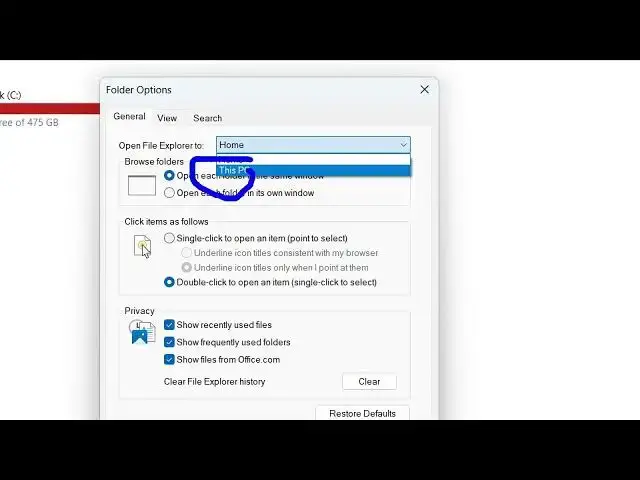
So just change this inside this journal
1:06
setting by by default it is set to home.
1:10
You just need to change this to this PC.
1:13
So just make this change and then click
1:16
on apply. After that now if you if I
1:20
close this window again open this file
1:23
explorer and now by default it shows me
1:26
this screen rather than this this
1:30
previous one which was the recent files
1:32
that you opened. So if you again close
1:34
it again reopen this again this opens
1:37
directly your C and the D drive. So in
1:39
this easy way you can just tweak change
1:43
this setting and open file explorer to
1:46
this PC.
1:48
So, thank you very much for watching
1:50
this video and also check out my website
1:53
freemediatools.com
1:54
uh which contains thousands of tools.
#Computers & Electronics
#Software
#Internet & Telecom