Up next in 10


Watch My Visual Studio Code IDE Setup Video For Fonts,Themes & Extensions
https://youtu.be/Bon8Pm1gbX8
Hi Join the official discord server to resolve doubts here:
https://discord.gg/cRnjhk6nzW
Visit my Online Free Media Tool Website
https://freemediatools.com/
Buy Premium Scripts and Apps Here:
https://procodestore.com/
Show More Show Less View Video Transcript
0:00
uh hello guys welcome to this video so
0:03
in this video I will show you how to
0:05
integrate the coin AI assistant inside
0:08
your vs code to generate code and build
0:11
out web applications automatically so
0:14
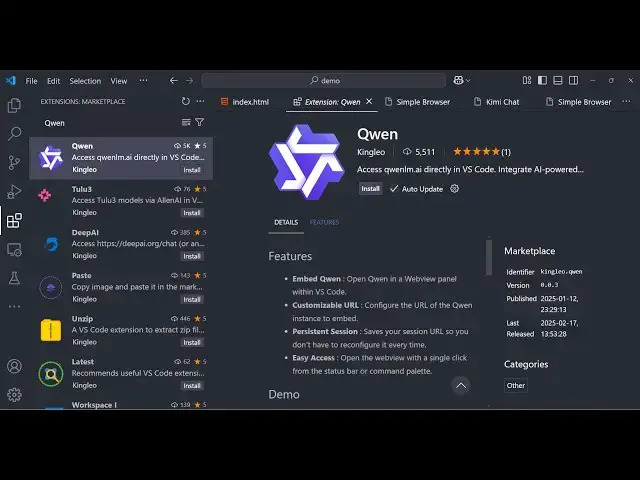
this is actually the coding AI so Q
0:20
Wen so if you just type this the very
0:23
first extension which comes right here
0:25
it lets you open Quin directly inside vs
0:28
code without having to go to internet
0:30
and open a another tab you can Side by
0:33
Side open this Quin website and as soon
0:37
as you install it you will actually
0:42
see just control shift p and then just
0:45
type K Wen and it will open a new
0:50
browser window and open this Quin
0:52
website K lm. website directly open in
0:56
vs code so here you can log in with your
1:00
Google
1:04
account so I
1:17
think so it lets you
1:20
basically use this
1:28
AI so you can see here you can write
1:31
your prompt here to actually create
1:33
image code so if you don't know about
1:37
this uh it's a simple AI assistant this
1:40
is actually the website here if you
1:44
see it also it's a web application and
1:48
Quin is actually a AI model right here
1:51
very popular
1:55
so so you can even use it inside the
1:58
applications so let me just write build
2:01
a calculator in
2:03
HTML and JavaScript so you can see the
2:06
speed is quite good not up to the level
2:09
of chat GPT or deep seek but still it's
2:12
good you can see it is generating the
2:14
code here with line numbers with nice
2:16
little theme as well topy copy to
2:19
clipboard button is also there
2:23
so so it formats your code so chat GB
2:27
doesn't do that but this
2:30
formats your code and display it in a
2:33
nice little manner so the same thing you
2:34
can do it by installing this extension
2:37
which actually opens in
2:39
inside
2:49
so so here just need to log in
2:57
here either you can login
3:07
with
3:09
for it will actually be asking you for
3:12
the verification so just if you have a
3:15
Google account you can directly log in
3:17
in and then after that you can use it so
3:20
it's very easy you can install this
3:23
extension for some reason it is not
3:25
logging me up I don't know why but uh
3:29
here if if you don't have an account you
3:30
can sign up for a new
3:48
account so let me just register it
4:06
so here just need to go to your email
4:10
and just verify it it will give you the
4:13
activation
4:14
link can see that so just click on
4:18
activate my account so as soon as you
4:20
activate your account
4:24
here just select check again and now you
4:27
logged in so here inside your your vs
4:30
code so here you can simply say build
4:35
a simple calculator and
4:39
HTML CSS and give only one
4:47
file just need to verify it for the very
4:49
first time and then it will give you the
4:51
code here side by side as you are coding
4:54
right here just open this window and uh
4:58
you can use this a assistant write in vs
5:01
code you also have this copy to
5:04
clipboard Button as well
5:06
so it will automate the process and it
5:10
it can even generate images as well so
5:12
there is also this image generation as
5:15
well video generation as well web search
5:17
feature as well so now simply copy this
5:21
paste
5:22
it and open it so it's simple calculator
5:27
which is built if you see
5:31
see so it's a very good extension you
5:34
should definitely install it side by
5:36
side it can generate a lot of code for
5:38
you simply write the prompt and same
5:41
goes for the images as well so
5:46
generate a
5:49
react thumbnail
6:01
or two
6:03
guys
6:06
standing so I think you should have to
6:11
have but you can be generating code as
6:14
well so here you can do that so in this
6:18
way you can even expand more models
6:21
which are also
6:22
available all these models are available
6:25
so you can use this extension guys
6:27
quen AI to integrate so thank you very
6:31
much for watching this video and also
6:34
visit my website which is free mediat
6:37
tools.com uh which contains thousands of
6:40
tools regarding audio video and image
6:43
and I will be seeing you in the next
6:45
video
#Software
#Development Tools
#Scripting Languages
#Intelligent Personal Assistants