0:00
uh Hello friends welcome to this video
0:02
so in this video I will show you how to
0:04
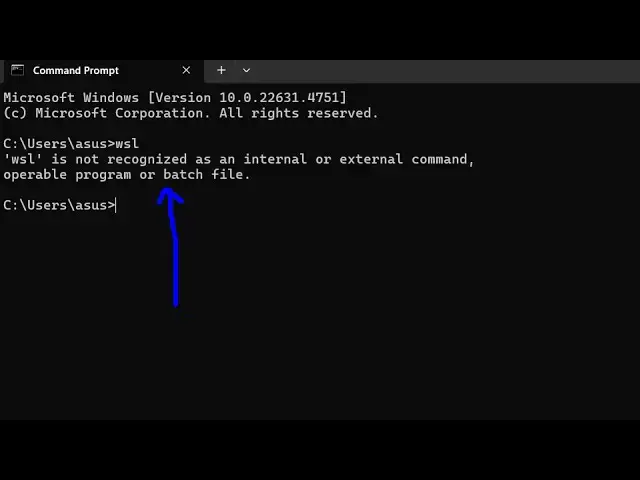
tackle this error message which comes if
0:06
you type WSL in the terminal so it shows
0:09
you this message that WSL is not
0:11
recognized as an internal or external
0:13
command so typically this error message
0:16
comes because you haven't added the path
0:20
of the folder which is C Windows system
0:22
32 most of the time 90% of the time so
0:26
the simple fixes that you just need to
0:28
go to the location here
0:30
in the C directory there is a folder
0:34
Windows so just go to the folder and
0:37
then search for a folder called as
0:40
system 32 so system 32 you will see this
0:45
here and just go to that folder and uh
0:50
if you try to open the terminal here and
0:52
try the same command here
0:54
WSL which is Windows subsystem for Linux
0:58
so this command is success F you will
1:00
see that so now we just need to make
1:02
sure that we enable this globally so
1:04
what we can do is that we can copy this
1:06
path here so right click and copy this
1:09
path here and we just need to add this
1:12
in the environment variable so just type
1:14
environment variable and just click on
1:16
this option environment variable and go
1:19
to this path here and just edit this and
1:22
click a new entry and paste this path
1:25
here see Windows system 32 that's all
1:29
that we need to do click on okay okay
1:31
okay and then just restart the terminal
1:33
again execute the same command so
1:36
globally now if I type WSL you will see
1:40
the command will be successful so in
1:42
this easy way you can fix this error
1:44
message by simply adding that folder
1:47
path to the environment variable in the
1:52
so 99% of the time this will fix the
1:57
so thank you very much for watching this
1:59
video and also visit my website as well
2:02
free mediat tools.com uh which contains
2:05
thousands of tools regarding audio video
2:07
and M and I will be seeing you in the