0:00
uh hello guys welcome to this video so
0:02
in this video I will show you how to fix
0:05
this error message which comes when you
0:07
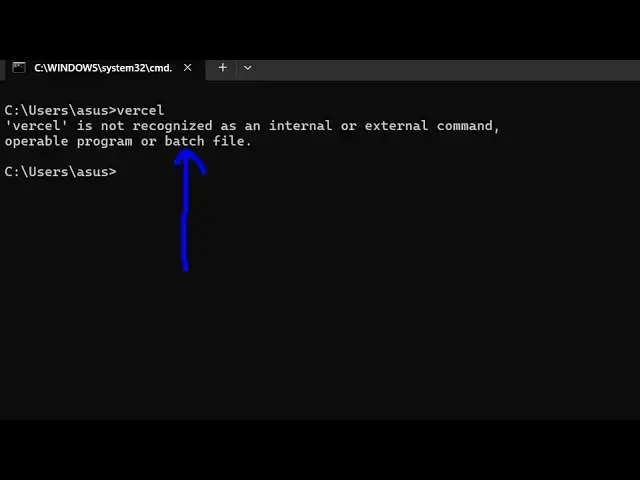
type versal inside the command line so
0:10
versal is a platform where you can
0:12
deploy your web applications so they do
0:15
offer a CLI tool as well so if you are
0:17
typing versal and it is not
0:19
recognized the possibility is that you
0:21
haven't installed this so first of all
0:24
I'm assuming that you have installed
0:26
nodejs and npm npm comes under node
0:30
shares so whenever you install node
0:32
shares I'm using the latest version
0:34
which is 22.13 one at the time of
0:37
recording this video and versel you can
0:40
install it the veral CLI by executing
0:45
npmi dasg for globally installing versal
0:48
inside your command line so just execute
0:51
this command and it will install the
0:53
versal package inside your
0:56
system so it will take some time around
0:59
15 to 20 seconds and then it will
1:04
package so once it's installed here you
1:07
will see this message added 28 packages
1:11
so now when when if you type the command
1:13
versal you will see the command will be
1:15
successful the versal CLI we using the
1:19
and now you can see that you can able to
1:23
deploy your applications using the
1:25
command line so you can even check out
1:28
the version which versions you are using
1:30
so we using the versal CLI 41.1
1:35
point4 so just make sure that you have
1:38
installed nodejs before you install this
1:41
so in this easy way you can fix that
1:43
error message thank you very much for
1:45
watching this video and also check out
1:47
my website as well free mediat tools.com
1:50
uh which contains thousands of tools
1:53
regarding audio video and image and I
1:55
will be seeing you in the next video