0:00
uh Hello friends welcome to this video
0:02
so in this video I will show you how to
0:04
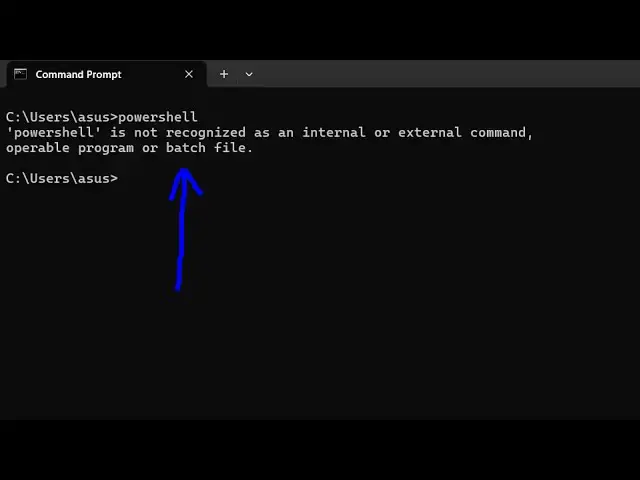
uh tackle this error message which comes
0:06
if you write Powers shell inside the
0:08
terminal this error message comes that
0:11
the powers shell is not recognized as an
0:15
command so this typically occurs
0:17
whenever you haven't added this path of
0:21
the powers shell inside the environment
0:23
variable so it's a simple fix here you
0:26
need to go to the search menu and just
0:31
variable and just go to here environment
0:34
variable and here you need to go to the
0:38
path just select here and click on the
0:41
edit button and add this New Path here
0:44
so first of all we need to go to the
0:47
location where Powershell is installed
0:49
so just uh so default location is in C
0:52
drive so just go to the C drive and then
0:55
you need to go to the system Windows
0:58
folder so you can see this is actually
1:01
Windows folder and then inside this
1:03
there is a folder called as system 32
1:07
just search for this folder which is
1:09
system 32 you will see this folder here
1:11
system 32 and after that inside this
1:15
folder we will if you search for Windows
1:18
Powershell you would see this folder
1:20
appearing Windows Powershell just go to
1:22
this folder and then you need to go to
1:27
1.0 and this is a complete path so you
1:29
can see this is actually the executable
1:32
of Powershell and if you try to open
1:34
Terminal here and just type Powershell
1:37
you will see the command will be
1:39
successful so we just need to copy this
1:44
here right click and simply copy
1:48
this and now we just need to paste this
1:51
path here in the environment variable
1:54
the path here so as soon as you paste it
1:57
click on okay okay okay just apply the
2:00
changes and then you need to restart the
2:02
terminal just open a new command line
2:05
window and again type
2:07
Powershell so you'll see the command
2:09
will be successful so now you are in
2:12
Powershell you can execute any
2:13
Powershell command here so in this way
2:16
you can easily fix that error message so
2:18
just add the path that I showed you in
2:23
variable and this error message will be
2:25
fixed so thank you very much for
2:27
watching this video and also visit my
2:30
website free mediat tools.com which
2:32
contains thousands of tools regarding
2:34
audio video and image and I will be
2:37
seeing you in the next video