Up next in 10

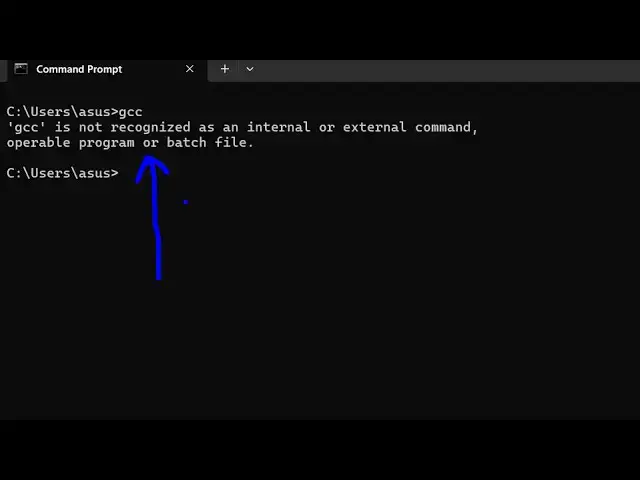
How to fix gcc and g++ is not recognized as an internal and external command Error
Feb 12, 2025

Get the full source code of application here:
Hi Join the official discord server to resolve doubts here:
https://discord.gg/cRnjhk6nzW
Visit my Online Free Media Tool Website
https://freemediatools.com/
Buy Premium Scripts and Apps Here:
https://procodestore.com/
Show More Show Less View Video Transcript
0:00
uh Hello friends welcome to this video
0:02
so in this video I will show you how to
0:04
fix this error message which comes if
0:06
you just write
0:07
GC gou C is not recognized as an
0:11
internal or external command uh it's a
0:13
C++ compiler same goes with g++ as well
0:17
so these are two compilers which is used
0:19
to compile your C programs into
0:21
executables so if you actually seeing
0:23
this error message uh 90% of the time
0:27
you haven't registered the path of these
0:30
two executables inside your environment
0:32
variables so the very first thing we
0:34
need to do I'm assuming that you have
0:36
installed g++ but if you haven't you
0:40
just need to search
0:45
for go to this website
0:49
mss2 this is their official website and
0:52
uh you just need to first of all install
0:58
this so after you you installed it if
1:02
you will see this folder in the C drive
1:05
if you go to C drive and you will see
1:07
this
1:08
folder
1:10
Ms Y
1:12
s64 Ms Y 64 you will see this folder
1:17
just go into this folder and inside this
1:19
folder you will find this folder which
1:21
is Ming W which is for 32bit and 64bit
1:26
so depending upon your computer which if
1:30
it's 32bit you will go into this folder
1:33
so if it's a 64bit you will go into this
1:35
folder and then there is this bin
1:37
directory and you just need to go into
1:39
this directory and here you will find
1:41
out all the executables which are there
1:43
which is your g++ GC so these are the
1:47
compilers so if you try to open the
1:49
terminal here and just type the command
1:52
GC you will see the command will be
1:54
successful right here now we just need
1:57
to make sure that we just need to copy
1:59
this whole part
2:00
right click copy it so that it is
2:03
recognizable globally so just copy this
2:05
path and then go to your environment
2:09
variable and just right here go to the
2:12
environment variable and just go to the
2:14
system variables and here you will find
2:16
out this path variable simply select and
2:19
click the edit button and then click on
2:22
new so new entry and simply paste this
2:25
path so as soon as you paste this path
2:28
here you will see it will look something
2:29
like this click on okay okay okay and
2:33
just restart the terminal and just open
2:35
the command line and type the command
2:37
here gou C you will see the command will
2:39
be successful right here so now you can
2:42
use this compiler anywhere inside your
2:44
system inside terminal same goes with
2:47
g++ as well so again the command will be
2:50
successful so in this way guys you can
2:52
fix this error message and also again
2:55
you need to first of all download these
2:57
executables Ms Y
3:01
so
3:03
they simply you can even go to this
3:06
website as well directly I will I I will
3:09
give this link in the description of
3:11
this video just go to this video uh blog
3:15
post we have there they have explained
3:18
this is actually the step by step
3:20
instruction and also at the bottom of
3:22
the
3:23
side they also have given a download
3:26
links as well so if you haven't
3:27
installed this inside your system system
3:30
so first of all there is a direct L link
3:33
given here to the installer application
3:35
so if you haven't installed the compiler
3:36
simply click this link and
3:40
then a exe file will get downloaded will
3:43
see 79.7 4 megabyte so this is actually
3:46
the exe file here which is
3:49
MSY so first of all install this just
3:53
put the next
3:55
next install this compiler and then
3:59
automatically then it will create this
4:01
inside the C directory it will create
4:03
this folder which is Ms Y
4:06
s64 and then follow the step by-step
4:10
instruction that I showed you in this
4:11
video and then your compiler will work
4:13
in the terminal so in this way you can
4:14
fix this error message I will give this
4:17
link of this blog post in the
4:18
description of this video and also check
4:21
out my website as well free media
4:23
tools.com which contains thousands of
4:26
tools regarding audio video and image
4:28
and I will be see seeing you in the next
4:30
video
#C & C++