Up next in 10

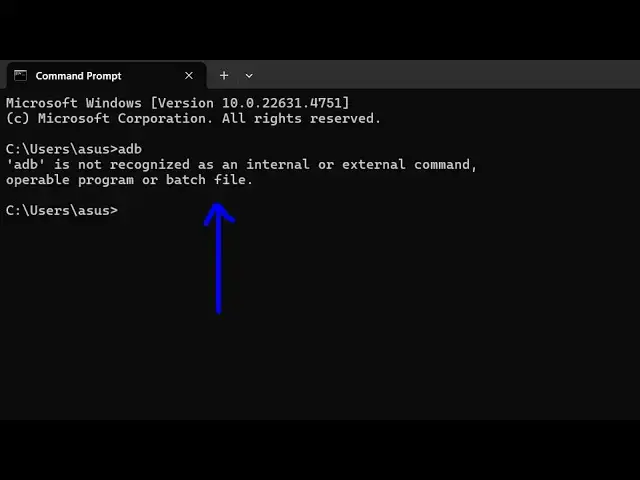
How to fix adb is not Recognized as Internal and External Command Operable Program or Batch File
Feb 12, 2025

Get the full source code of application here:
Hi Join the official discord server to resolve doubts here:
https://discord.gg/cRnjhk6nzW
Visit my Online Free Media Tool Website
https://freemediatools.com/
Buy Premium Scripts and Apps Here:
https://procodestore.com/
Show More Show Less View Video Transcript
0:00
uh Hello friends welcome to this video
0:02
so in this video I will show you how to
0:04
handle this error message which comes
0:06
while you type
0:08
ADB is not recognized as an internal or
0:11
external command so ADB is a Android
0:14
debug Bridge which is a tool which is
0:16
used to communicate your Android apps in
0:20
order to run them inside emulators and
0:22
actual phones so if this error message
0:25
is coming uh 99% of the time this step
0:29
will fix that
0:30
so what you need to do is that you must
0:33
have first of all Android SDK installed
0:35
I'm assuming that so you typically it is
0:39
there inside the C drive so go to the C
0:42
drive and then there is a folder called
0:44
as users folder so just go into the user
0:47
folder and whatever is your username
0:50
mine is as so I will go to this user and
0:53
then you need to search for this folder
0:55
which is app data just search for this
0:58
folder so by default it will be hidden
1:00
it will appear like this so go to this
1:03
folder and then you will find out this
1:05
folder which is local so just go to this
1:08
folder and then you need to search for
1:11
this Android folder so this is your
1:14
Android folder here so inside this
1:17
folder your Android STK will be present
1:20
and then there is a folder called as STK
1:23
you need to go to this folder and then
1:25
there is a folder called as platform
1:27
tools so you just need to go to this
1:30
folder so right inside this you will
1:32
find out this ADB is present this is the
1:35
executable which is the Android debug
1:37
Bridge so if you open command line here
1:40
and type the same command which is ADB
1:42
you will see the command will be
1:44
successful so now what we need to do is
1:46
that we need to copy this whole path so
1:48
right click copy this entire path so now
1:52
we need to enable this globally so what
1:54
I will do is that I will go to the
1:56
environment
1:57
variable and just click on on that and
2:00
go to the system
2:02
variable and just search for this path
2:05
here and click on this edit button and
2:10
create a new entry right here and click
2:12
the new button and simply paste this
2:15
path so as soon as you paste this path
2:17
here it will appear like this and now
2:20
you can simply click okay okay to apply
2:23
the changes and now just restart your
2:25
terminal so just open command line and
2:28
then execute the same command which is
2:30
ADB so now if you enter it you will now
2:33
see the command will be
2:35
successfully run so this is your Android
2:38
debug Bridge version 1. 0.41 so in this
2:42
way you can fix this error message uh
2:45
100% of the time this will be fixing
2:47
your problem it's a very simple solution
2:50
you just need to add the path here where
2:52
the ADB is present I showed you step by
2:55
step so thank you very much for watching
2:56
this video and also check out my website
2:59
as well free mediat tools.com which
3:02
contains thousands of tools regarding
3:04
audio video and image and I will be
3:07
seeing you in the next video
#Programming
#Internet & Telecom