Up next in 10

How to Enable Mobile Hotspot in Windows 11 to Share your WIFI Internet to Mobile Devices
Jul 8, 2025

Get the full source code of application here:
Show More Show Less View Video Transcript
0:00
Uh hello guys, welcome to this video. So
0:02
in this video, I'll show you how to
0:03
enable the mobile hotspot inside your
0:07
Windows 11 laptop or PC. To share your
0:10
Wi-Fi connection to your mobile devices,
0:12
so it's very easy. Simply go to the
0:15
settings sections in the start menu.
0:17
Just type settings and right here in the
0:20
left hand side, you will see the section
0:21
network and internet. Simply go to this
0:24
section.
0:28
After going to this, this is your Wi-Fi
0:30
connection right here. If you want to
0:31
share this Wi-Fi connection to your
0:33
mobile device. So, you can easily do
0:35
this by enabling the Wi-Fi hotspot.
0:39
Mobile hotspot. There is this option
0:41
available inside Windows 11. Mobile
0:44
hotspot. You can turn on this option. By
0:48
default, it is turned off. Simply toggle
0:50
this option on. This will actually
0:53
create a hotspot.
0:56
And here you can you're sharing your
0:58
Wi-Fi connection. So somebody which is
1:01
there on the mobile device. So it gives
1:03
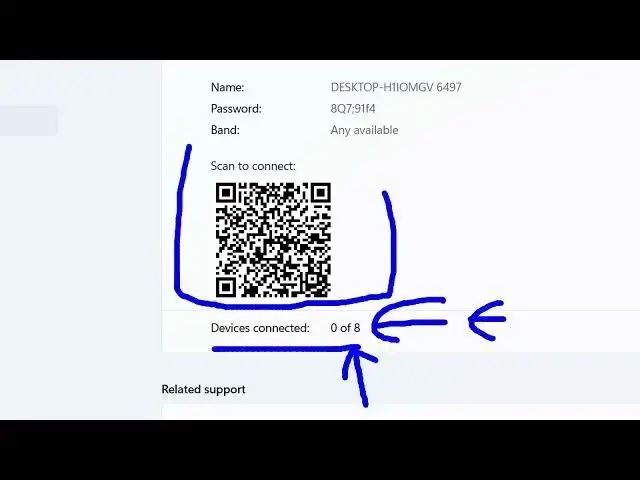
you this password that you can share. So
1:07
this is my password. This will be the
1:09
default password generated here. This
1:12
will be the Wi-Fi name that will be
1:14
coming to their mobile devices. Either
1:17
they can enter password or they can
1:19
easily uh scan this QR code on their
1:23
mobile device. You can connect up to
1:25
eight devices as you can see in this
1:28
mobile hotspot. You can share your PC
1:31
internet Wi-Fi to eight other mobile
1:33
devices inside Windows 11. So either
1:36
they can share this QR code, you can
1:38
send this QR code or you can share the
1:40
password. So any band can connect here.
1:43
You will see five five hertz 2.5 Hz as
1:48
well. These are the network properties.
1:50
You can even change the password as
1:52
well. You can customize the password. So
1:54
by clicking this edit button right here,
1:57
you can change the properties, change
1:59
the network name, customize it. You can
2:02
also change the password. And here you
2:04
can select either five hertz or 2.4 Hz
2:08
network band. So all these settings are
2:10
customizable. After you customize it,
2:13
simply click the save button to save the
2:15
settings. So in this easy way you can
2:18
enable this mobile hotspot inside
2:21
Windows 11 if you want to share internet
2:24
connection with other mobile devices
2:26
inside your PC itself. So, thank you
2:29
very much for watching this video and
2:31
also check out my website
2:33
freemediatools.com
2:35
uh which contains thousands
#Networking
#Software
#Mobile & Wireless