Up next in 10


Get the full source code of application here:
Hi Join the official discord server to resolve doubts here:
https://discord.gg/cRnjhk6nzW
Visit my Online Free Media Tool Website
https://freemediatools.com/
Buy Premium Scripts and Apps Here:
https://procodestore.com/
Show More Show Less View Video Transcript
0:00
uh hello guys welcome to this video so
0:02
in this video I will show you how to
0:04
install open
0:06
SSL so if you are seeing a message open
0:09
SSL is not recognized as an internal or
0:12
external command so first of all you
0:14
need to install open SSL so just type on
0:16
op SSL Wikipedia page on Google the very
0:20
first link which come this is the
0:22
website op SSL Wiki so just click on
0:25
this website and here you will find out
0:28
open SSL for
0:32
Windows I just type
0:36
here so this is
0:39
second website you need to click here
0:42
second website go here and then select
0:44
here open SSL for Windows just select
0:47
your operating system
0:52
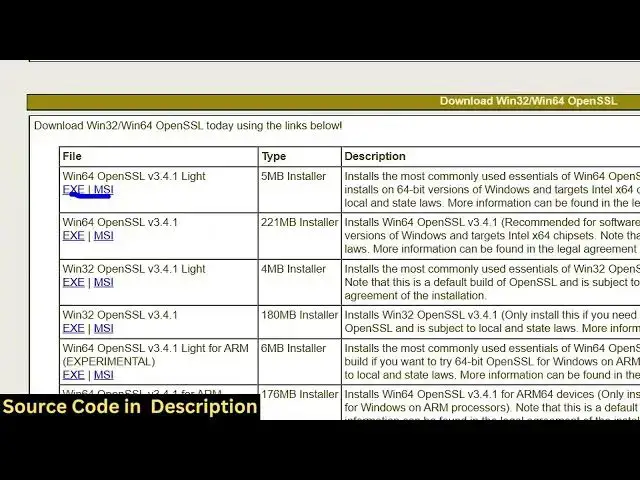
and for the download page so this is
0:57
actually the URL that they provided simp
0:59
simply go to this website and then you
1:02
need to select the exe file here
1:05
depending upon your operating
1:07
system so this is the light
1:13
version so just select your operating
1:16
system if you are on 64bit or
1:24
32bit so this is actually the exe file
1:27
here so I will simply
1:30
download This by clicking this so this
1:34
will download so simply click download
1:36
and the download will start so as soon
1:39
as you see just need to run the setup
1:42
file so just except the agreement and it
1:47
by default it will create a folder in
1:50
the program files in C directory op SSL
1:52
win
1:58
64 and then
2:00
install it so as soon as it
2:05
installs now you need to go to the
2:08
directory where it is installed so go to
2:10
the C directory and go to the program
2:14
files and here you will find out a
2:17
folder has been created which is
2:23
wi64 open SSL
2:27
folder you will see this folder is
2:30
created open SSL wiin
2:32
64 and uh this is actually in the bin
2:37
directory this is your open
2:44
SSL if you try
2:48
to so this is your open SSL you can
2:52
access it in the command line so just
2:54
type op SSL D- version so you are using
2:58
the 3.4.1
3:00
this is the latest version you will see
3:02
February
3:04
2025 so now what you need to do you need
3:07
to add this inside your path just go to
3:11
your environment variable just make it
3:14
accessible go to the system
3:17
variables and WR here in the path edit
3:21
and just paste
3:24
this so as soon as you paste it inside
3:27
this environment variable
3:29
now you can access it globally by typing
3:32
op SSL so just restart your terminal and
3:35
just type the command op
3:37
SSL you will see the command will be
3:40
successful so in this way you can
3:43
install op
3:44
SSL just follow the steps which is shown
3:48
in this video and then add this inside
3:50
your environment variables as well to
3:52
access it globally so in this way you
3:56
can install it and also check out my
3:58
website free media tools.com uh which
4:01
contains thousands of tools regarding
4:03
audio video and image and I will be
4:06
seeing you in the next video
#Software
#Software Utilities