live_tv
Livestream Starting Soon
00
Hours
:
00
Minutes
:
00
Seconds
Up next in 10


Visit the Live Demo of the Tool here:
https://freemediatools.com/encryptpdf
Official Website:
https://freemediatools.com
Show More Show Less View Video Transcript
0:00
uh Hello friends today in this tutorial
0:02
I will basically show you how you can
0:03
convert your uh CSV file which is comma
0:07
separated value file into an Excel file
0:09
using a library called as open pyxel
0:11
library in Python so we will basically
0:14
write our python script here just make a
0:16
app.py file and you need to install this
0:19
Library which is an external library is
0:21
a pip
0:23
install open op n py XL this is the name
0:28
of the library guys if you see pip
0:30
install open pyxel this is the name of
0:33
the library you need to install this
0:35
Library using this pip install open
0:37
Excel command so just write this command
0:40
and install this package and after that
0:43
package we will basically write our
0:45
app.py file so right inside this file
0:48
guys first of all we will import the CSV
0:50
module which is a buil-in module of
0:51
python in order to read the CSV
0:54
file and from this module pyxel we will
0:57
basically import a method which is
0:59
workbook
1:01
and now we will actually read the file
1:03
CSV file which will be present in the
1:05
root directory so we will basically make
1:07
a user. CSV file guys in the root
1:10
directory so as you know the format of
1:13
comma separated value each value will be
1:16
separated by a comma so this is CSV file
1:19
here so we have two columns name and H
1:22
and we will have
1:24
uh we will say you can see
1:28
that we have two rows of data two
1:31
columns two rows and this is comma
1:33
separated value now we need to convert
1:34
this into a Excel file how we can do
1:36
that so now we first of all need to read
1:39
the file so we can read the file using
1:42
the open method which is a built-in
1:44
method in Python to actually read any
1:46
file we will read this file in a read
1:48
write mode so there are various Flags
1:50
available you will see that we will read
1:52
it in a read mode and we will say new
1:56
line
1:56
character like this and then we will say
1:59
encoding will be equal to
2:02
utf8 and this will be the encoding type
2:05
and then we will read it as CSV file
2:07
colon and then basically we will declare
2:10
a variable CSV reader and here we will
2:13
use the built-in module of python which
2:15
is CSV and it contains a method called
2:18
as reader guys this class contains a
2:21
method here we will pass the path of the
2:24
CSV file here and it will actually read
2:27
the content of the file guys and then we
2:29
need to read all the rows what we will
2:31
say is that rows is equal to list and
2:35
here we will say CSV
2:37
reader so it will basically convert all
2:40
the data to a list we using this list
2:45
function in Python and it will store it
2:47
inside this row variable so you can even
2:50
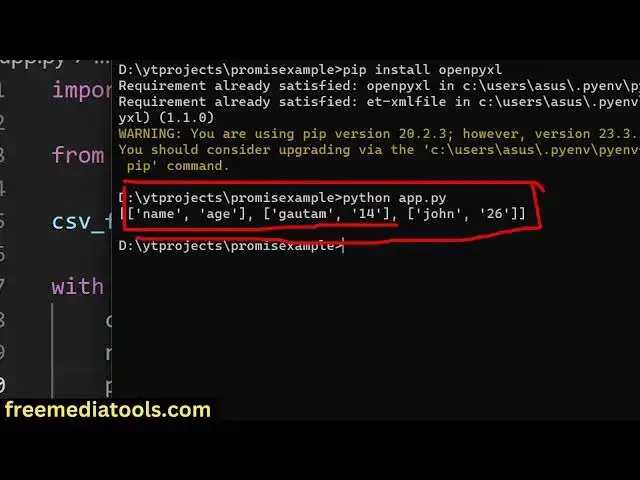
print out if you print out guys and now
2:53
if I run this script right here if I run
2:55
the script python app.py so what you
2:58
will see guys basically it will read all
3:00
the columns here name H and then the
3:03
rows of data you can see Gotham 14 John
3:06
26 so it has read all the data which is
3:08
present inside the CSV file with the
3:10
help of this uh open method and after
3:14
reading it guys we now need to create a
3:16
new Excel
3:20
sheet workbook Now to create this it's
3:23
very simple we will basically provide
3:25
the path of the file which will be there
3:27
we will basically create it in the same
3:29
directory so we will simply say here
3:33
output file. XLS this is the extension
3:37
of the Excel file and then we will
3:39
basically create a new workbook using
3:41
the Constructor workbook and we inside
3:44
this workbook we will actually add a
3:47
sheet workbook do active and we will get
3:52
into the active sheet here and then we
3:54
will basically write the data and for
3:56
this again we will again use the for
3:58
Loop and we will say for Row in the rows
4:03
which is an array here and we will
4:05
basically use the upend method sheet.
4:08
upend and we will say row so now after
4:13
that we will actually save the file
4:15
workbook Dot and it contains a save
4:17
method guys which will actually save our
4:20
Excel file inside that path Excel file
4:23
path so that's all so this will actually
4:28
save the file guys so this is all the
4:30
code which is required guys and now if I
4:32
try to run this uh python app.py script
4:36
in the left hand side you will see a
4:37
file will be created output. file. XLS
4:41
if I try to open this file guys you will
4:43
see it will created this Excel file for
4:45
me it has converted that comma separated
4:48
value it has got two columns it has got
4:51
two rows of data and our data has been
4:53
converted right here so this is a thing
4:56
guys how you can convert your CSV file
4:59
to excel while thank you very much for
5:01
watching this video
#Programming
#Software