live_tv
Livestream Starting Soon
00
Hours
:
00
Minutes
:
00
Seconds
Up next in 10

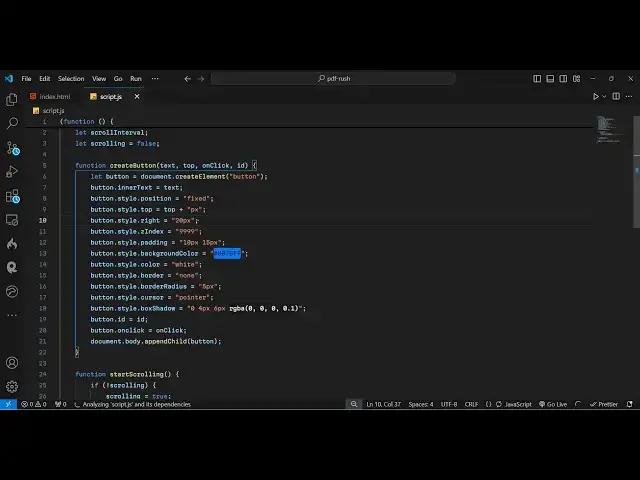
How to Automate Infinite Browser Scrolling in Background Using Javascript to Save Time & Work
Feb 5, 2025

Get the full source code of application here:
https://codingshiksha.com/javascript/how-to-automate-infinite-browser-scrolling-in-background-using-javascript-to-save-time-work/
Hi Join the official discord server to resolve doubts here:
https://discord.gg/cRnjhk6nzW
Visit my Online Free Media Tool Website
https://freemediatools.com/
Buy Premium Scripts and Apps Here:
https://procodestore.com/
Show More Show Less View Video Transcript
0:00
uh hello guys welcome to this video so
0:02
in this video I will show you how to
0:05
automate the scrolling inside your web
0:08
page so scrolling as you all do in using
0:12
your mouse here manually so it requires
0:16
effort as well as hard work as well so I
0:18
will show you a JavaScript that you can
0:20
directly paste inside your browser so
0:24
with the help of the script you will
0:25
automate this scrolling part in the
0:27
background so what you need to do if you
0:30
come to a web page there are some images
0:33
videos that you want to search for so
0:35
you just need to right click inspect
0:37
element and just open the browser
0:39
console right here so we are on the
0:41
Facebook page here you will see so you
0:43
just need to go to the console
0:45
here and here you need to paste this
0:48
script here uh this script I have given
0:50
in the description of the video I've
0:52
written a step bystep blog post where I
0:54
have written this source code you can
0:57
directly copy it from this so as as soon
1:00
as you paste it and enter it so you will
1:02
see these two buttons will appear on the
1:04
web page start scroll and stop scroll so
1:08
these two buttons will
1:10
appear and as soon as you click that
1:12
button start
1:15
scroll the automatic scrolling will
1:17
start so let me click it so now you will
1:21
see automatically the web page is
1:23
scrolling and you can even control the
1:25
speed as well you can see the speed is
1:27
very good so it will save give you a lot
1:30
of time as and effort as well because
1:32
you don't need to manually scroll it
1:34
with with your mouse so you can run the
1:36
script in the background as soon as the
1:39
post that you are searching for is found
1:42
you can click this stop scrolling button
1:44
so there is a second button available so
1:46
at any moment if you want to stop the
1:48
scrolling you can click the stop scroll
1:50
button so as soon as you click the
1:52
button the scrolling will stop and you
1:54
will be able to see the post here so you
1:58
can see again if you want to start the
2:00
scrolling from this location just click
2:02
this button start scroll and once again
2:04
the scrolling will start so the main
2:07
part is that you don't need to do
2:08
anything the scrolling is doing by
2:12
itself in the background the script is
2:15
running and you don't need to do
2:18
anything you just need to click these
2:20
buttons whenever you want to stop it you
2:22
click the stop button and once again if
2:24
you want to start it you will click the
2:26
start button so it's a JavaScript which
2:28
is running in the browser
2:32
so you can go to the description link
2:34
where I've given the script and directly
2:37
paste it inside the inspect element
2:40
browser in whichever web page you are
2:43
found finding the post here so this is a
2:45
Facebook page here you will see there
2:47
are lots of post so that's why
2:50
scrolling but manually will require a
2:52
lot of time and also require a lot of
2:55
effort as well so you can directly paste
2:57
the script to save you a lot of time
3:00
same goes with the YouTube channel as
3:01
well so if you want to find out a
3:03
specific video and there are a lot of
3:05
videos so you want to scroll here so
3:08
directly you can inspect element just go
3:09
to the console and directly paste the
3:12
script so if you paste it just enter it
3:16
and again you will see these two buttons
3:17
will appear side by side start scroll
3:20
and stop scroll so once again if I click
3:23
the start scroll button you'll see the
3:25
scrolling will automatically will
3:27
start so
3:31
once again as soon as you reach the
3:35
point where you want the scrolling to
3:36
stop you can click the stop scroll
3:40
button so you can see the scrolling is
3:45
automated I'm not doing anything th it
3:48
is doing by itself
3:51
and process is very simple you copy this
3:56
script which is given in the description
3:58
to whichever page that you are searching
4:01
your post so directly paste it you will
4:04
see these two buttons appearing and as
4:05
soon as you want to stop it you click
4:07
the stop button and you will see the
4:09
scrolling will
4:10
stop and once again if you want to start
4:13
you click the start
4:15
button so it's that easy to automate the
4:19
scrolling in the browser so it's
4:21
essentially a JavaScript code which we
4:25
run in the browser which automatically
4:27
Scrolls down
4:32
programmatically using Code so if you
4:36
need this script I've given the blog
4:39
post in the description where I have
4:41
written the step by-step blog post
4:43
alongside with the code as well so you
4:46
can copy paste the script and directly
4:49
paste it to start the scrolling process
4:52
so in this easy way you can do this
4:55
start scrolling
4:57
and can stop the scrolling as well at
5:00
any position these two buttons will
5:02
appear so thank you very much guys for
5:04
watching this video and also check out
5:06
my website as well free mediat tools.com
5:09
uh which contains thousands of tools
5:11
regarding audio video and image and I
5:15
will be seeing you guys in the next
5:17
video
#Programming
#Scripting Languages