Up next in 10


C# .NET Project to Export Word DOCX File to PDF Using Aspose File API Library
Show More Show Less View Video Transcript
0:00
uh Hello friends welcome to this video
0:02
so in this video we'll be looking at a
0:04
very popular net C
0:07
library which is actually called as
0:10
aspose aspose basically is a file format
0:13
API for net developers so it actually
0:17
offers various files which needs to be
0:20
converted from one to another it offers
0:22
PDF Word document images videos
0:26
everything this is their official
0:28
website Matrix aspost doapp so I will
0:33
basically look at a very simple example
0:35
where we have this actually a Word
0:37
document file we will be converting into
0:39
PDF file so let me first of all show you
0:43
this is actually my word document it
0:45
actually contains some text tables
0:47
charts images as well so it contains
0:50
multiple Pages as you can just see right
0:52
here so if I just uh run this program so
0:55
what you will see it will actually
0:58
convert everything
1:00
thing that is present
1:02
inside this word document it will create
1:05
this PDF document and now if you see it
1:08
has converted everything that is present
1:10
in the word document to PDF but does the
1:14
one downside about this guys it is not
1:17
free you need to pay for this because in
1:19
the trial version they will put their
1:21
watermark in each of the pages that is
1:23
generated you will see that as POS uh
1:26
and they will tell you that this is for
1:29
evaluation on if you like the software
1:31
you can purchase it we'll be looking at
1:33
this example how to actually get started
1:35
inside your c.net application how you
1:38
can simply develop this which actually
1:40
converts your doc file into PDF so now
1:44
to get started guys first of all you
1:46
need to inside your Visual Studio go to
1:49
tool section and nugget package manager
1:52
and go to manage nugget package for
1:55
solution and just search for this
1:58
uh Library app Asos do words this is
2:03
actually the package guys which we need
2:05
to
2:07
install about 22.8 million downloads are
2:10
there so for
2:11
each uh it's a really huge Library so we
2:15
are simply downloading a subset of it so
2:18
it's a crossplatform document processing
2:21
Library so it works for for Windows
2:23
Linux Mac each platform supports so
2:26
simply install this so after installing
2:29
it we will simply
2:31
be you know including this
2:38
uh we'll simply say using
2:42
aspost dot words we'll be using this
2:46
package and then we'll be also be using
2:48
the system package as well and you'll
2:51
simply say that word to
2:54
PDF I be having a simple
2:57
class program and inside this we will be
3:01
having the main
3:07
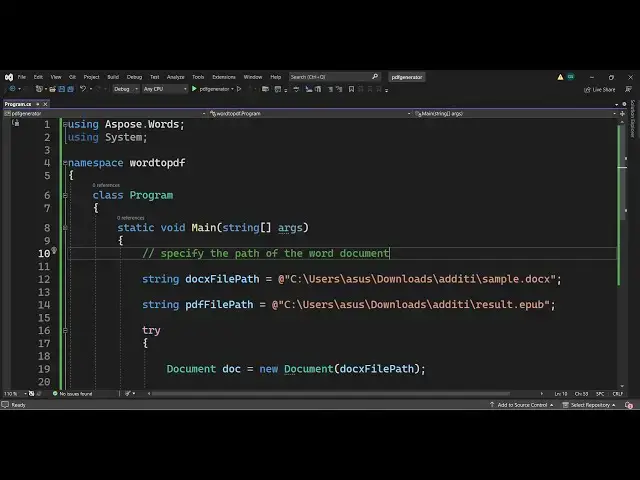
function so right here guys first of all
3:10
you need to specify the
3:13
path of the word document so where your
3:19
word document is
3:21
located so you'll simply say docs file P
3:24
we will create a variable for this and
3:27
wherever your file is located
3:30
simply you need to paste the path so my
3:33
path is located if you see it is located
3:36
this is my file so I will simply copy
3:39
this path and paste it inside my
3:42
application right here just give it a
3:46
DOT uh UND this is and then here you can
3:51
provide your path like this
3:55
slash sample. doxe this is actually the
3:59
path and similarly you'll be providing
4:01
the PDF file path where should be the
4:04
file should be
4:05
created and we will be using the same
4:08
path and we'll be calling this as
4:10
result.
4:11
PDF like this so after we provided these
4:15
paths now we can actually convert the so
4:18
it is actually a API and it's really uh
4:22
easy it's not complicated at all we will
4:25
using a simple document Constructor for
4:27
this
4:31
so in the TR catch
4:33
block so aspose do word does provide
4:40
a constru uh a
4:43
document class you will see that this is
4:47
we can create a new Constructor of it
4:50
and here you need to pass the
4:53
actual word document file that we
4:56
provided so it is actually loading this
4:58
uh file if inside this document
5:00
Constructor after this we just need to
5:03
save this uh Word document as PDF so for
5:08
doing this we have the function dog.
5:11
save function and here you can save this
5:14
to this PDF file path and you need to
5:18
provide the format here save format
5:23
dot sorry save
5:26
format and then we have various things
5:28
out there you can actually convert this
5:31
into SVG
5:33
jpg mov webp you can see all these
5:37
options are
5:38
there all these methods are there so
5:41
images text everything you can convert
5:43
to but this we need to convert this into
5:47
PDF so what I will say I will simply
5:49
select PDF and then we can simply write
5:53
on the console
5:59
PDF
6:02
generated that's all this is all the
6:04
code required and if you now run this
6:06
file you will see nothing will happen
6:09
but if you check it will actually
6:16
create uh let me
6:18
see SS
6:22
downloads first of all let me just close
6:25
the previous
6:26
ones yeah now if I run this
6:33
it is saying that process cannot access
6:35
the file because it is being used by
6:38
okay we need to close it because it's
6:40
used by another program the input file
6:43
so we need to Simply say it will take
6:46
some time and after that it will simply
6:48
say PDF generated and if you now see a
6:52
file has been created if you see result.
6:55
PDF if I open this you will actually see
6:58
all the content of word document file is
7:00
converted to PDF uh but in the free
7:03
version you need to have this
7:06
Watermark uh and uh if you need do need
7:08
to purchase it you can go to their
7:10
website and click on purchase and they
7:13
do offers license based
7:16
upon a single
7:19
user so per year where they offer the
7:23
license so once you log in
7:35
can create account here like
7:38
this sign in with your Google account so
7:41
once you are uh redirected to the
7:43
dashboard you will actually see the
7:45
pricing
7:47
information uh basically uh this is the
7:49
pricing model free model premium model
7:52
business model so for the free model it
7:54
is free forever you can access to all
7:57
the Asos applications API
8:00
but
8:01
uh the output will contain the
8:05
watermark uh they offered premium model
8:08
as well which has all these uh custom
8:12
priz as well so you can just
8:15
uh this is the pricing model and
8:21
uh if you want to convert this into
8:24
image as well you can select here
8:29
all these options are there if you see
8:32
so thank you very much guys for watching
8:34
this video if you want to convert this
8:36
into HTML you can just say
8:39
HTML so now if you
8:45
see so now it will actually convert this
8:49
into HTML document if you see now it has
8:52
been converted into HTML still it will
8:55
get uh be having this watermark
9:00
so you can see the power of this Library
9:02
guys you
9:04
can if you want to convert this into
9:15
SVG UB file if you want to convert this
9:18
into UB which is actually a eBook
9:24
type
9:27
so now it has been converted to e
9:35
eup so you can see that
9:41
so so you can see that it is a
9:44
UB file here and
9:47
uh it has
9:51
got these are the different images which
9:54
have been converted and
10:01
so in this way guys you can actually
10:03
convert any file to any format using
10:05
this as for API in c.net it's a
10:08
tremendous Library check out their
10:10
pricing model and $4 per uh USD and
10:16
uh you can go to buy now and
10:25
uh you can just see so this was the uh
10:29
tutorial guys on how to integrate this
10:31
inside
10:34
CNET thank you very much for watching
10:36
this video and I will be seeing you in
10:38
the next one
#Software
#Business & Productivity Software